Set Up Your Environment
This documentation provides step-by-step instructions for setting up your environment for developing with HOOPS Solve using C or C++.
The process includes installing a development environment, downloading and extracting the library package, and obtaining and configuring the license.
Installing Your Developer Environment
Developing applications with HOOPS Solve for Windows is typically done using the Visual Studio Integrated Development Environment (IDE).
To get started, visit the Microsoft Visual Studio download page and choose the edition of Visual Studio that suits your needs. During the installation process, make sure to select at least the Desktop development with C++ component set.
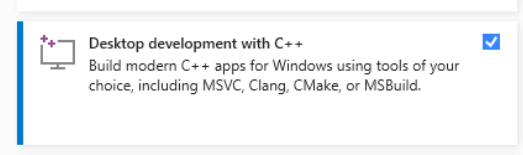
Additionally, verify that your installed compiler adheres to the Platform Requirements.
After completing the installation, restart your computer to ensure that all changes take effect.
Configure Linux:
- Go to the required components page.
- Make sure that your Minimum Supported OS and Compiler are compatible with HOOPS Solve.
Installing HOOPS Solve
Getting HOOPS Solve:
This is your first visit to our website, and neither you nor your company has ever used or licensed our products before:
Go to our User Dashboard page and click the Sign Up link.

Create your self-evaluation account. You will be emailed a link to verify your account details.
Once you’ve verified your account, click on Product Downloads and then Download HOOPS Solve to be taken to the Developer Zone.
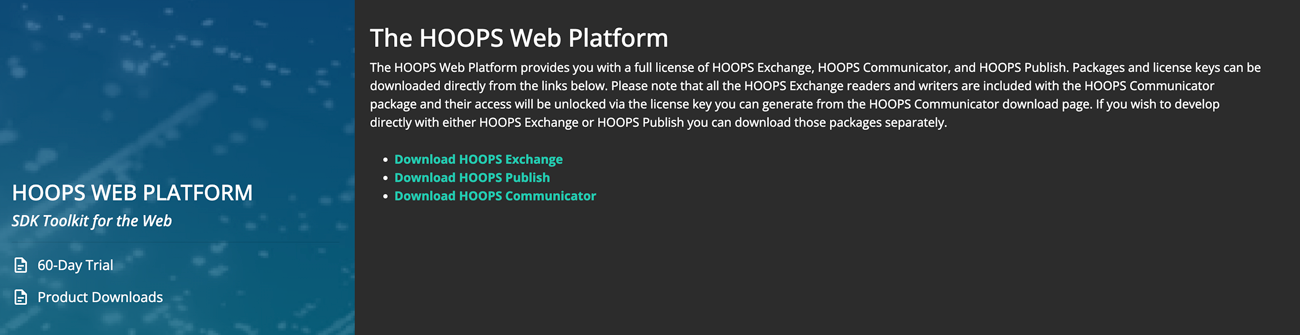
Lastly, click the Download button.
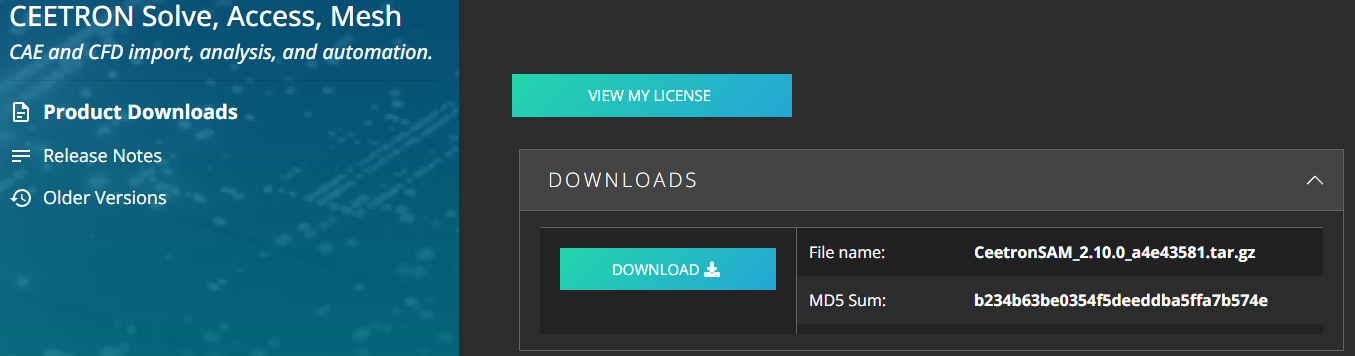
The evaluation package is available as a .tar.gz file archive.
Read the Package Contents page for more information about the download package content.
You can use either a built-in extractor or third-party software to extract the contents to your chosen destination folder.
Obtaining, Setting Up and Checking the License:
Before you can use this product, you must have a valid HOOPS Solve license:
The generated key is permanent and accessible from the Developer Zone at any time during your evaluation.
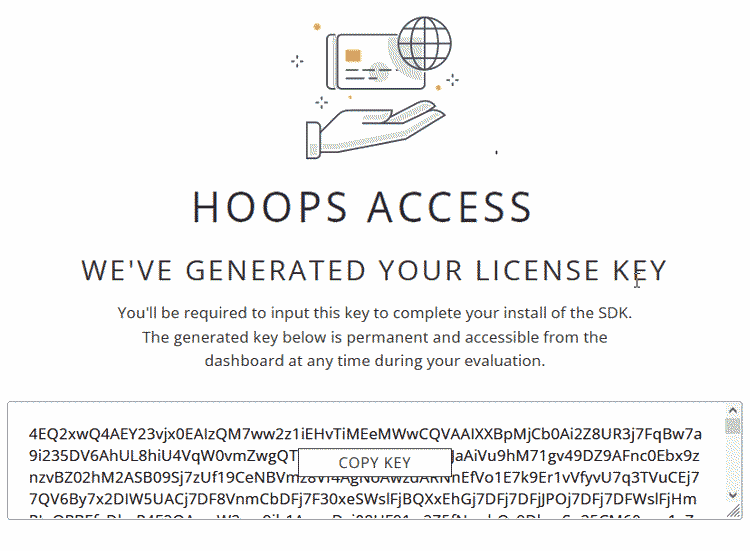
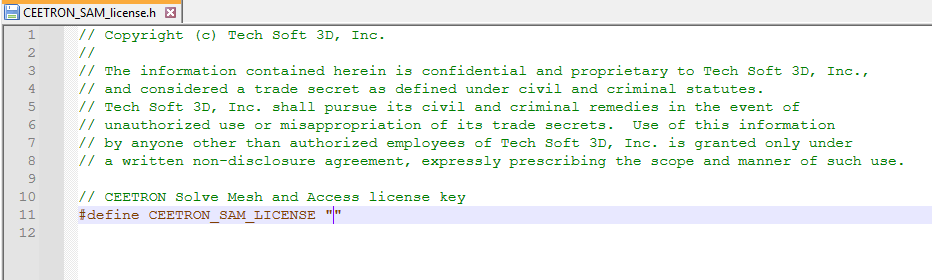
You will need to copy and paste your new license key into the license file available in your installation folder:
- Locate the folder where you have previously extracted HOOPS Solve on your system.
- Navigate to the
../src/sam/directory. - Edit the file
hoops_license.hand enter your new license key.
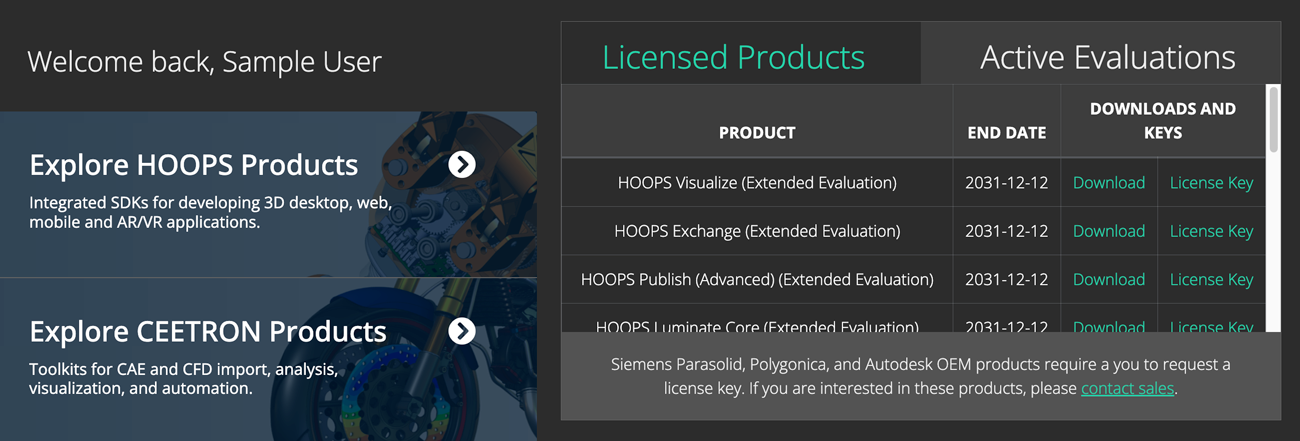
From the Developer Zone, clicking Active Evaluations at the top right of the page and then License Key will give you access to your license status.
HOOPS Solve only requires a new license key if you are currently using a key which was generated for a prior major version. For example, developers upgrading from HOOPS Solve 2.10.0 to HOOPS Solve 2.11.0 may use the same key, but those upgrading from 2.0 to 3.0 need to generate a new key.
The expiration date for the generated license key is tied to your contract with Tech Soft 3D. If you have signed a license agreement for HOOPS Solve, then the license key that is generated will be a perpetual (non-expiring) license key. If you are evaluating HOOPS Solve, then the license key will expire when your evaluation expires. Evaluation license keys will expire at the end of the evaluation period and are not suitable for production software. Any software that uses an evaluation license key will no longer work after the evaluation period.
HOOPS Solve releases are not binary compatible with older releases. You must recompile your application when updating to a new version of HOOPS Solve.
Getting HOOPS Solve:
Your company is already evaluating or licensing one of our products, go to the Developer Zone.
At the top right of the page, click on the Sign In button:
If you have an existing account, simply enter your credentials.
If your company is already licensing our technology, please contact us.
After our team has attached your contact to your company records, you will receive a personal invitation to log in.
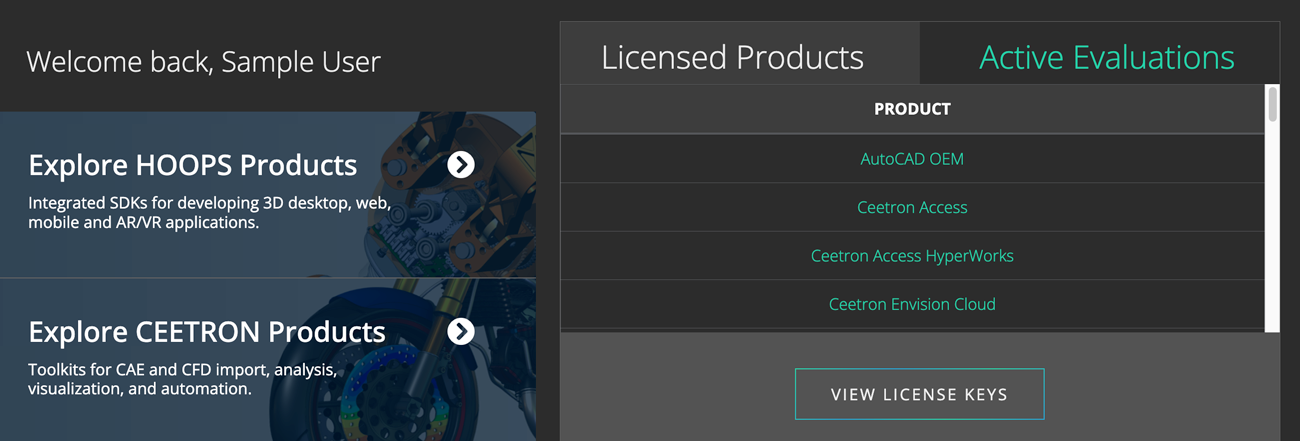
From here, you can download:
- Your license file (perpetual and evaluation license key).
- Compressed file archives of current and previous versions for Windows and Linux.
- All of our other HOOPS, Partners, and OEM CAD technologies and viewers.
Read the Package Contents page for more information about the download package content.
You can use either a built-in extractor or third-party software to extract the contents to your chosen destination folder.
Obtaining, Setting Up and Checking the License:
Existing partners can download the Distribution Archive and License File from the Developer Zone:
Visit the Developer Zone and click the View License Keys button.
- Copy the license key string.
- Locate the folder where you have previously extracted HOOPS Solve on your system.
- Navigate to the
../src/sam/directory. - Open the file
hoops_license.hand insert your new license key.
HOOPS Solve only requires a new license key if you are currently using a key which was generated for a prior major version. For example, developers upgrading from HOOPS Solve 2.10.0 to HOOPS Solve 2.11.0 may use the same key, but those upgrading from 2.0 to 3.0 need to generate a new key.
The expiration date for the generated license key is tied to your contract with Tech Soft 3D. If you have signed a license agreement for HOOPS Solve, then the license key that is generated will be a perpetual (non-expiring) license key. If you are evaluating HOOPS Solve, then the license key will expire when your evaluation expires. Evaluation license keys will expire at the end of the evaluation period and are not suitable for production software. Any software that uses an evaluation license key will no longer work after the evaluation period.
HOOPS Solve releases are not binary compatible with older releases. You must recompile your application when updating to a new version of HOOPS Solve.
Need Help ?
The environment is ready. Continue with Building with |ProductName| to compile and link the first program.
For additional support, refer to the support resources or the forum.