
Activation and Registration
The Tetra4D Automate license is based on two elements that will be provided by the Tetra4D support:
A serial number,
The Tetra4D Automate licensing system makes it possible to activate your license on-line if the computer is connected to the Internet, or off-line if the computer is not connected to the Internet.
License Activation (on-line)
The procedure to activate your license is described below. To access to the activation dialog:
Open a Windows Explorer
Open the folder where the Tetra4D Automate has been installed
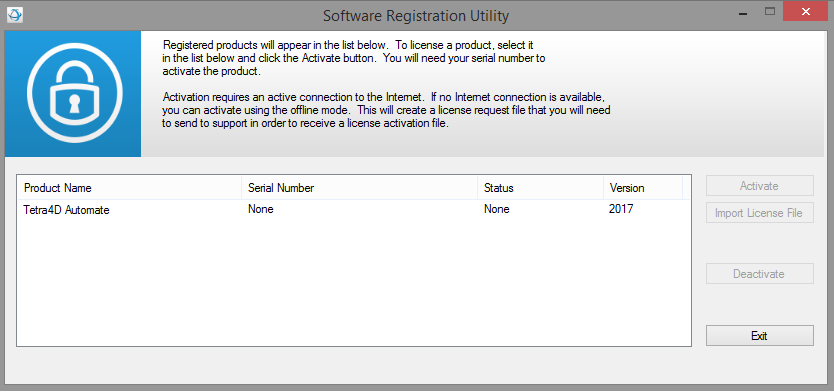
- Run startLicenseManager.batThis batch program starts the Registration utility program
Note
The Tetra4D License Manager tool lists:
The installed Tetra4D products
The status of each product (Trial mode, registered…)
The version of each product
Select the Tetra4D Automate product
Click on Activate
Input your serial number
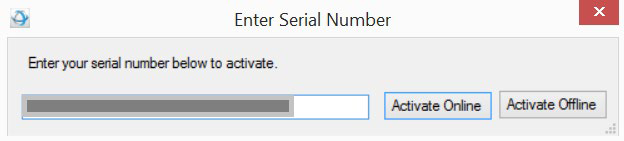
Click on Activate Offline
Click Exit to close the window.
- Copy the “Module” file that has been delivered along your serial number into C:\ProgramData\TechSoft3D\License
License Activation (off-line)
Tetra4D Automate enables an off-line activation of the license. The procedure to activate your license is described below. To access to the activation dialog:
Open a Windows Explorer
Open the folder where the Tetra4D Automate has been installed
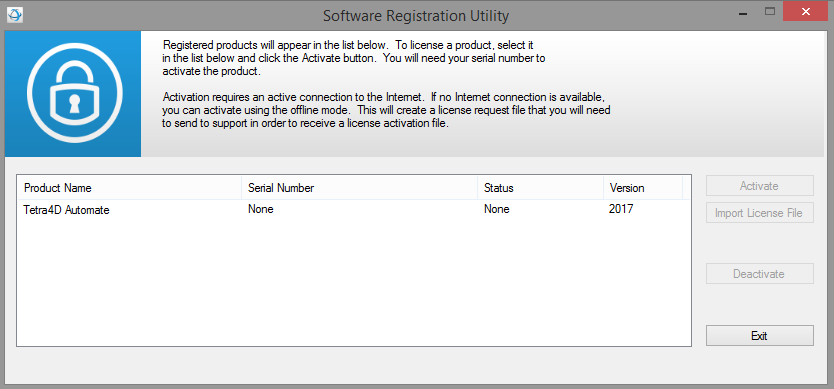
- Run startLicenseManager.batThis batch program starts the Registration utility program
Note
The Tetra4D License Manager tool lists:
The installed Tetra4D products
The status of each product (Trial mode, registered…)
The version of each product
Select the Tetra4D Automate product
Click on Activate
Input your serial number
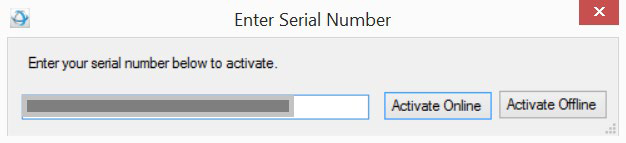
Click on Activate Offline
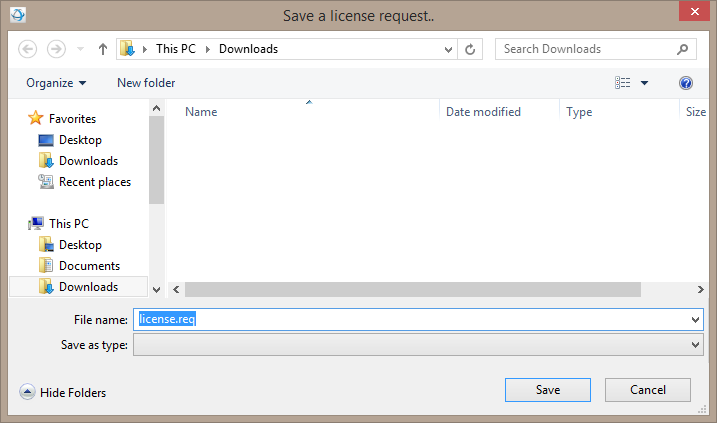
Save the Offline_activation_ XXXXXXX-XXXXXXXXXX-XXXXXXX-XXXXX _macAddress.req file generated by the license manager
Send the Offline_activation_ XXXXXXX-XXXXXXXXXX-XXXXXXX-XXXXX _macAddress.req file to support@tetra4d.com
Click Exit to close the window.
Our support staff will send 2 license files corresponding to the computer from which you issued the activation request
Note
The files you will receive will be named as shown below:
XXXXXXX-XXXXXXXXXX-XXXXXXX-XXXXX _macAddress.license
TetraAutomate2017Test.modules
Copy the 2 delivered files into C:\ProgramData\TechSoft3D\License
Click Exit to close the window.