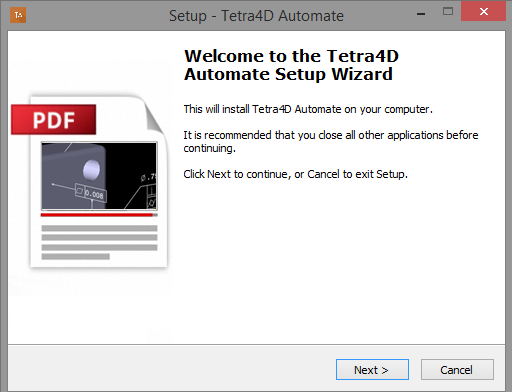
Download and run the “Tetra4D Automate” installer. The installer should have been emailed to you along with your license/serial number. You can also find it in your Customer Portal.
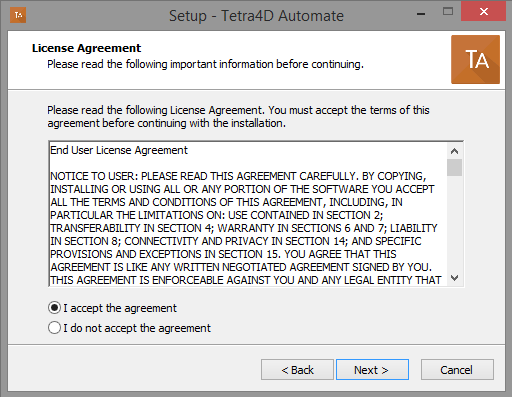
Read and accept the End User License Agreement
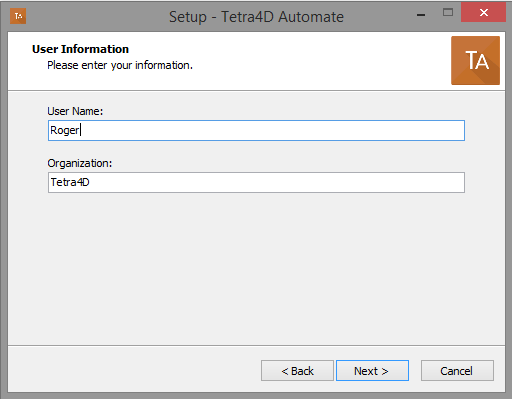
Enter your user information (optional), then click Next to continue:
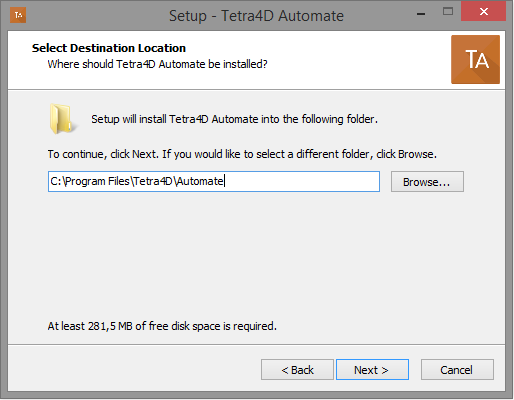
Select the installation folder, then click Next to continue:
Remark:
The installation process will create the main folder and a set of sub-folders, including a
sample data set that can be used to for deployment.
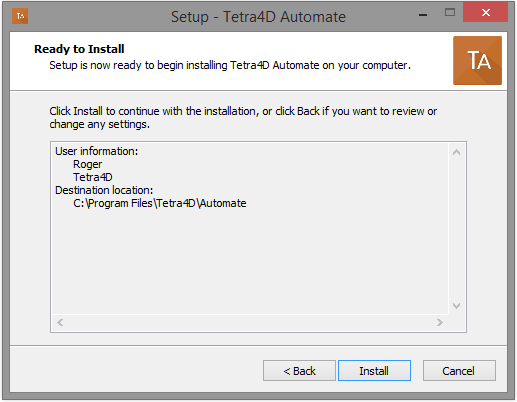
Review the installation information and click Install:
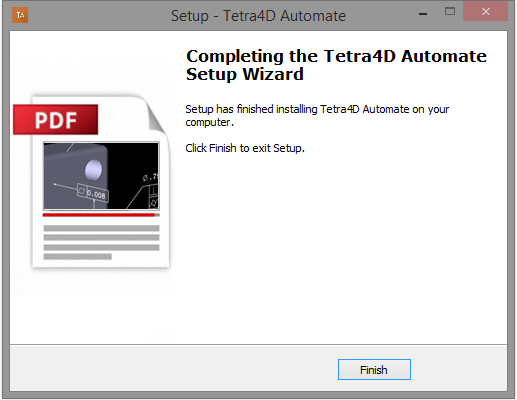
At the end of the installation process, click Finish.
Conversation saved
FOURDY BETA
Hello! I'm FOURDY
Your multilingual generative AI assistant for documentation. Ask me anything about Tetra4D Automate in your own language, or choose a sample question below to start a conversation:
What is Tetra4D Automate?
What are the latest release notes for Tetra4D Automate?
How do I start evaluating Tetra4D Automate?
How can I get assistance?
FOURDY may store conversations according to OpenAI's policy. Responses may not always be accurate.