Presentation of samples
Prior to any installation, please check with your Tetra4D software provider the requirements and recommendations to run the Tetra4D “Automate”.
Introduction
The Sample folder, its sub-folders and all the contained files are provided as samples of Tetra4D Automate implementations.
- Remark:
Depending on the customer environment and on the deployment requirements, the implementation may differ.
This data set is meant to easily and quickly understand:
How the software can be triggered:
Command line with the arguments
Watched folder
The formats of the different XML files:
Conversion settings
Import of external attributes
The SAMPLES folder is organized as follows:
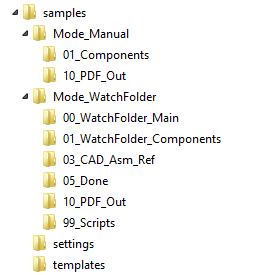
SAMPLES (root folder)
The root folder contains the sub-folders:
“Manual mode” sample description
Sample organization
Mode_Manual (root folder)
The root folder contains:
- Files:
10_start_ViewComponent.bat
20_start_PartList.bat
30_start_PartList_ImportBOM.bat
40_start_EngineeringDataRelease.bat
50_start_ConvertToHTML.bat
60_start_ConvertToHTML_Offline.bat
70_Convert3DToHTML.bat
Description of the script: 10_start_ViewComponent.bat
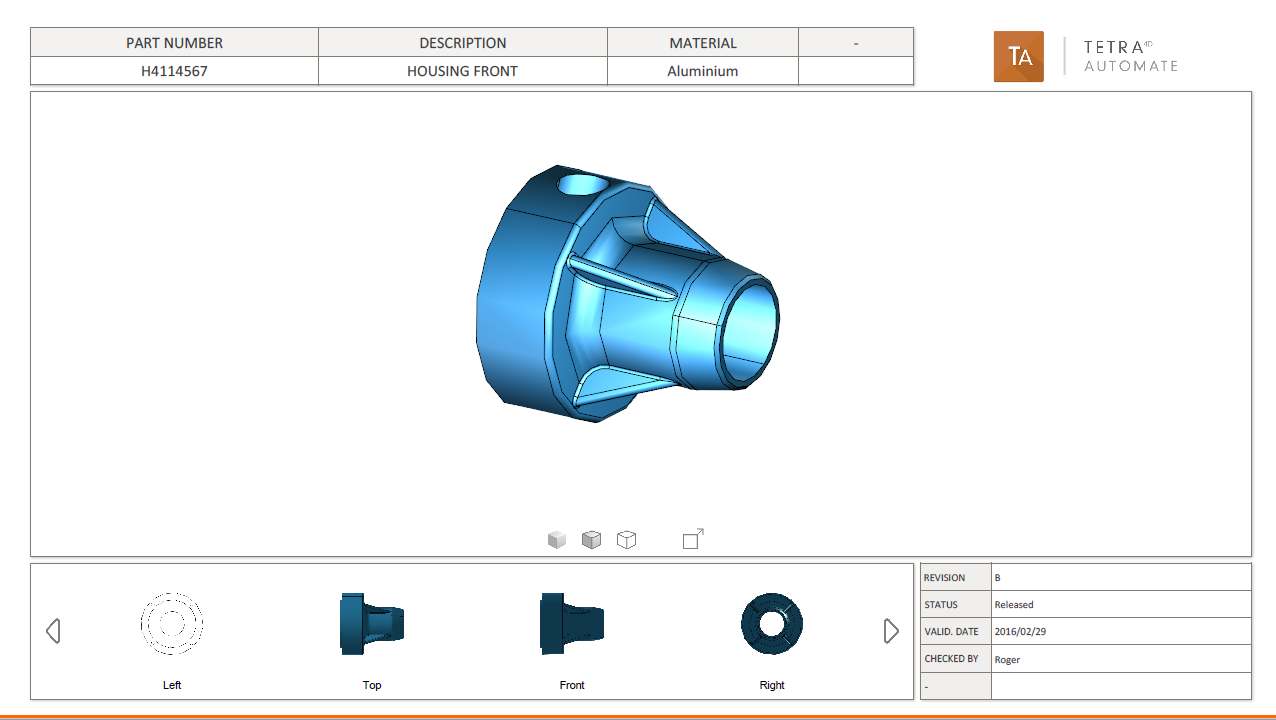
This sample illustrates the generation of a component visualization PDF document.
Script
This script triggers Tetra4D Automate with the following arguments:
"%ROOT_DIR%\Automate.exe"^
-pdfin "%TEMPLATES_DIR%\Template_Automate_ViewComponent.pdf"^
-libdir "%ROOT_DIR%\."^
-3dfilein "%CAD_DIR%\housing front.CATPart"^
-xmldatafieldsin "%CAD_DIR%\HousingFront_Import_TITLEBLOCK.xml"^
-3doptions "%SETTINGS_DIR%\automate_settings_manual.xml"^
-outfname "%OUT_DIR%\Tetra4D_HousingFront_ViewComponent.pdf"^
-outlog "%OUT_DIR%\Tetra4D_HousingFront_ViewComponent.log"
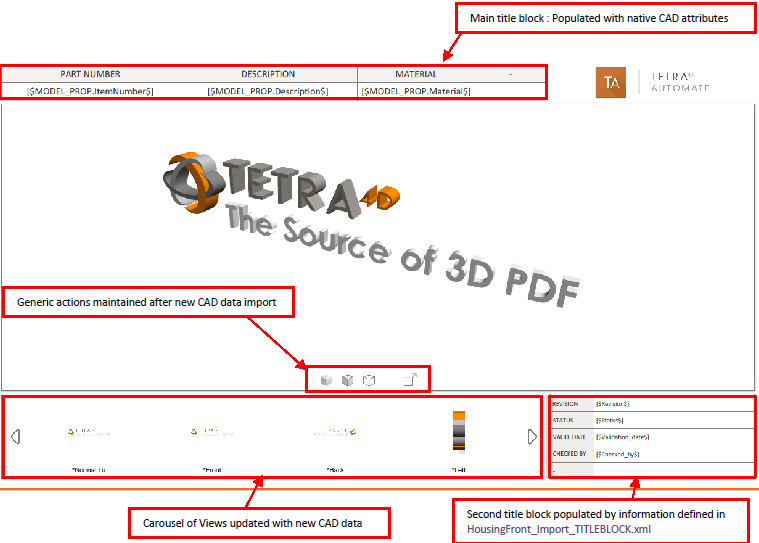
Template: Template_Automate_ViewComponent.pdf
Running the sample
In Windows Explorer, double click on the script 10_start_ViewComponent.bat A command window appears during the conversion process and can be closed by the user by pressing any key, when the process will be ended. Open the folder 10_PDF_Out to access to the results.
Remark: 3 files are created:
PDF file
Short log file
Verbose log file.
Results:
Description of the script: 20_Start_PartList.bat
This sample illustrates the generation of a part list PDF document.
Script
This script triggers Tetra4D Automate with the following arguments:
"%ROOT_DIR%\Automate.exe"^
-pdfin "%TEMPLATES_DIR%\Template_Automate_PartList.pdf"^
-libdir "%ROOT_DIR%\."^
-3dfilein "%CAD_DIR%\_micro engine.CATProduct"^
-xmldatafieldsin "%CAD_DIR%\MicroEngine_Import_TITLEBLOCK.xml"^
-xmlattribsin "%CAD_DIR%\MicroEngine_Import_ATTRIB.xml"^
-3doptions "%SETTINGS_DIR%\automate_settings_manual.xml"^
-outfname "%OUT_DIR%\Tetra4D_Micro_Engine_PartList.pdf"^
-outlog "%OUT_DIR%\Tetra4D_Micro_Engine_PartList.log"
Template: Template_Automate_PartList.pdf
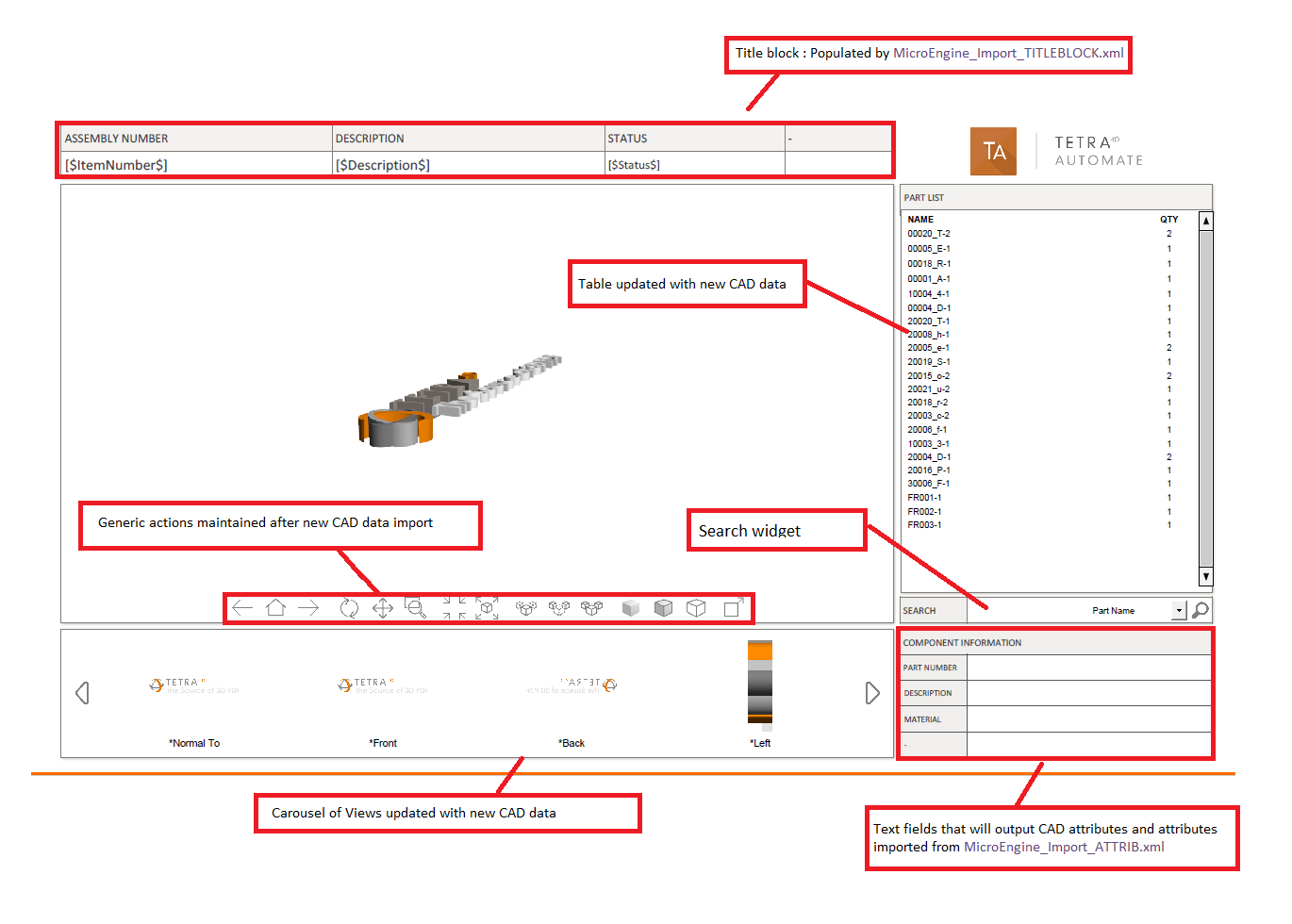
Running the sample
In Windows Explorer, double click on the script 20_start_PartList.bat A command window appears during the conversion process and can be closed by the user by pressing any key, when the process will be ended.
Open the folder 10_PDF_Out to access to the results.
Remark:
3 files are created:
PDF file
Short log file
Verbose log file.
Results:
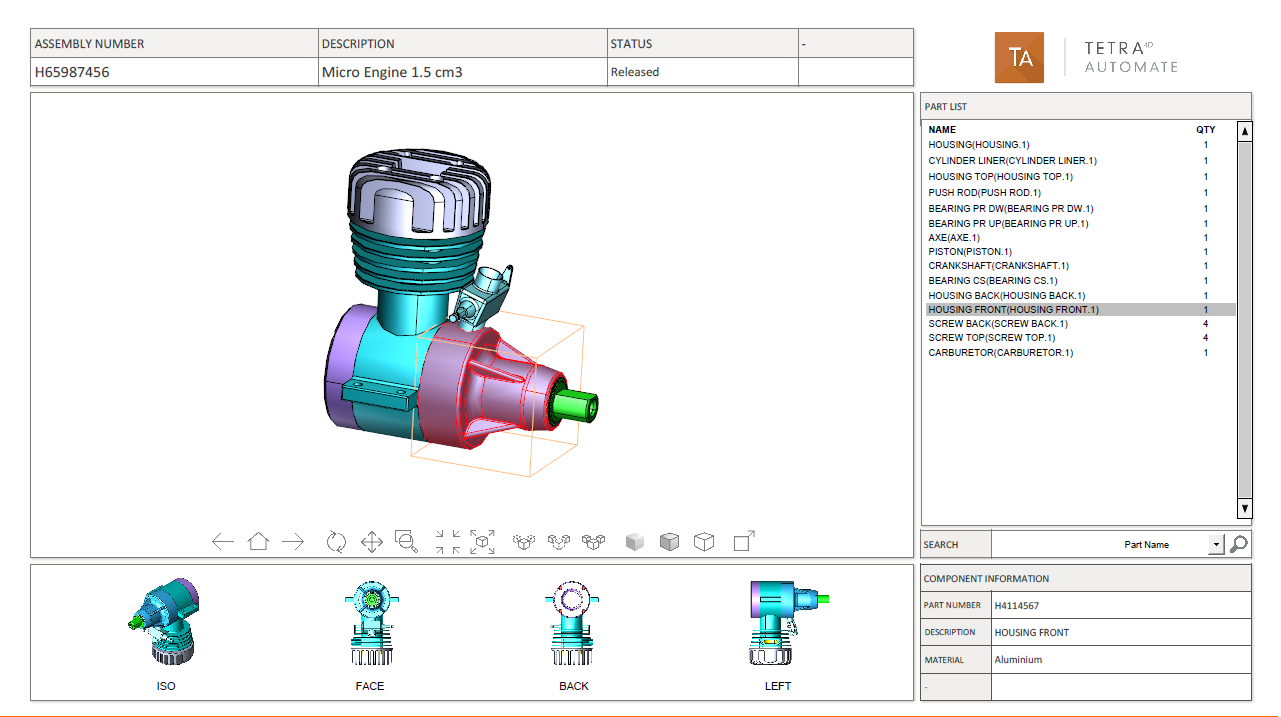
Description of the script: 30_Start_PartList_ImportBOM.bat
This sample illustrates the generation of a part list PDF document having an imported part (XML file) list instead of a calculated one.
Script
This script triggers Tetra4D Automate with the following arguments:
"%ROOT_DIR%\Automate.exe"^
-pdfin "%TEMPLATES_DIR%\Template_Automate_PartList_InportBOM.pdf"^
-libdir "%ROOT_DIR%\."^
-3dfilein "%CAD_DIR%\_micro engine.CATProduct"^
-xmldatafieldsin "%CAD_DIR%\MicroEngine_Import_TITLEBLOCK.xml"^
-xmlattribsin "%CAD_DIR%\MicroEngine_Import_ATTRIB.xml"^
-xmlimport "%CAD_DIR%\BOM_Import.xml"^
-3doptions "%SETTINGS_DIR%\automate_settings_manual.xml"^
-outfname "%OUT_DIR%\Tetra4D_Micro_Engine_PartList_BOM.pdf"^
-outlog "%OUT_DIR%\Tetra4D_Micro_Engine_PartList_BOM.log"
Template: Template_Automate_PartList_ImportBOM.pdf
This template is similar to the one from previous sample, except for the part list that has been imported and mapped with the 3D annotation (this operation is mandatory to enable the update of template by Automate with a BOM import).
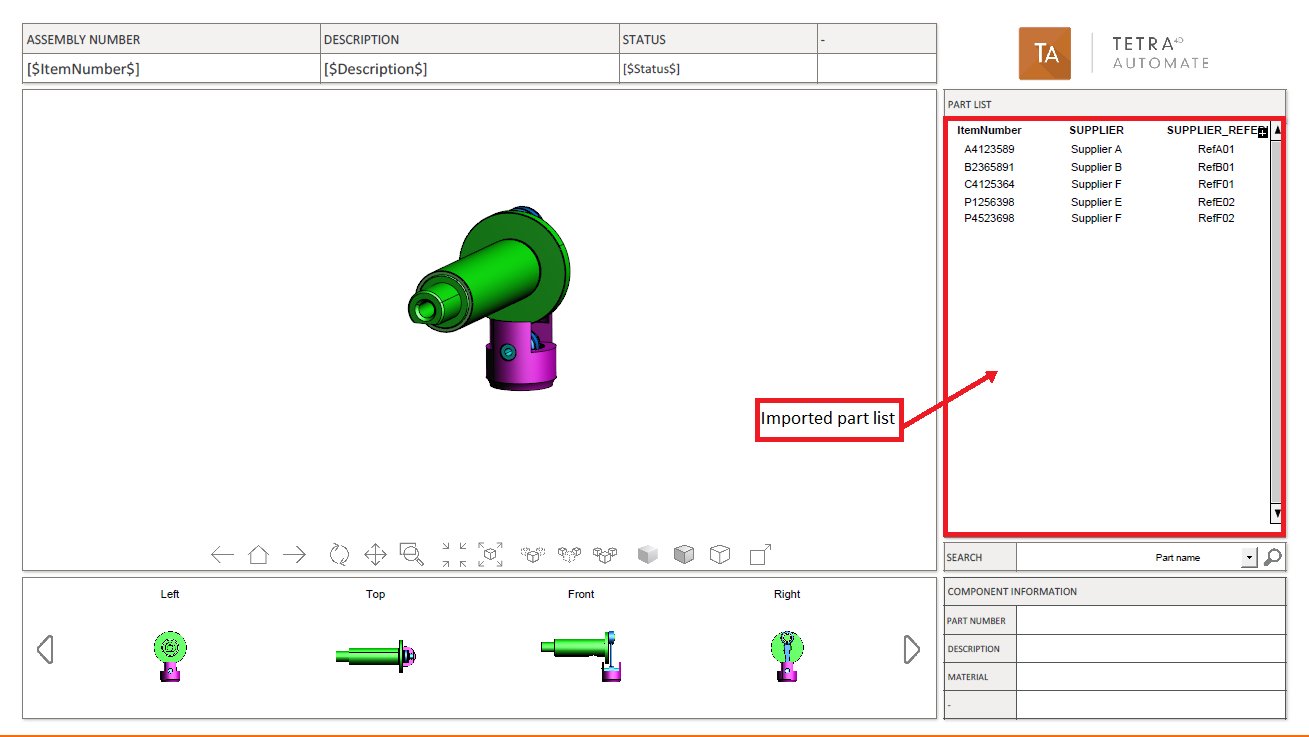
Running the sample
In Windows Explorer, double click on the script 30_start_PartList_ImportBOM.bat A command window appears during the conversion process and can be closed by the user by pressing any key, when the process will be ended.
Open the folder 10_PDF_Out to access to the results.
Remark:
3 files are created:
PDF file
Short log file
Verbose log file.
Results:
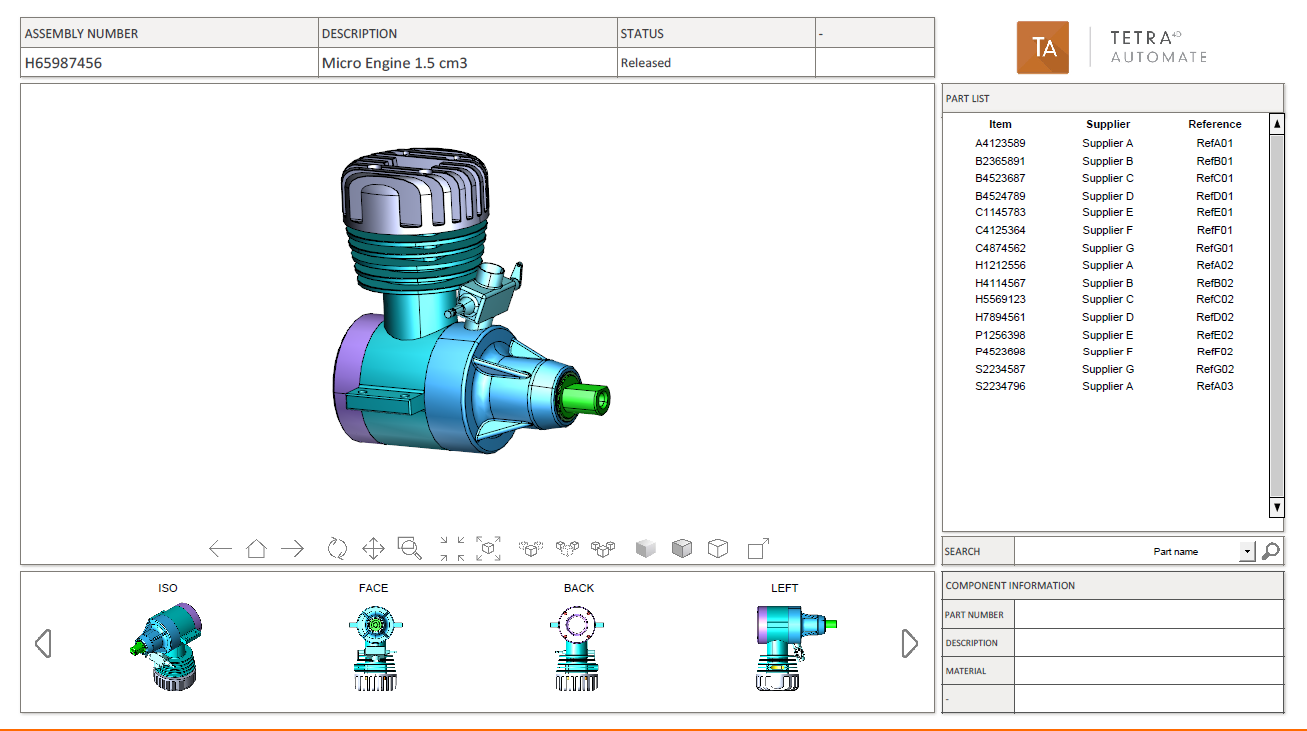
Description of the script: 40_EngineeringDataRelease.bat
This sample illustrates the generation of a “Technical data package” PDF document having an attached STP file. This sample is based on two conversions done by Tetra4D Automate:
First conversion: CAD file into a STEP file
Second conversion: CAD file into a PDF document, with attachment of the existing STEP file.
Remark: The export feature to neutral formats such as STEP, IGES… is an option of Tetra4D Automate.
Script
The script triggers 2 conversions:
Conversion into STEP
"%ROOT_DIR%\Automate.exe"^
-pdfin "%TEMPLATES_DIR%\Template_Automate_EngineeringDataRelease.pdf"^
-3dfilein "%CAD_DIR%\BracketMachined.catpart"^
-3doptions "%SETTINGS_DIR%\automate_settings_manual_ExportStep.xml"^
-outfname "%OUT_DIR%\Tetra4D_BracketMachined.stp"^
-outlog "%OUT_DIR%\Tetra4D_EngineeringDataRelease_STP.log"
Conversion into PDF
"%ROOT_DIR%\Automate.exe"^
-pdfin "%TEMPLATES_DIR%\Template_Automate_EngineeringDataRelease.pdf"^
-libdir "%ROOT_DIR%\."^
-3dfilein "%CAD_DIR%\BracketMachined.catpart"^
-3doptions "%SETTINGS_DIR%\automate_settings_manual.xml"^
-attachfile "%OUT_DIR%\Tetra4D_BracketMachined.stp"^
-outfname "%OUT_DIR%\Tetra4D_EngineeringDataRelease.pdf"^
-outlog "%OUT_DIR%\Tetra4D_EngineeringDataRelease.log"
Remark:
A template must be specified during the export to neutral format, even if it won’t be used. The nature of the export format is specified in the conversion settings XML file.
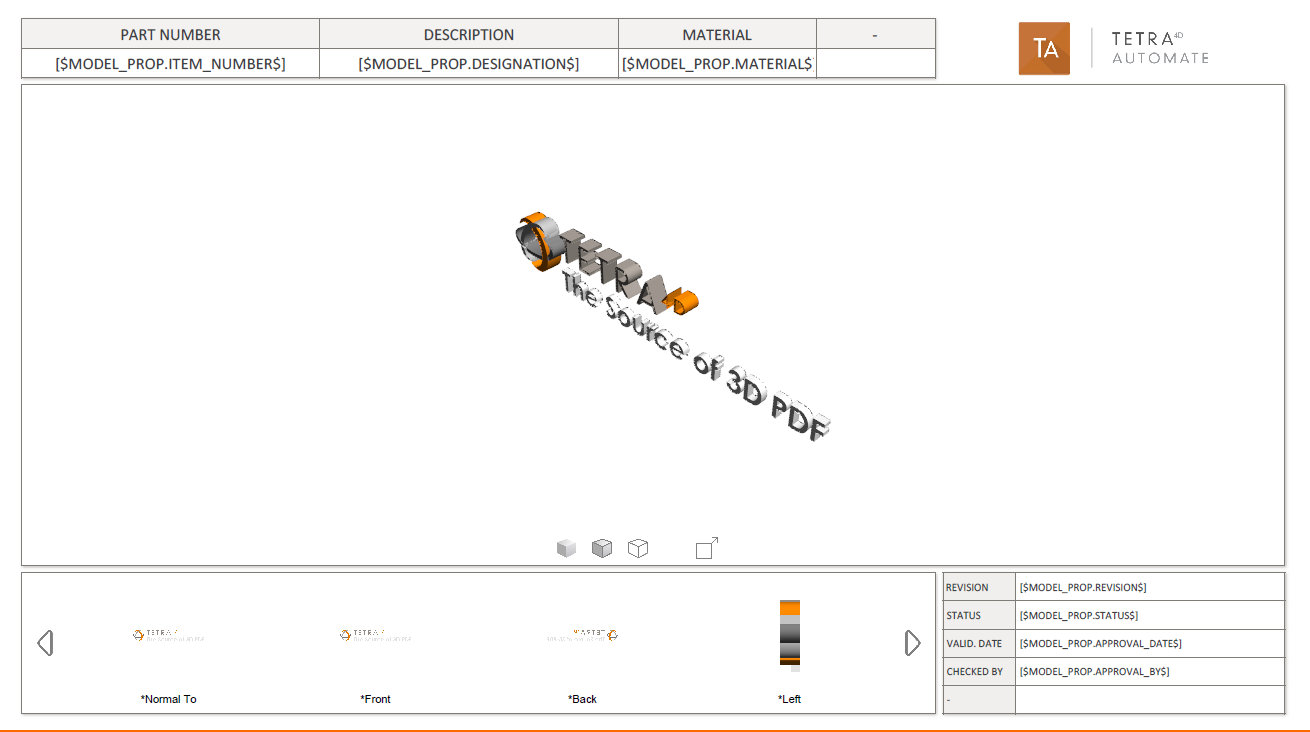
Template: Template_Automate_PartList_ImportBOM.pdf
This template is similar to the one used with the first sample.
Running the sample
In Windows Explorer, double click on the script 40_start_EngineeringDataRelease.bat A command window appears during the conversion process and can be closed by the user by pressing any key, when the process will be ended.
Open the folder 10_PDF_Out to access to the results.
Remark:
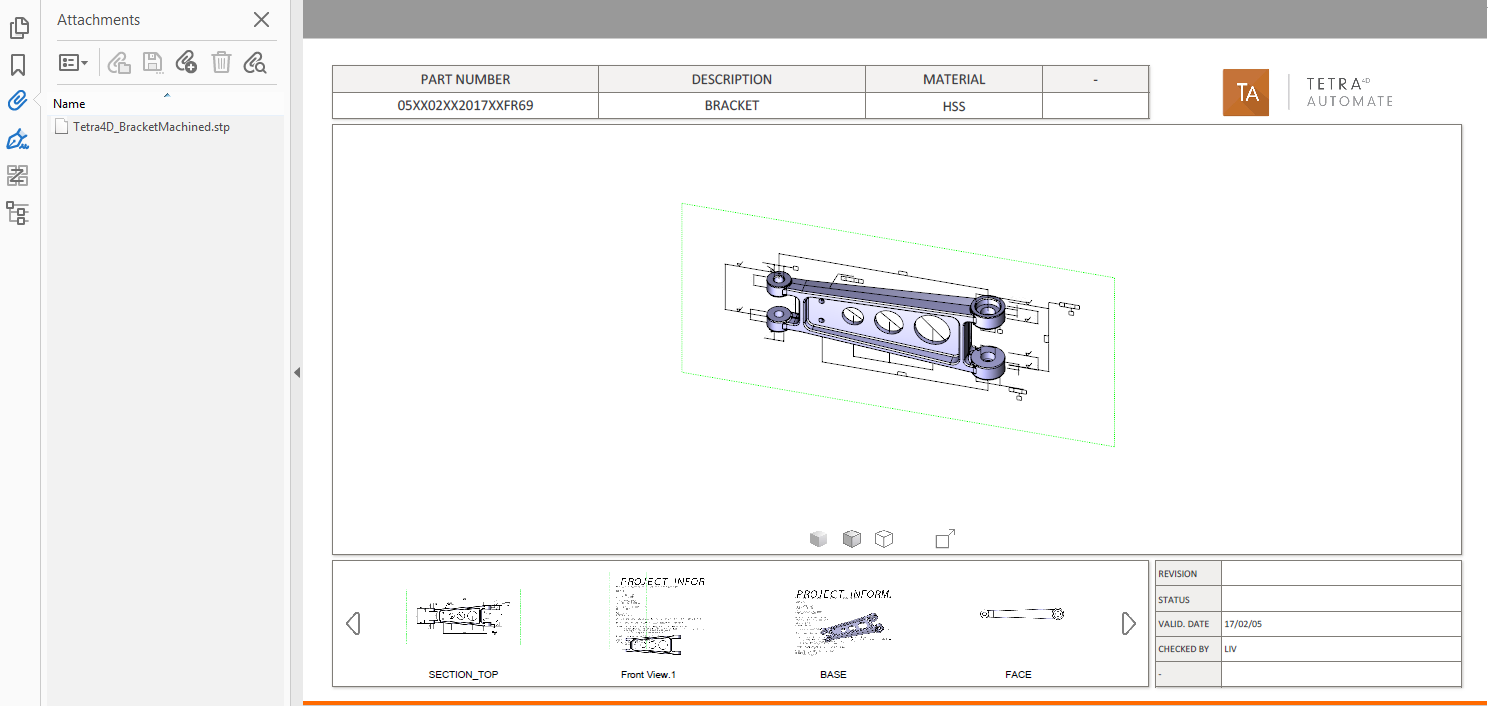
6 files are created:
STEP file, Short log file for STEP, Verbose log file for STEP
PDF file, Short log file for PDF, Verbose log file for PDF
Results:
Description of the script: 50_start_ConvertToHTML.bat
This sample illustrates the generation of a HTML document from an existing 3D PDF, and how to visualize it.
Script
This script triggers Tetra4D Automate to convert a 3D PDF file into an HTML file. It also starts a client server process to open the default web browser with the URL to view the Html file:
"%ROOT_DIR%\Automate.exe"^
-pdfin "%TEMPLATES_DIR%\Template_Automate_PartList_ImportBOM.pdf"^
-3doptions "%SETTINGS_DIR%\automate_settings_manual.xml"^
-outfname "%OUT_DIR%\PdfTemplate_Automate_PartList_ImportBOM.xml"^
-outlog "%OUT_DIR%\PdfTemplate_Automate_PartList_ImportBOM.log"
start start_server.bat
start "" ^
"http://localhost:11180/viewer.html?sample=PdfTemplate_Automate_PartList_ImportBOM&mode
ltree=none&toolbar=none"
First step:
Triggers Tetra4D Automate to export HTML and the associated XML files from the PDF file in input:
-pdfin
The two generated files are put in the folder:
samples\Mode_Manual\20_HTML_Out\root\PdfContent
Second step:
Remark:
You need Python version 3.4.XX at least to be installed You can retrieve it from the official Python download page.
Launches a client/server mode, which uses the 2 previous file XML and HTML generated. The XML file is the entry point of all. It represents the PDF document. The XML and HTML files will be parsed and displayed in the browser by a client web viewer that is provided as part of Automate.
See the samples directory in the package download:
samples\ samples\Mode_Manual\20_HTML_Out.To help testing this functionality, a simple HTTP server is provided, and can be launched by clicking on:
samples\Mode_Manual\20_HTML_Out\start_server.bat.
Third step:
Opens the following URL in your browser:
localhost:11180/viewer.html?sample=
PdfTemplate_Automate_PartList_ImportBOM
You can load your own 3D PDF converted into HTML by updating the sample query string parameter with the XML file name describing your document without the .xml file extension:
localhost:11180/viewer.html?sample=XmlFilenameWithoutExtensionRemark:
Be sure to properly URL-encode ‘XmlFilenameWithoutExtension’. For instance, there are no spaces in a URL, so any space character in your file name must be replaced by “%20” (without the quotes) for a space character. See: https://www.w3schools.com/tags/ref_urlencode.asp for more information about URL encoding.
By default, the viewer of a 3D annotation will display a toolbar and a panel will display the model tree and views. You can hide them by adding the following to your query string:
&modeltree=none to hide the panel with the model tree and views.
&toolbar=none to hide the toolbar.
See the “Browser Compatibility” chapter to correctly open the generated html file.
Description of the script: 60_start_ConvertToHTML_Offline.bat Offline viewing
The python script convert_offline.py is provided to enable an offline consumption of the Html
file.
It merges the generated XML/HTML/attachments files to remove cross file references.
This mode of consumption enables a lighter integration of the produced files.
For instance:
Direct access on the intranet
Simple mobile reading
Script
This script triggers Tetra4D Automate to convert a 3D PDF file into HTML for off-line consumption:
"%ROOT_DIR%\Automate.exe"^
-pdfin "%TEMPLATES_DIR%\Template_Automate_PartList_ImportBOM.pdf"^
-3doptions "%SETTINGS_DIR%\automate_settings_manual.xml"^
-outfname "%OUT_DIR%\PdfTemplate_Automate_PartList_ImportBOM.xml"^
-outlog "%OUT_DIR%\PdfTemplate_Automate_PartList_ImportBOM.log"

python convert_offline.py "%OUT_DIR%\PdfTemplate_Automate_PartList_ImportBOM.xml"
"%HTML_ROOT_DIR%" "%HTML_ROOT_DIR%\viewer.html" notoolbar nomodeltree
First step:
Triggers Tetra4D Automate to export HTML and the associated XML files from the PDF file in input:
-pdfin
The two generated files are put in the folder:
samples\Mode_Manual\20_HTML_Out\root\PdfContent
Second step:
- Remark:
You need Python version 3.4.XX at least to be installed You can retrieve it from the official Python download page.
Then from a command line tool, change to 20_HTML_Outdirectory and use the script as below:
python convert_offline.py LAYOUT_XML_FILE VIEWER_HTML_FILE OUTPUTDIR
[nomodeltree] [notoolbar]
Input files:
LAYOUT_XML_FILE:
Input layout XML file
VIEWER_HTML_FILE: Input viewer.html file
Output:
OUTPUT_DIR: The output directory This directory will contain the generated file. The file will be named after the XML file.
For instance, entering:
python convert_offline.py
root\PdfContent\PdfTemplate_Automate_PartList_ImportBOM.xml
root\ root\viewer.html notoolbar nomodeltree
Will result in the generation of root\sample_DemoDataModel.html This Html file can be accessed by directly clicking on it.
- Remark:
Be careful, even if the consumption can be done without any HTTP server, you need to keep the following folders and files installed on the computer where the Html is accessed:
root\css, root\js, root\rscand the file:
root\BrowserNotSupported.htmlto read:
root\sample_DemoDataModel.html.- Remark:
It is possible to remove the dependencies mentioned above so that the Html becomes self-containing and monolithic. Please contact our support team for any information about this.
See the “Browser Compatibility” chapter to correctly open the generated html file.
Browser compatibility
The generated document can be viewed using:
Microsoft Edge 19+
Google Chrome 69+
Safari 11.1+
Firefox 60+
Description of the script: 70_Convert3DToHTML.bat
This sample illustrates the direct creation of a html file from a 3D CAD model and a HTML template. The generated HTML file can be consumed without any HTTP server on all kind of browsers/devices.
Script
This script triggers Tetra4D Automate with the following arguments:
Conversion into STEP
"%ROOT_DIR%\Automate.exe"^
-htmlin "%TEMPLATES_DIR%\export3dtohtml_template_custom.html"^
-3dfilein "%CAD_DIR%\_micro engine.CATProduct"^
-3doptions "%SETTINGS_DIR%\automate_settings_manual_Export3DToHTML.xml"^
-outfname "%OUT_DIR%\Tetra4d_Micro_Engine.html"^
-outlog "%OUT_DIR%\Tetra4d_Micro_Engine.log"
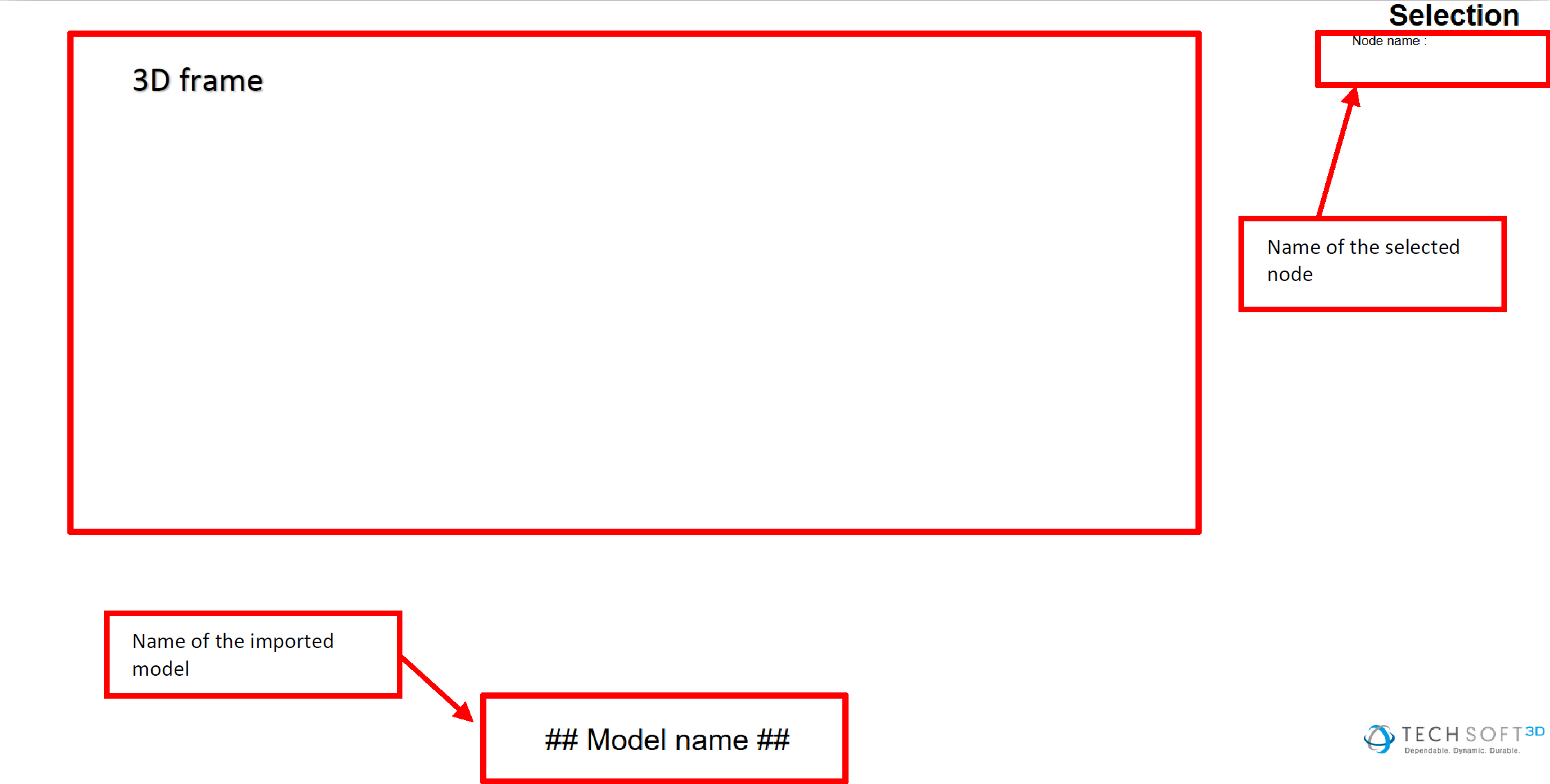
Template: export3dtohtml_template_custom.html
This file is a basic template provided as an example. Please contact our support team for any information about customization.
Running the sample
In Windows Explorer, double click on the script _Convert3DToHTML.bat A command window appears during the conversion process and can be closed when the process ends by pressing any key. Open the folder 20_HTML_Out to access to the results.
Remark:
3 files are created:
Monolithic HTML file
Short log file
Verbose log file
Results:
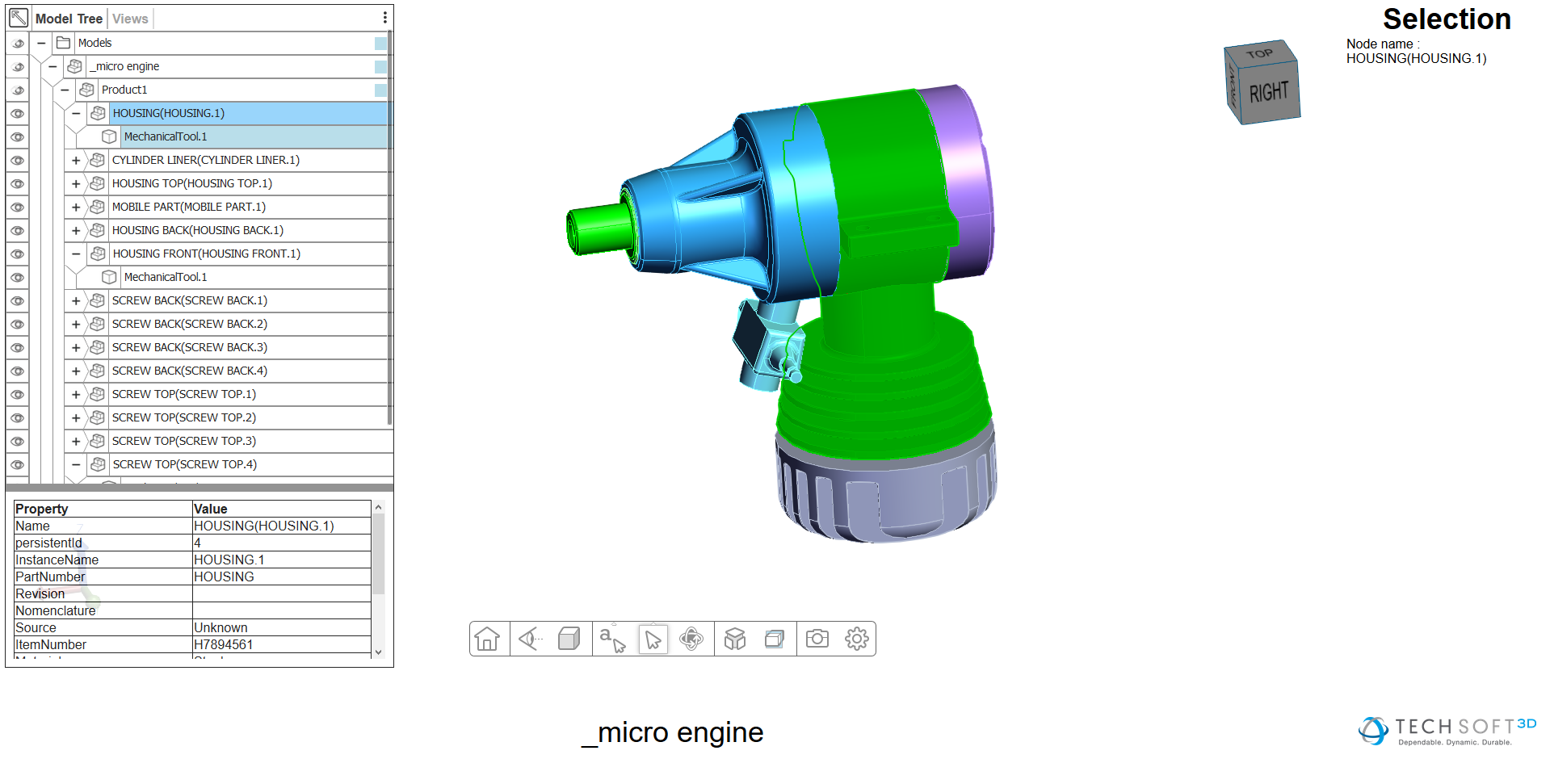
Users can navigate the model tree, calculate physical properties, query user attributes, perform measurements, and navigate the View and PMI data.
Browser compatibility
The generated document can be viewed using:
Microsoft Edge 19+
Google Chrome 69+
Safari 11.1+
Firefox 60+
“Watch folder mode” sample description
Important
This sample is based on a basic folder organization and on simple scripts that enable to illustrate how Tetra4D Automate could be triggered by a “watch-folder” method (meaning that the generation is triggered when a file is copied in the Watch-folder). The provided folder organization and scripts are not meant to be directly deployed in a production environment. According to the customer requirements and environment, the Tetra4D Automate invocation method may differ.
This provided scripts are not supported by Tetra 4D.
Sample organization
- Mode_WatchFolder(root folder)The root folder contains:
Files:
start_WatchFolderMode.bat
- 00_WatchFolder_MainMain watch folder.
- 01_WatchFolder_ComponentsComponents watch folder
- 03_CAD_Asm_refSample CAD assembly (full assembly)
- 05_doneFolder where the processed files (from the Main watch folder) are copied after theconversion.
- 10_PDF_OutConversion output folder where the PDF document and the Log files are written by Tetra4DAutomate.
- 99_ScriptsScripts used to manage the watch-folder mechanism and to trigger the conversion in case ofa new file to be converted.
Description of the sample
This sample has been designed to convert single components or assemblies into 3D PDF documents.
Important
Since the conversion is based on a watch-folder mechanism (meaning that the end user will copy his files into the watch folder in order to trigger the conversion) the aggregation of meta-data from external XML file and the import of title block from an XML file haven’t been implemented. However, it could be possible to modify the scripts in order to manage these additional XML files.
Template: Template_Automate_PartList.pdf
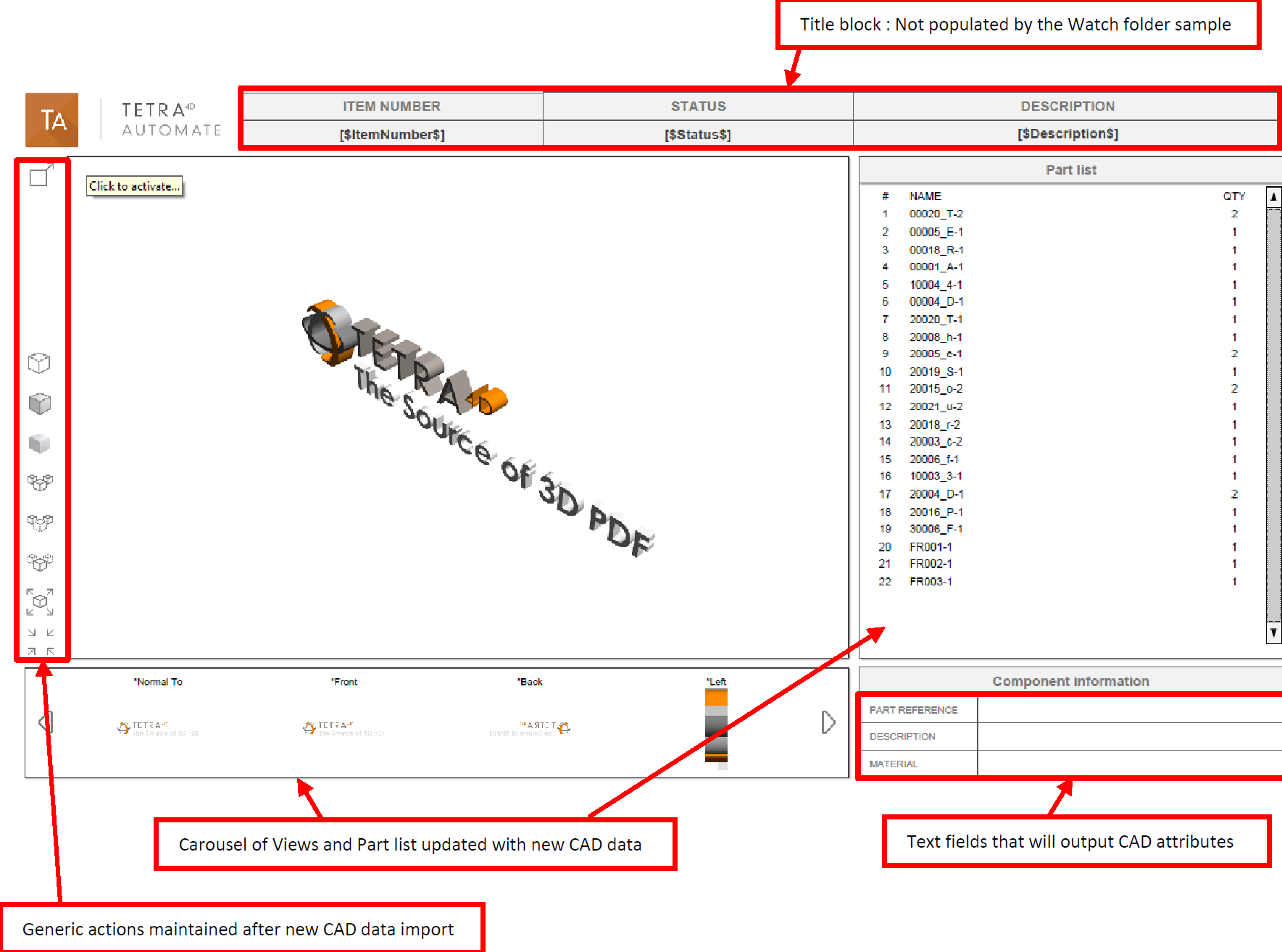
Running the sample
In Windows Explorer, double click on the script start_WatchFolderMode.bat. A command window appears, running the script start_WatchFolderMode.vbs.
Remark:
The start_WatchFolderMode.vbs script manages the watch-folder mechanism by watching to any new file that would be copied in the 00_WatchFolder_Main folder. The script is looking for any new file every 10 seconds, and triggers the conversion for every new file copied there. If another file is copied in the watch folder during a conversion of another file, the script will wait for the end of the conversion process and then trigger the next Conversion.
Converting a single part
Copy and paste the CAD file into the 00_WatchFolder_Main folder.
Check the result in the 10_PDF_Out folder.
Remark:
The template used in this watch folder sample is meant to present a part list document. In case of single component conversion, the resulting PDF document may look “poor”.
Remark:
In this sample, the CAD file is moved from 00_WatchFolder_Main into the 05_Done folder at the end of the conversion, in order to “clean” the watch folder.
Converting an assembly
- Copy and paste all the sub-assemblies and component files into 01_WatchFolder_Components.(Note that the components of the CAD assembly located in 03_CAD_Asm_ref are already presentin that folder)
Copy and paste the main assembly file _micro engine.CATProduct from 03_CAD_Asm_ref into 00_WatchFolder_Main
Check the result in the 10_PDF_Out folder
Remark:
In this sample, the CAD file is moved from 00_WatchFolder_Main into the 05_Done folder at the end of the conversion, in order to “clean” the watch folder. All the component and sub-assembly files are not removed from the 01_WatchFolder_Components
Remark:
The conversion settings file has been modified to allow Tetra4D Automate find the sub- assemblies and components referenced by the main assembly Below the additional search directory definition.

Depending on the implementation and/or the organization of the CAD data (ie: components being located in several sub-folders), it could be required to define several additional search directories and to activate the Recursive Search option.
Results: