Interacting with the Model Tree
Summary
Every model loaded into the Web Viewer component has a product structure that contains a tree-like hierarchy of nodes as well as node properties and drawing attributes.
Unlike the previous version of this tutorial, we won’t be hand-rolling the tree’s HTML - @ts3d-hoops/web-viewer-components ships packaged <hoops-model-tree> and <hoops-view-tree> elements that do the rendering for us. In this section, we’ll wire one of each up to the viewer, and cover how to support bidirectional highlighting between the tree and the 3D view.
Concepts
- Model Structure Concepts
- Using the packaged Model Tree component
- Bidirectional Selection
- Using the packaged CAD View Tree component
Adding the Model Tree Component
Add a <hoops-model-tree> element to index.html. Unlike <hoops-toolbar-camera-operator> or <hoops-toolbar-drawmode>, the model tree doesn’t consume the WebViewer from context automatically - we’ll wire it up ourselves in the next section - so it can live anywhere on the page, not just inside <hoops-web-viewer-context-manager>:
<div>
        <h4>Model Tree</h4>
        <hoops-model-tree id="model-tree" style="display: block; height: 300px; overflow: auto;"></hoops-model-tree>
</div>
No additional import is required - it was already registered by the whole-package import in main.ts from Hello Web Viewer.
Populating the Model Tree
The <hoops-model-tree> element expects an IModel - the same object you’d get from webViewer.model - assigned to its .model property. Let’s do that once the model structure has loaded, reusing the hwvModelStructureReady event from Registering Callbacks:
import type { WebViewer } from '@ts3d-hoops/web-viewer';
import type { HoopsModelTreeElement } from '@ts3d-hoops/web-viewer-components';

let webViewer: WebViewer;

const modelTreeEl = document.getElementById('model-tree') as HTMLElement & HoopsModelTreeElement;

viewerEl.addEventListener('hwvModelStructureReady', ({ detail: { hwv } }) => {
        webViewer = hwv;
        modelTreeEl.model = hwv.model;
});
Every node in the Web Viewer component is identified by a NodeId, which is a unique identifier that is created during conversion/authoring and will not change between subsequent loads. Aside from messages, no part of the HOOPS Visualize Web model tree is ever instanced - each node in the tree only has one parent. The packaged component queries the model’s node hierarchy (getAbsoluteRootNode, getNodeChildren, and friends) for you and renders it lazily, expanding down to the first interesting branch point automatically. Please see the Programming Guide for more information on the different Node Types.
If you run the application the result should now look like this:
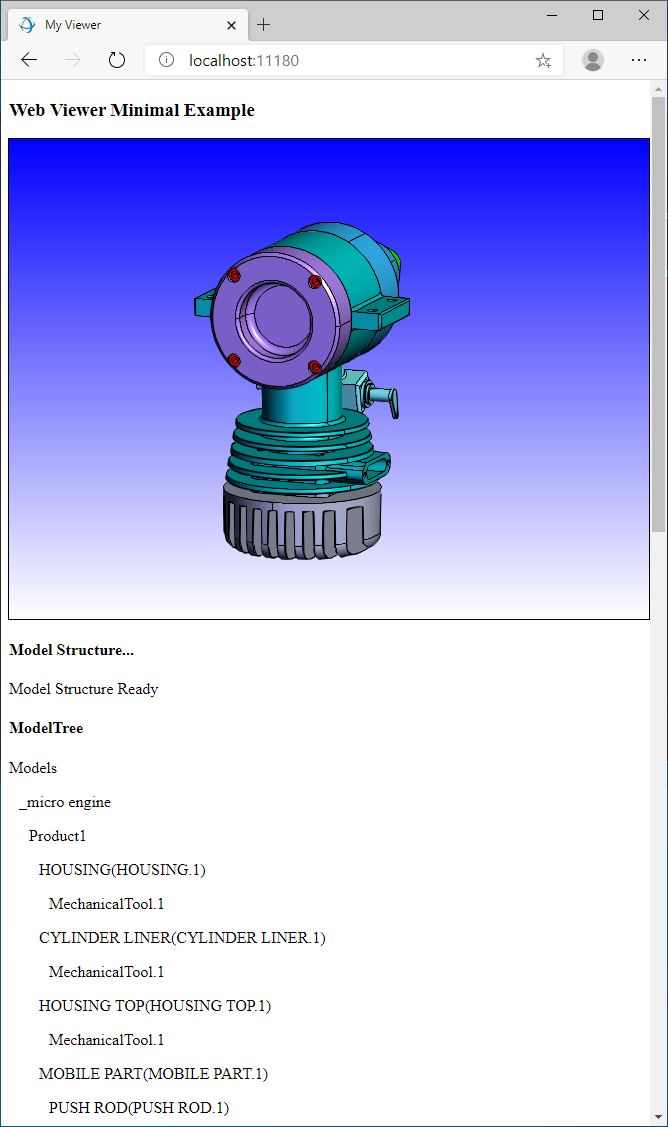
Selection from the Model Tree
Let’s wire up bidirectional selection so that clicking a node in the tree highlights the corresponding element in the view, and vice versa. Starting with selection from the tree: <hoops-model-tree> fires a hoops-model-tree-node-click event whenever a node is clicked, with the clicked node’s ID in event.detail.nodeId. Add this to src/main.ts:
import { Selection } from '@ts3d-hoops/web-viewer';

modelTreeEl.addEventListener('hoops-model-tree-node-click', (event: CustomEvent<{ nodeId: number }>) => {
        webViewer.selectionManager.clear(false);
        webViewer.selectionManager.add(Selection.SelectionItem.create(event.detail.nodeId), false);
});
This takes the NodeId of the clicked tree node and selects the associated part in the 3D view via the SelectionManager, the same manager we already used in Custom Operator Basics. Passing false to both calls suppresses the selection callback so we don’t immediately re-process our own selection change in the handler we’re about to add next.
Run the application again. You should be able to click on a node in the model tree and see the associated element highlighted in the view:
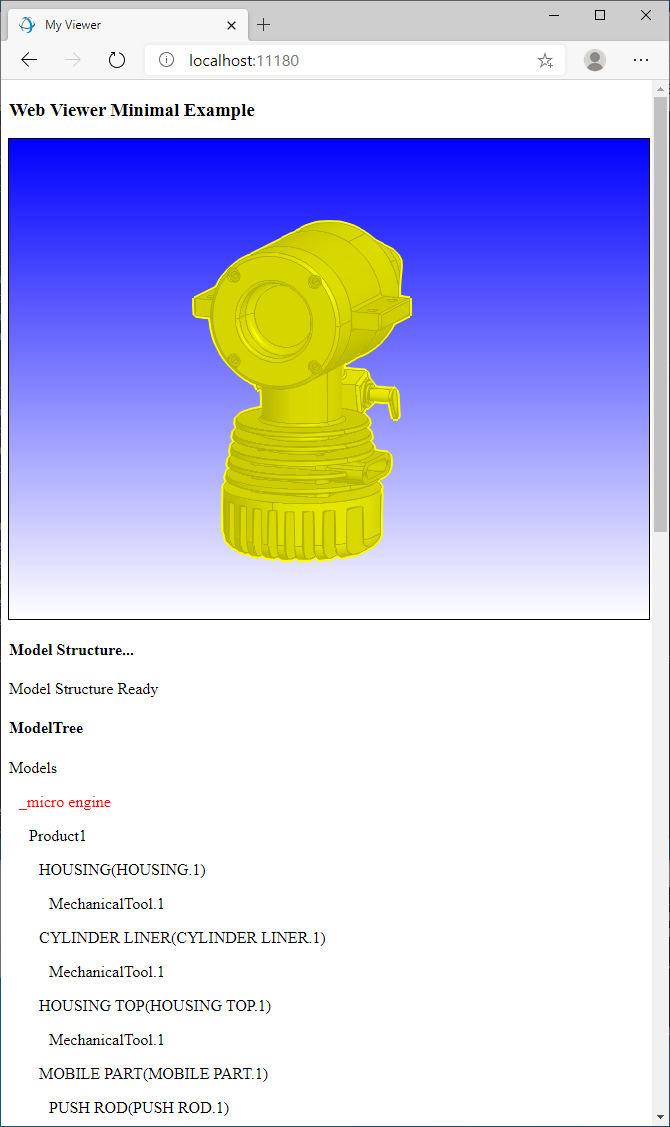
Selection from the Web Viewer Component
Let’s add selection from the view as well, so that the tree node associated with a piece of geometry is highlighted when that geometry is selected by the user. <hoops-web-viewer> re-dispatches the selection callback as an hwvSelectionArray event, the same way it does for the events we used in Registering Callbacks:
viewerEl.addEventListener('hwvSelectionArray', ({ detail: { selectionEvents } }) => {
        modelTreeEl.selected = selectionEvents.map((selectionEvent) => selectionEvent.getSelection().getNodeId());
});
Setting .selected to an array of node IDs is all that’s needed - the component takes care of expanding to and highlighting those nodes in the tree, and clearing any prior highlight.
If you start the application again, you should see that clicking on an element in the Web Viewer window highlights the associated model tree node, and vice versa.
Displaying CAD Views
Other important parts of the model tree are the CAD views of a model. @ts3d-hoops/web-viewer-components ships a separate <hoops-view-tree> component for these - CAD views aren’t part of the main model tree, so they get their own element, just like in the previous version of this tutorial they got their own function. Add it to index.html:
<div>
        <h4>CAD Views</h4>
        <hoops-view-tree id="view-tree" style="display: block; height: 200px; overflow: auto;"></hoops-view-tree>
</div>
For this section we’ll use a different model that has CAD views embedded. Change the endpointUri attribute on <hoops-web-viewer> in index.html to load it instead of microengine.scs:
/quick_start/converted_models/standard/scs_models/landinggear.scs
Copy this file into the data folder, then update the attribute:
<hoops-web-viewer id="viewer" endpointUri="data/landinggear.scs"></hoops-web-viewer>
<hoops-view-tree> follows the exact same pattern as <hoops-model-tree>: assign .model, and listen for its click event. Update the hwvModelStructureReady listener and add a click handler in src/main.ts:
import type { HoopsViewTreeElement } from '@ts3d-hoops/web-viewer-components';

const viewTreeEl = document.getElementById('view-tree') as HTMLElement & HoopsViewTreeElement;

viewerEl.addEventListener('hwvModelStructureReady', ({ detail: { hwv } }) => {
        webViewer = hwv;
        modelTreeEl.model = hwv.model;
        viewTreeEl.model = hwv.model;
});

viewTreeEl.addEventListener('hoops-view-tree-node-click', (event: CustomEvent<{ nodeId: number }>) => {
        webViewer.model.activateCadView(event.detail.nodeId);
});
You now have a rudimentary version of a bidirectional model tree that allows for highlighting from the tree, as well as the Web Viewer window, plus a CAD view switcher - all without writing any tree-rendering code by hand. If you need to customize how individual nodes render, or want a hand-rolled tree instead, both components’ source is a starting point, and the same underlying Model API used above (getAbsoluteRootNode, getNodeChildren, getNodeName, getNodeType) is still there to build on. For more information on parsing the assembly tree, please consult the Programming Guide.