License Activation
The Tetra4D Enrich licensing system makes it possible to activate your license without contacting Tetra4D support.
In order to adapt to various situations, Tetra4D Enrich provides different ways to activate a license on a computer:
Online activation (computer connected to the Internet)
Activation can be performed
From the top menu Tetra4D Enrich > Request license dialog box,
From the license manager, accessible in the top menu: Tetra4D Converter > License manager.
Note
The license manager is only accessible in the Tetra4D Converter top menu.
Offline activation (computer not connected to the Internet)
Activation can be performed from the license manager, accessible in the top menu: Tetra4D Converter > License manager.
Important
We have noticed an ADOBE Acrobat Pro issue that may affect the Tetra4D licensing mechanism. If you are installing TETRA4D Enrich for the first time, please verify in Acrobat Pro the below setting and make it sure it is disabled:
Edit -> Preferences -> Security (Enhanced) -> “Enable Protected Mode” in the “Sandbox protection” section.
Then restart Acrobat.
License activation: Online
To access the online activation dialog:
Start Acrobat Pro, and select I already have a serial number in the Tetra4D Enrich status dialog (this dialog will pop-up if tetra4D Enrich is running in trial mode).
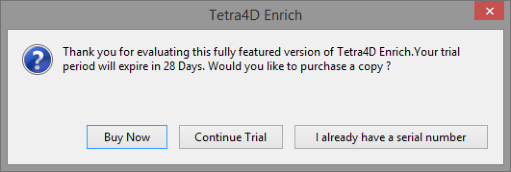
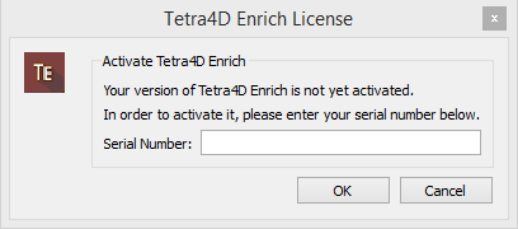
Or if you are already working in Acrobat, click on the top menu Tetra4D Enrich > Request license to access to the Tetra4D Enrich License dialog.
In the Tetra4D Enrich license dialog, enter your serial number
Note
The serial number should look like: XXXXXXX-XXXXXXXXXX-XXXXXXX-XXXXX
Click OK to validate
Note
At this stage, an internet connection is required for the license to be activated.
If the activation is successful, the following message confirming the activation will be displayed.
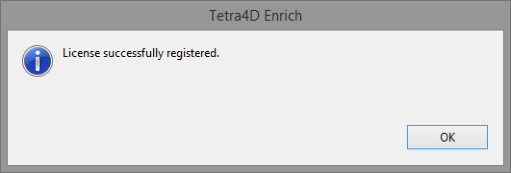
Press Ok to close the dialog box.
If the activation is not successful, a dialog box will be displayed with a message indicating
what the specific problem is (such as Invalid serial number or Invalid license):
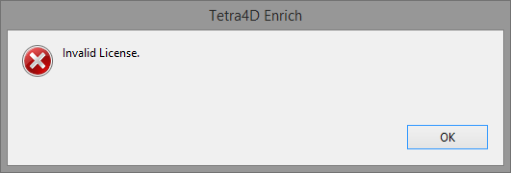
In such a case, please follow the Offline activation process instructions.
License Activation: Offline
To access to the offline activation dialog:
Start Acrobat Pro
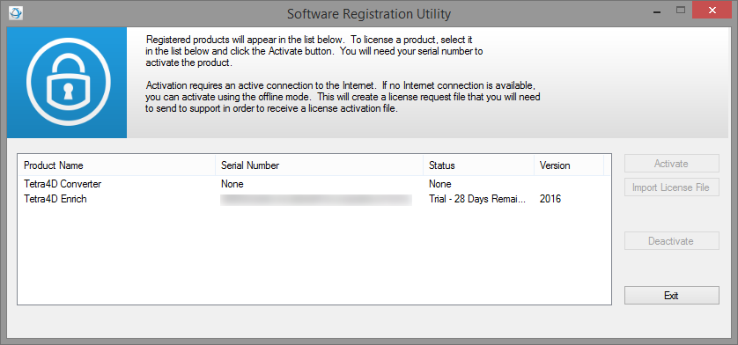
Click on the top menu Tetra4D Converter > License Manager to access to the Tetra4D License Manager
Note
The license manager is only accessible in the Tetra4D Converter top menu
The Tetra4D License Manager tool lists:
The installed Tetra4D products
The Serial number currently used for each product
Your serial number if the product has been activated
A generic “trial” serial number if the product is in trial mode
The status of each product (Trial mode, registered…)
The version of each product
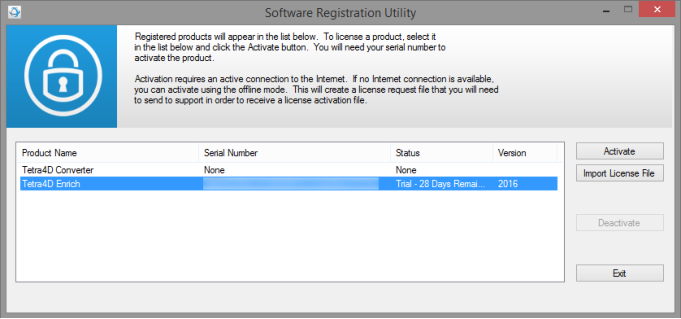
Select the Tetra4D Enrich product
Note
Installing Tetra4D Enrich product also installs Tetra4D Converter product.
Click on Activate
Input your serial number
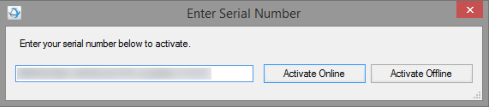
Click on Activate Offline
Save the “Offline_activation_ XXXXXXX-XXXXXXXXXX-XXXXXXX-XXXXX _macAddress.req” file generated by the license manager
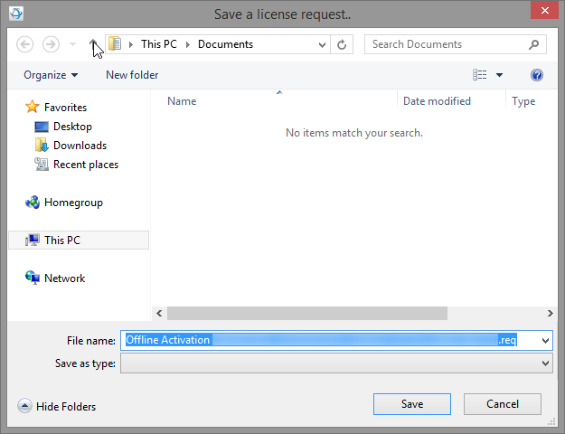
Send the “Offline_activation_ XXXXXXX-XXXXXXXXXX-XXXXXXX-XXXXX _macAddress.req” file to support@tetra4d.com
Our support staff will send a license file corresponding to the computer from which you issued the activation request.
Note
The file you will receive will be named as shown below:
XXXXXXX-XXXXXXXXXX-XXXXXXX-XXXXX \_macAddress
Start Acrobat Pro
Click on the top menu Tetra4D Converter > License Manager to access to the Tetra4D License manager
Select the Tetra4D Enrich product
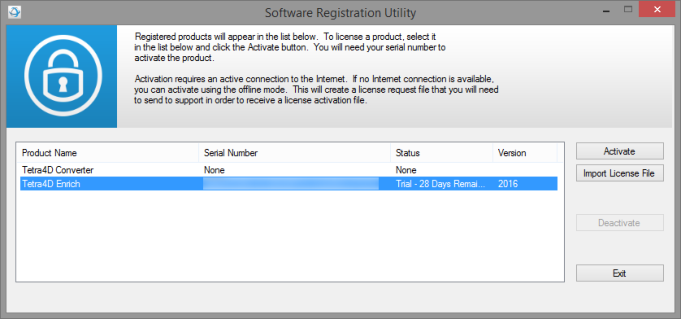
Click on Import License File
Select the .license file you received
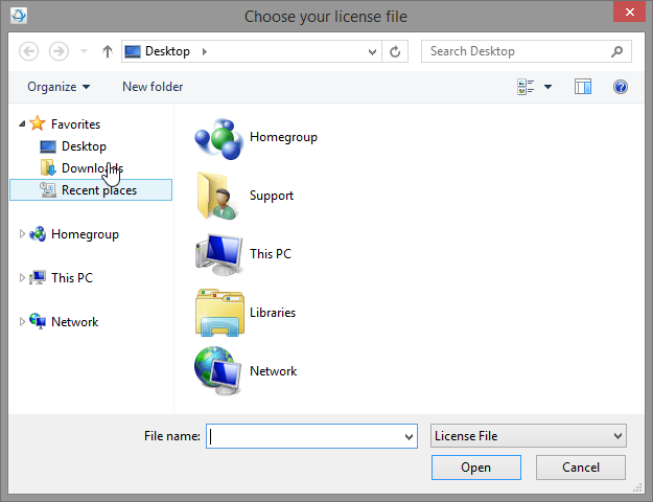
Click OK to activate your license
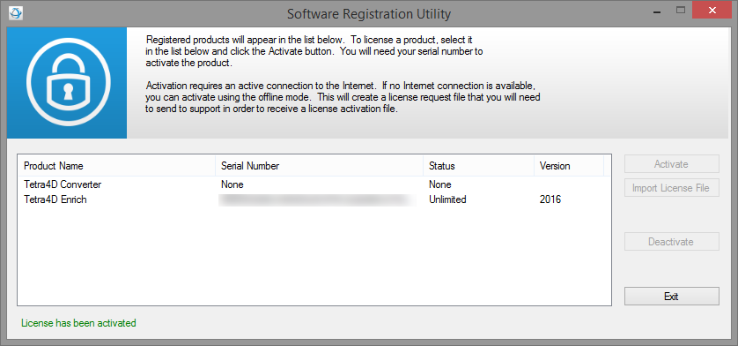
Note
A confirmation message is shown in the left bottom corner of the dialog box.
Click Exit to close the window.
Note
Even if the Tetra4D Converter license status is set to none, the product is activated by the Tetra4D Enrich license.
Transfer of a license
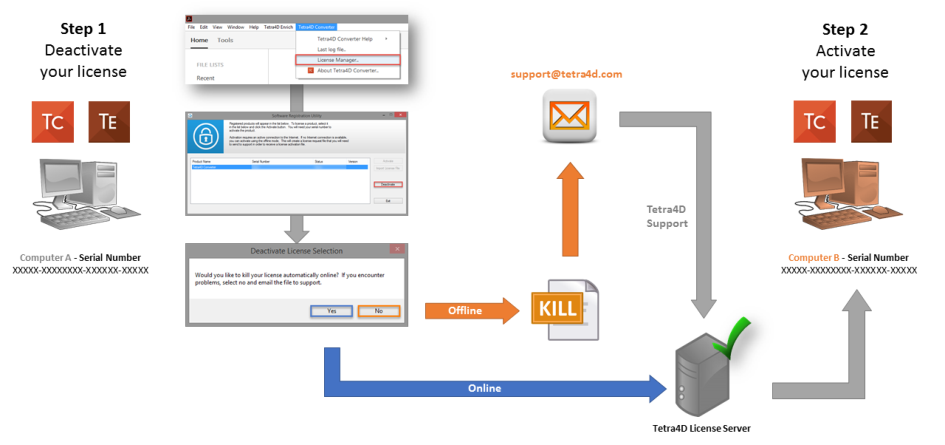
The below schema presents the process that must be followed to transfer a license from one computer to another one.
Note
If the computer where the product is licensed is no longer available (OS update, HDD failure, etc…), contact the support to execute the transfer.