Activation and Registration
Installation of Acrobat Pro 2024 / Pro Continuous Release
Tetra4D Converter has been developed as an Add-in for Adobe® Acrobat® Pro and supports versions 2024 and Continuous Release. As such, Acrobat Pro 2024 or Pro Continuous Release is required to be installed for Tetra4D Converter to function.
A free trial of Acrobat Pro can be downloaded at: http://www.adobe.com/cfusion/tdrc/index.cfm?product=acrobat_pro
Please refer to https://helpx.adobe.com/creative-cloud/learn/tutorials/acrobat.html#get-started and https://helpx.adobe.com/document-cloud.html for detailed instructions and troubleshooting related to Acrobat Pro 2024 / Pro Continuous Release.
If you have not yet purchased Acrobat Pro, Acrobat Pro 2024 can be purchased along with Tetra4D Converter as a package called Tetra4D Converter Suite online at: https://store.techsoft3d.com/
To activate your Adobe Acrobat Pro 2024, you must sign in (or create) your Adobe Account. Then redeem the serial number with the official Adobe link to link it to your Adobe account: https://redeem.adobe.com/
Note
Only 1 license can be redeemed per Adobe account.
Note
The ADOBE Products and technical support periods can be found here.
Installation of Tetra4D Converter
Download and run the “Tetra4D Converter” installer. The installer should have been emailed to you along with your license/serial number. You can also find it in your Customer Portal.
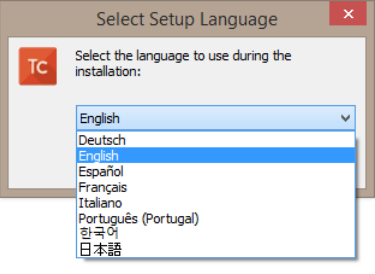
Select the desired setup language and choose OK:
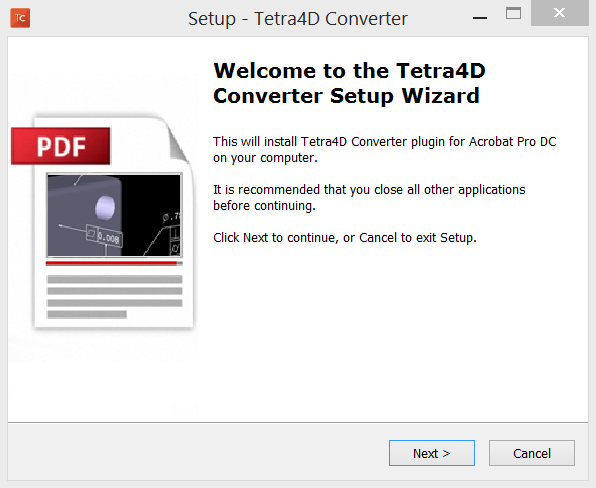
The installation programs welcome screen is then displayed. Click Next to continue:
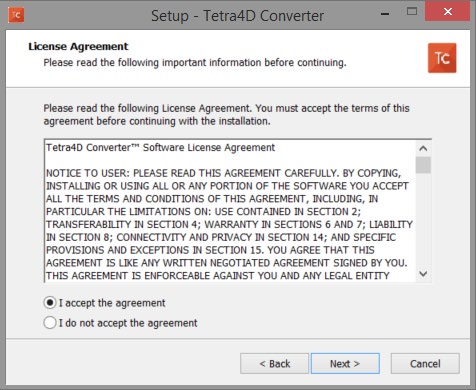
Read and accept the End User License Agreement, then click Next to continue:
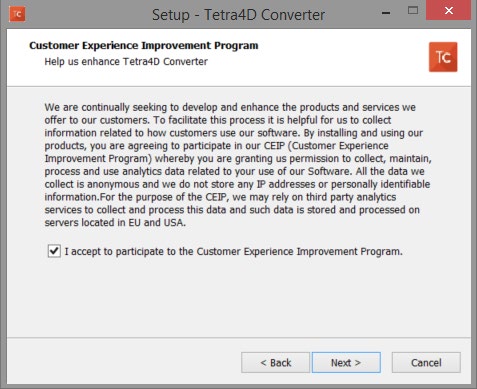
- Read the Customer Experience Improvement Program terms.If you don’t want to participate in this program, uncheck the check-box.Then click Next to continue:
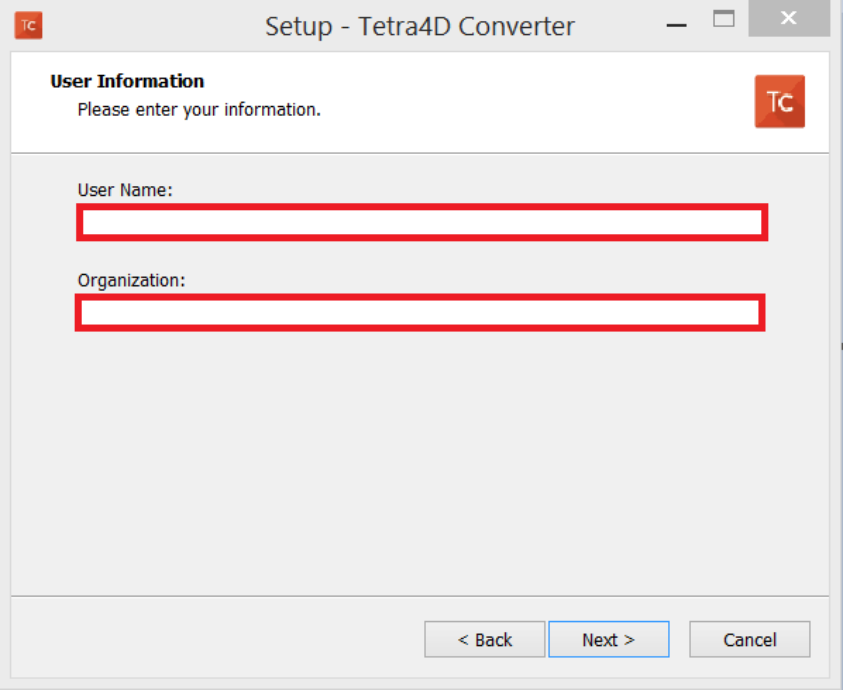
Enter your user information (optional), then click Next to continue:
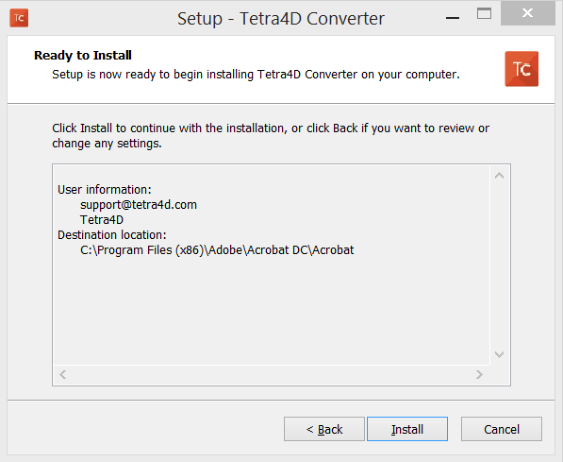
Finally, review the installation information and click Install:
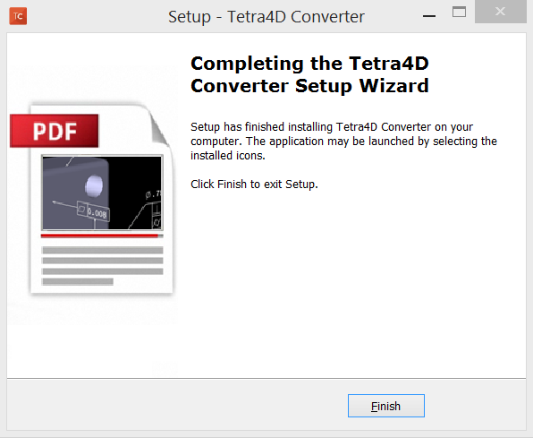
After the installation is complete, the installer may notify you that a system restart is necessary in order to fully complete the installation process. If the following dialog box is displayed, please make sure that you restart your computer before trying to run the Tetra4D Converter for the first time:
Running Tetra4D Converter
To run Tetra4D Converter, please go to your start menu and launch Acrobat Pro. When you first launch Acrobat Pro after installing Tetra4D Converter, you will see the following dialog box until your license has been activated.
Tetra4D Converter starts automatically in a trial mode, with a 28 days duration.
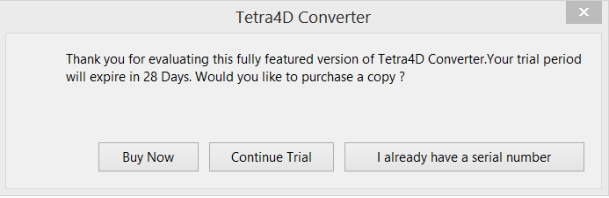
Select the Buy Now button to go to the Tetra4D web store to purchase licenses of the Tetra4D Converter.
Select the Continue Trial button to run in trial mode. The Tetra4D Converter will run in trial mode for 28 days after installation.
- You should receive an email from tetra4d.com when you purchase Tetra4D Converter with your serial number/license key and a link to the installation setup.These can also be found in your Customer Portal.To activate your license, select the I already have a serial number button and enter your serial number in the activation window.Detailed activation instructions can be found in the following section.
If you are unsure what your license status is or just need help in general, please submit a support request by going to www.tetra4d.com/support or by accessing your Customer portal.
Tip
To find the license version you are using, go to https://store.techsoft3d.com/, sign in to your account, then navigate to My Account > Licenses > View your License Keys.
License Activation
The Tetra4D Converter licensing system makes it possible to activate your license without contacting Tetra4D support.
In order to adapt to various situations, Tetra4D Converter provides different ways to activate a license on a computer:
- Online activation (computer connected to the Internet)
- Activation can be performed:
From the Product status dialog box.
From the top menu: Tetra4D Converter > License manager.
- Offline activation (computer not connected to the Internet)
Activation can be performed from the top menu Tetra4D Converter > License manager.
Important
Important remark about license activation:
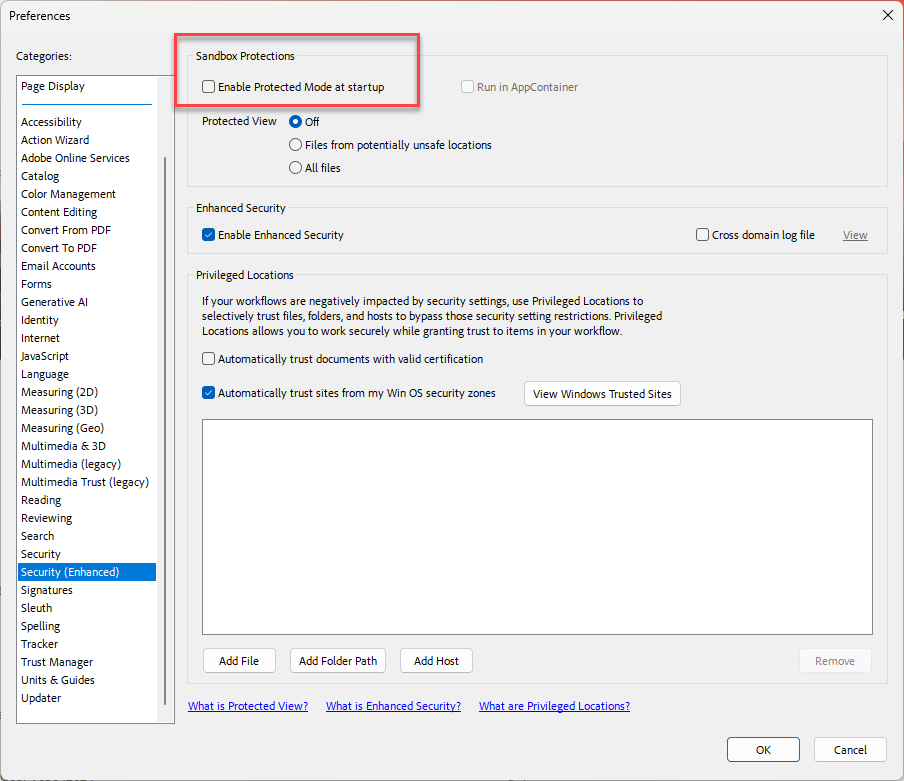
We have noticed an ADOBE Acrobat Pro issue that may affect the Tetra4D licensing mechanism. If you are installing TETRA4D Converter for the first time, please verify in Acrobat Pro the below setting and make it sure it is disabled:
Edit -> Preferences -> Security (Enhanced) -> “Enable Protected Mode” in the “Sandbox protection” section.
Then restart Acrobat.
License Activation: Online
To access the online activation dialog:
Start Acrobat Pro, and select I already have a serial number in the Tetra4D Converter status dialog.
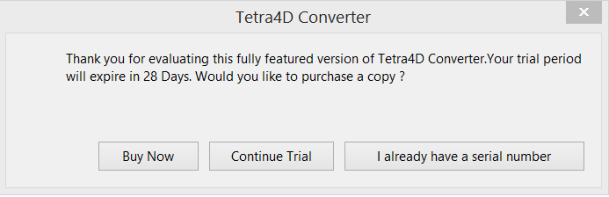
Or if you are already working in Acrobat, click on the top menu Tetra4D Converter > About Tetra4D Converter to access to the Tetra4D Converter status dialog, and then select I already have a serial number.
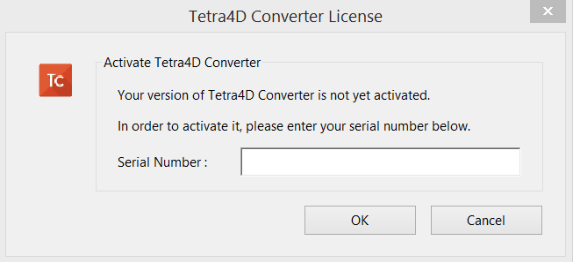
In the Tetra4D Converter license dialog, enter your serial number.
Note
The serial number should look like:
XXXXXXX-XXXXXXXXXX-XXXXXXX-XXXXXClick OK to validate.
Note
At this stage, an internet connection is required for the license to be activated.
If the activation is successful, the following message confirming the activation will be displayed. Press Ok to close the dialog box.
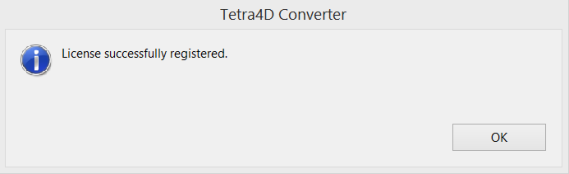
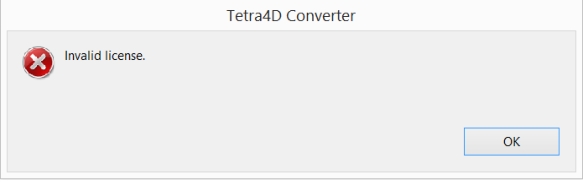
If the activation is not successful, a dialog box will be displayed with a message indicating what the specific problem is (such as Invalid serial number or Invalid license). In such a case:
Make sure that Protected Mode is disabled: Edit -> Preferences -> Security (Enhanced) -> “Enable Protected Mode” in the “Sandbox protection” section. Then restart Acrobat and try again.
If the issue persists, please contact support at support@tetra4d.com.
License Activation: Offline
The offline activation is only required in case of a “Network Error” message upon activation.
To access to the offline activation dialog:
Start Acrobat Pro.
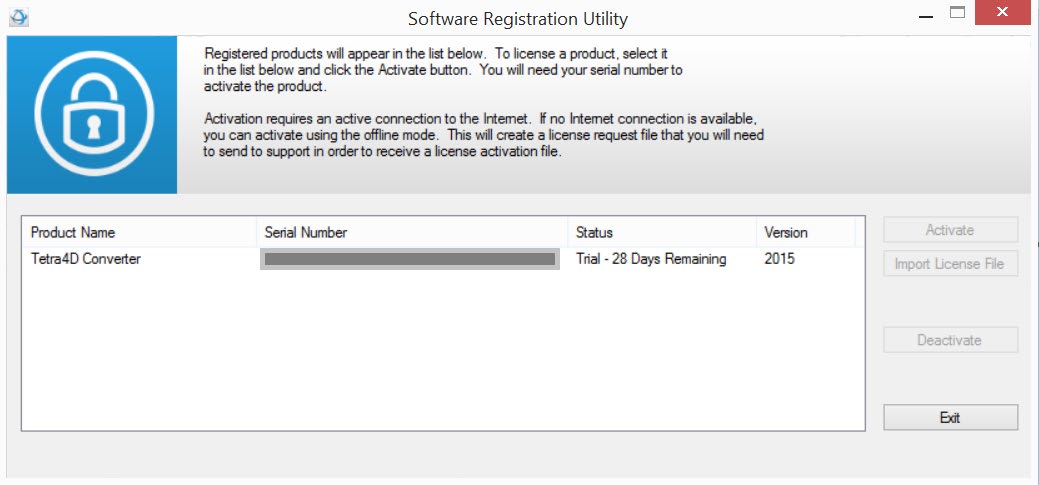
Click on the top menu Tetra4D Converter > License Manager to access to the Tetra4D License Manager.
Note
The Tetra4D License Manager tool lists:
The installed Tetra4D products
- The Serial number currently used for each product
Your serial number if the product has been activated
A generic “trial” serial number if the product is in trial mode
The status of each product (Trial mode, registered…)
The version of each product
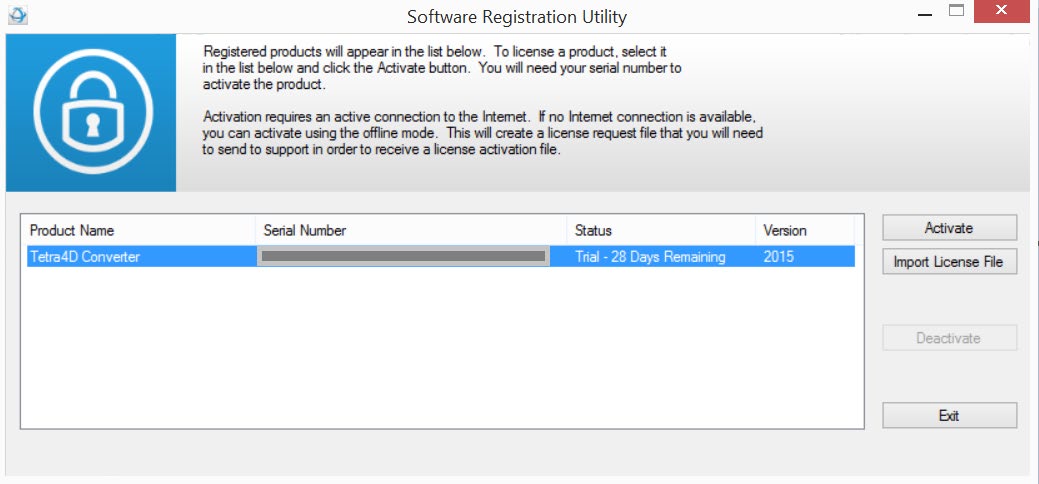
Select the Tetra4D Converter product.
Click on Activate.
Input your serial number.
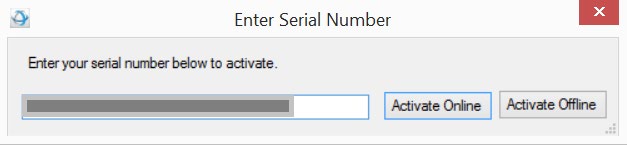
Click on Activate Offline.
Save the
Offline_activation_XXXXXXX-XXXXXXXXXX-XXXXXXX-XXXXX_macAddress.reqfile generated by the license manager.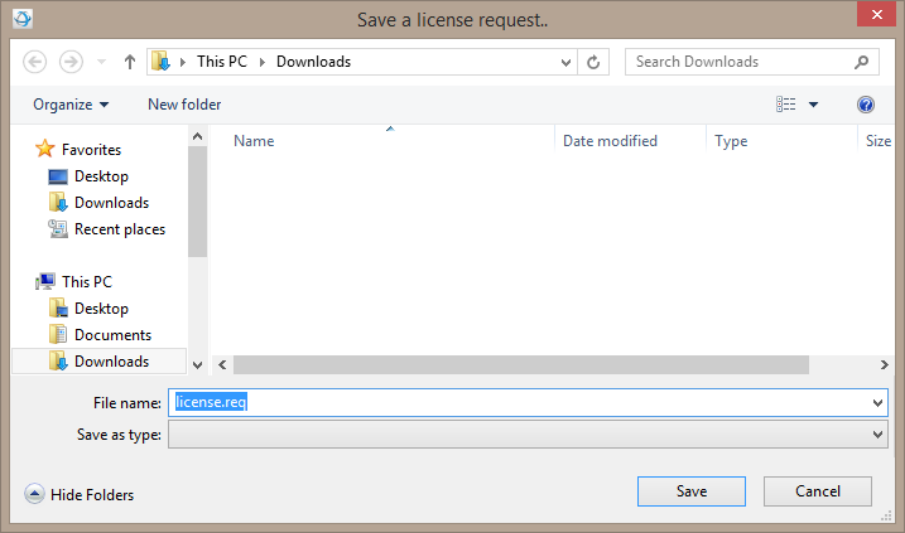
Send the
Offline_activation_XXXXXXX-XXXXXXXXXX-XXXXXXX-XXXXX_macAddress.reqfile to support@tetra4d.com.Our support staff will send a license file corresponding to the computer from which you issued the activation request. The file you will receive will be named as shown below:
XXXXXXX-XXXXXXXXXX-XXXXXXX-XXXXX_macAddress.license.Start Acrobat Pro.
Click on the top menu Tetra4D Converter > License Manager to access to the Tetra4D License manager.
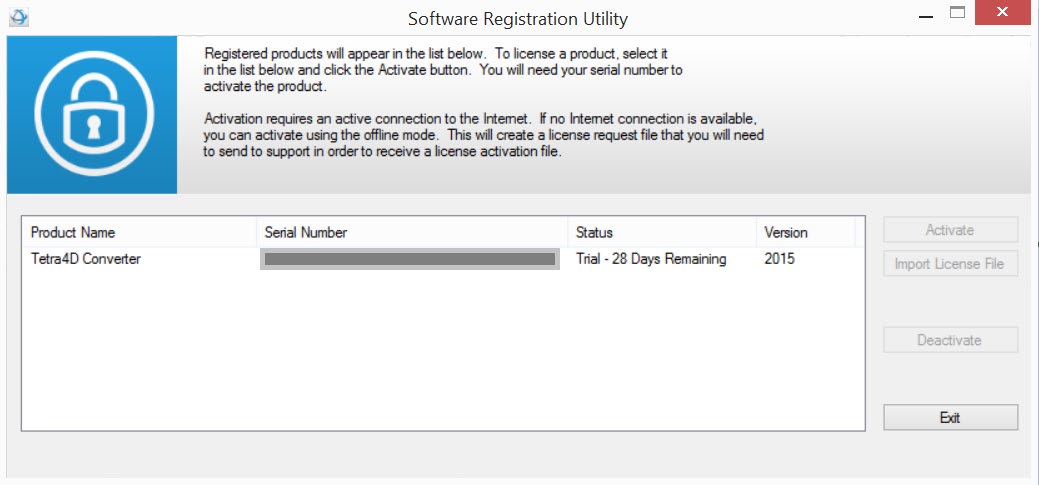
Select the product you want to register.
Click on Import License File.
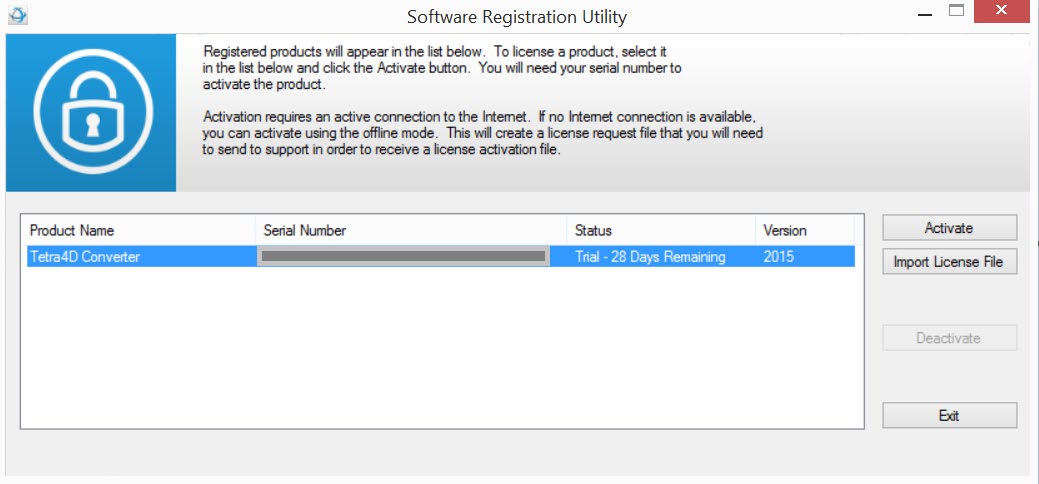
Select the
.licensefile you received.
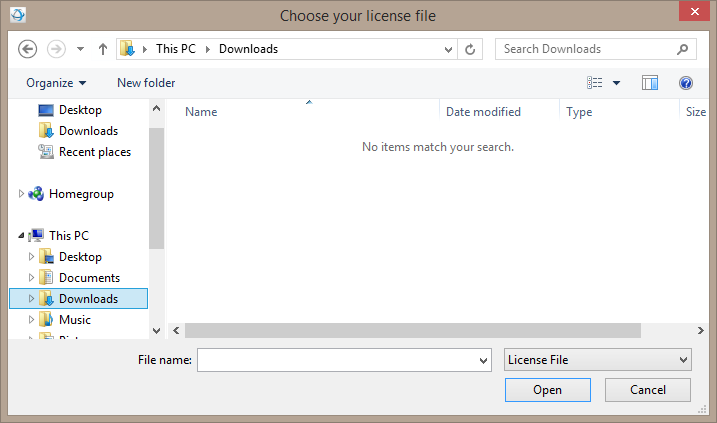
Click OK to activate your license. A confirmation message is shown in the left bottom corner of the dialog box.
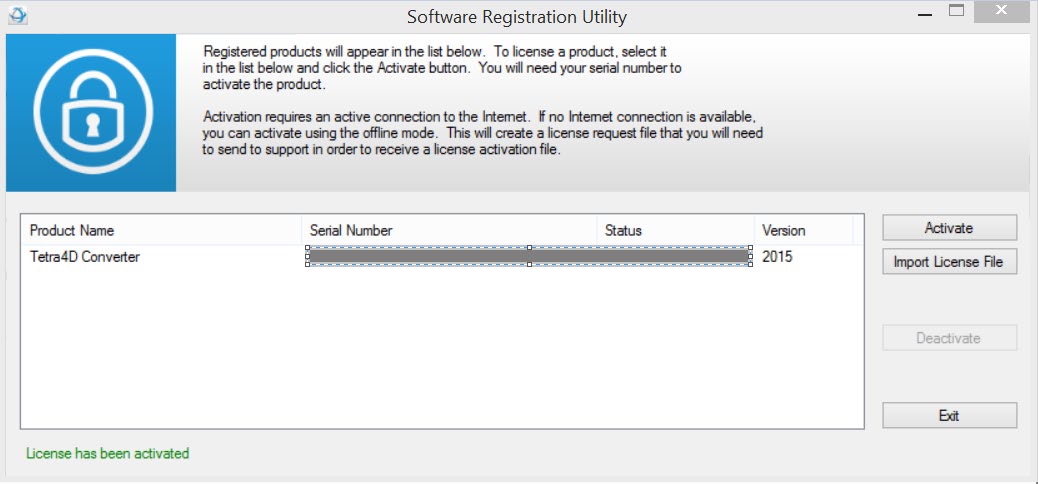
Click Exit to close the window.
Transfer of a License
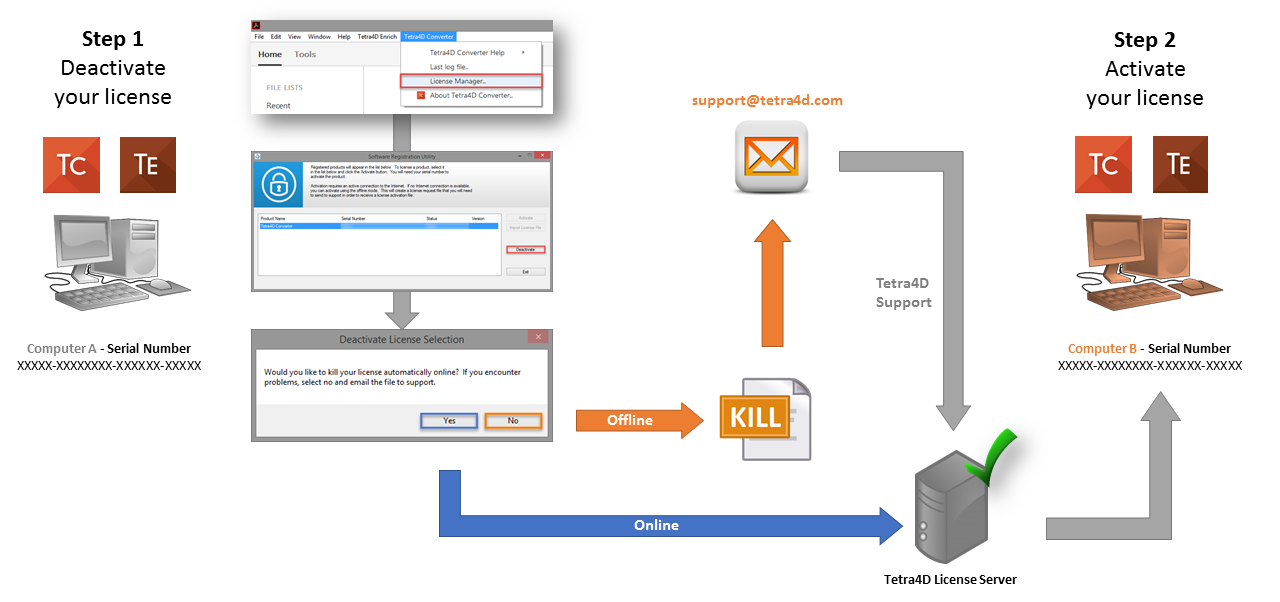
The below schema presents the process that must be followed to transfer a license from one computer to another one.
Note
If the computer where the product is licensed is no longer available (OS update, HDD failure, etc…), contact the support to execute the transfer.