
Exporting geometry from 3D models
Export geometry
Export 3D Data Dialog
Reuse geometry in other applications by exporting it from the PDF. If the geometry of a 3D model is converted using a PRC B-rep conversion setting, you can export and use it in CAM and CAE applications. Geometry is translated directly to standard file formats that comply with published specifications: IGES, ParaSolid, STEP, VRML, and STL.
You can modify the exported data by specifying settings. In some situations, Acrobat modifies the exported data to improve the results, while avoiding any changes to the actual geometry. For example, if the source CAD application is loose-tolerant and the export format is tight-tolerant, Acrobat can add a tolerance to the exported file.
Open the 3D PDF and click the 3D model in the document pane.
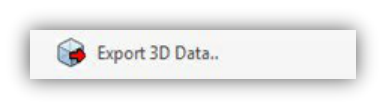
Select Tools -> Tetra4D Converter -> Export 3D Data
Choose a file format from the Save as Type menu, click Settings to select the options for that format, and click OK.
Name and save the file.
Format options for exporting geometry
The following options are available by clicking the Settings button in the Save As dialog box. The options that are displayed depend on how the model was created and imported.
IGES Settings
IGES files are saved as version 5.1 and support solid entities.
Save Solid To: Specifies how to write the geometry. The Surface option provides UV curves and any 3D curves (if present). The Solid option provides UV curves (if present) but calculates 3D curves.
Save Faceted To: Specifies whether to write polyhedric solids as trimmed surfaces (Faceted) or as lines (Wireframe).
Save Analytics To: Writes surfaces (cylinders, planes, spheres, cones, torus) and curves (circles, ellipses, parabolas, hyperbolas) as analytic shapes instead of NURBS (Non-Uniform Rational B-Spline).
Write Hidden Objects: Specifies that blank entities in the file are included.
Parasolid Settings
Files are saved as version 11. Specifies whether to save geometry as solids or surfaces.
STEP Settings
STEP Standard: Specifies the Application Protocol (AP) that best suits the intended use (AP 203, AP 214 or AP 242).
Save Faceted To: Specifies whether to write polyhedric solids as trimmed surfaces (Faceted) or as lines (Wireframe).
Save Analytics To: Writes surfaces (cylinders, planes, spheres, cones, torus) and curves (circles, ellipses, parabolas, hyperbolas) as analytic shapes instead of NURBS (Non-Uniform Rational B-Spline).
Use Short Names: Uses internal coding for STEP entities and reduces file size.
Write 3D Attributes: Specifies that the attributes linked to the 3D objects are included. This option is available when selecting the AP242 standard.
Write 3D PMI: Specifies that the PMIs linked to the 3D objects are included. This option is available when selecting the AP242 standard.
Add Validation properties: Specifies that validation properties will be calculated and saved in the STEP file. This option is available when selecting the AP242 standard.
VRML Settings
Specifies the version, either 1.0 or 2.0.
STL Settings
If the initial model has been converted into a 3D PDF using the option “PRC Tessellation (Faceted), the STL settings won’t have any impact on the quality of the exported STL file. In such a case, the tessellation is directly converted to STL.
If the initial model has been converted into a 3D PDF using the option “PRC B-rep (Solid)”, then the STL quality can be controlled using the options proposed in the Settings option because the mesh is recalculated during the export process.
Level of Detail
Specify the level of detail used to calculate the mesh that will be exported as STL. Higher settings produce more accurate results. Lower levels of detail are useful for quick visualization with reduced visual quality. Two additional settings allow you to set specific height and angle values:
User Defined: Use to produce good quality model rendering for visualization and 3D printers.
When you select User Defined, click Advanced to define the triangulation parameters.
Advanced
Chord Height Ratio: Specifies the percentage of bounding box used to compute chord height. Set a value from 50 through 10,000.
Wireframe Chord Angle: Specifies the maximum angle between two contiguous segments of wire edges for every face. The value must be from 10 through 40.
Binary File: Creates a binary version of the STL output file, which is smaller than the standard ASCII STL file.
U3D Settings
There are no optional settings for exporting to the U3D format.
PRC Settings
There are no optional settings for exporting to the PRC format.
X3D Settings
There are no optional settings for exporting to the X3D format.
3MF Settings
If the initial model has been converted into a 3D PDF using the option “PRC Tessellation (Faceted), the 3MF settings won’t have any impact on the quality of the exported 3MF file. In such a case, the tessellation is directly converted to 3MF.
If the initial model has been converted into a 3D PDF using the option “PRC B-rep (Solid)”, then the 3MF quality can be controlled using the options proposed in the Settings option because the mesh is recalculated during the export process.
Level of Detail
Specify the level of detail used to calculate the mesh that will be exported as 3MF. Higher settings produce more accurate results. Lower levels of detail are useful for quick visualization with reduced visual quality. Two additional settings allow you to set specific height and angle values:
User Defined: Use to produce good quality model rendering for visualization and 3D printers.
When you select User Defined, click Advanced to define the triangulation parameters.
Advanced
Chord Height Ratio: Specifies the percentage of bounding box used to compute chord height. Set a value from 50 through 10,000.
Wireframe Chord Angle: Specifies the maximum angle between two contiguous segments of wire edges for every face. The value must be from 10 through 40.
Keep current tessellation: Directly convert the current tessellation into a 3MF file.
JT Settings
Format: Specifies what type of geometry or tessellation data to export to the JT file:
B-rep (Solid): Retains only the geometry data of the 3D model. This option produces the smallest files, but polygons must be regenerated each time the file is opened.
B-rep + Tessellation: Retains the geometry of the 3D geometry and any saved polygon settings. If the 3D model doesn’t include polygon settings, they’re generated from the geometry during conversion.
Tessellation (Faceted): Retains the polygon settings of the 3D model or generates new polygons based on the geometry.
Write 3D PMI: Specifies whether to export 3D PMI to the JT file.
Write hidden object: Exports hidden objects to the JT file.
ACIS Settings
There are no optional settings for exporting to the ACIS format.
FBX Settings
There are no optional settings for exporting to the FBX format. Be careful, a new folder with the same name as the exported FBX file is created. This created folder contains the FBX file and the possible textures.
OBJ Settings
There are no optional settings for exporting to the OBJ format.