2D Drawing Compare
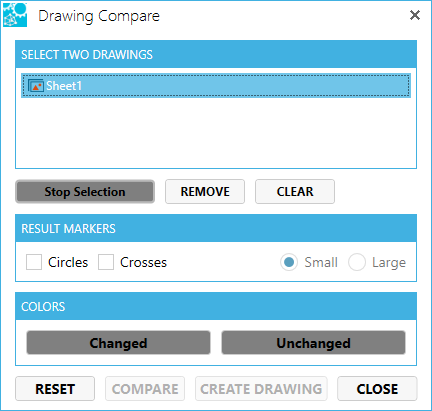
Compare two 2D models (drawings) with the 2D Drawing Compare feature. Drawing Compare shows differences between two 2D models, drawings, or images.
To compare two drawings
Open drawing A in a 2D workspace.
Import drawing B into the same 2D workspace.
- Click the Drawing Compare icon on the 2D toolbar.

- Select the two drawings from the assembly tree to compare.
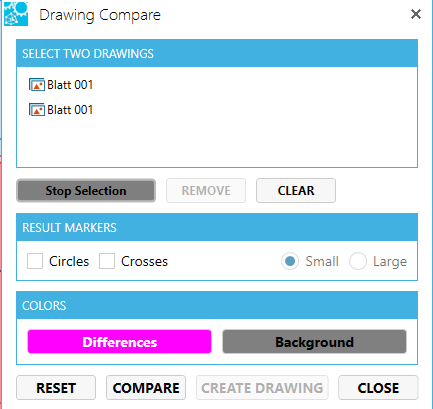
Select Result Markers and whether you want small or large.
Change the results color if desired.
Click COMPARE.
The Drawing Compare results window shows the percentage of differences. You can use the slider to show the graphical differences from opaque to transparent.
If you wish to capture a drawing to show colleagues the differences, click CREATE DRAWING.
See also