Document Menus And Toolbar
In the Workspace, you’ll find four toolbars: Menu, 2D or 3D Document, Browsers, and Standard. The 2D and 3D Document toolbars enable you to view, measure, and annotate your documents; the Browser toolbar is used to display and change assembly information, notes, markups, and views.
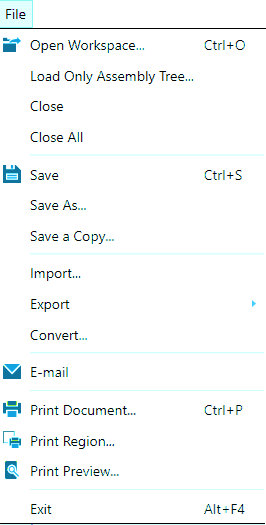
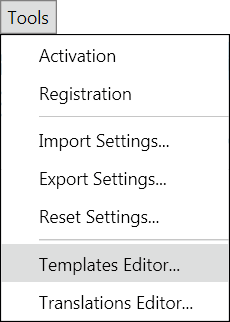
The Menu toolbar contains two menus with commands specifically for managing documents: the File menu (opening, closing, manipulating files) and the Tools menu (creating custom formats for printing).
File Menu
Tools Menu
Documents Menu
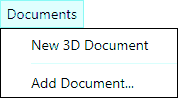
To add a document to an active Workspace, use the Add Document… command.
Add a 3D document to the Workspace
Select Documents > New 3D Document… to add a new 3D document to the current work space.
Note
Once added, import 3D models from native CAD files or ACT3D files into the new 3D document.
Add a new document to the Workspace
Select Documents > Add Document… to open the Add Document dialog box.
Double-click the file you want to open in the Workspace.
Note
If you add an .ACT3D file that contains multiple documents, a dialog box will ask which of the documents in that file you would like to add to the Workspace.
When you have multiple documents open in a Workspace, then all those documents will be saved in the .ACT3D file (the one listed in the title bar of the application) when you perform the Save command.
Remove a document from a Workspace
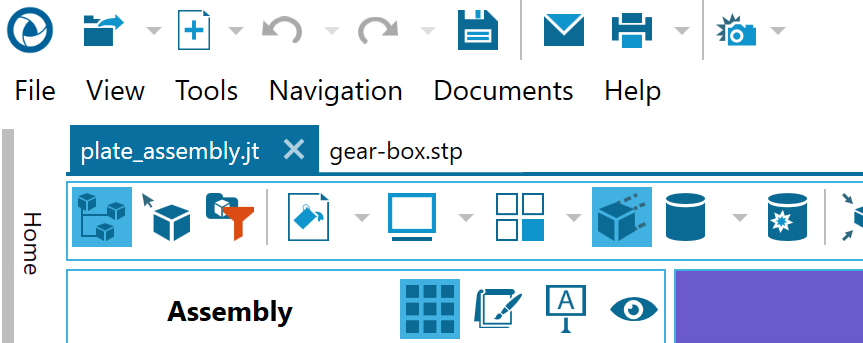
Click the X on the tab of the document you wish to delete from the Workspace.
On the File menu, click Save.
Close a document
To close a particular document, click the X on the tab associated with the document you want to close.
Standard Toolbar
The Standard toolbar provides one-click access to frequently-used functions, such as opening, printing, and e-mailing files.

Quick Links