2D Notes
2D Point Note
A 2D Point Note is attached to a selected point in a drawing.
2D Edge Note
A 2D Edge Note is attached to a selected edge in the drawing.
Drawing Note
A Drawing Note is attached to a selected spot in the drawing and moves with the drawing as you pan.
2D Note
A 2D Note “floats” above the drawing and remains in place as you pan—it does not move with the drawing.
Notes
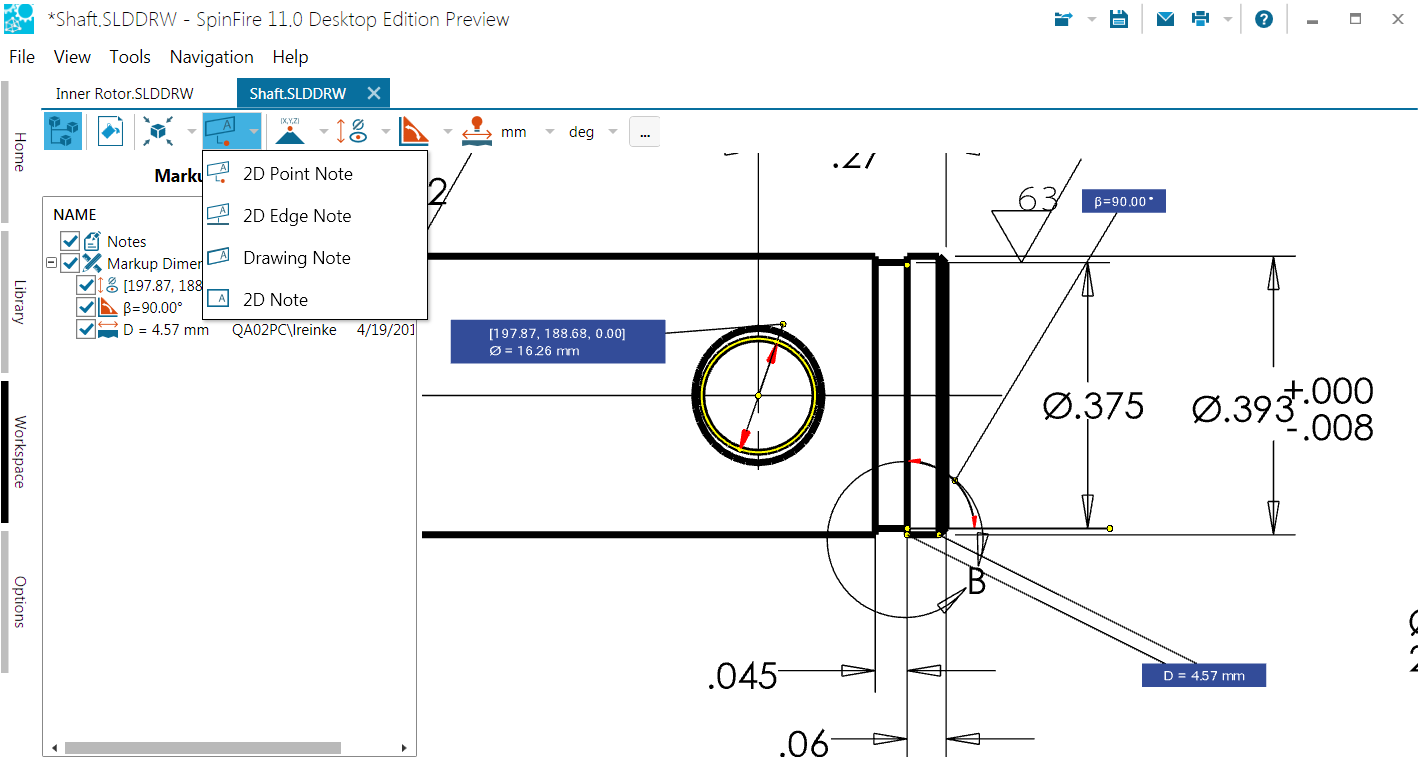
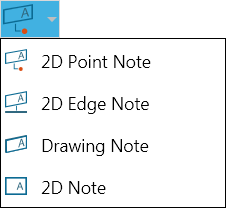
The Notes Menu
Add a point note
Open the Notes menu on the 2D Document Toolbar. (Click the drop-down arrow to the right of the Notes icon to see the menu of commands.)
Click 2D Point Note. Mouse over your drawing. Highlighted edges designate where there are available points on the model. Crosshairs indicate the point where the label will attach.
When the label appears, drag it into position with your pointer.
Click once to set the position of the label. A cursor will appear in the label.
Type the text of your label and press Enter.
Note
If you want to add several of the same type of markup, you may select the Lock tool check box that appears when you select a markup command. This will allow you to keep adding the same type of markup to the scene until you click Stop.
Add an edge note
Open the Notes menu on the 2D Document Toolbar. (Click the drop-down arrow to the right of the Notes icon to see the menu of commands.)
Click 2D Edge Note.
Click the edge you wish to label. The edge is highlighted when the pointer is properly positioned.
When the label appears, drag it into position with your pointer.
Click once to set the position of the label. A cursor will appear in the label.
Type the text of your label and press Enter.
Note
If you want to add several of the same type of markup, you may select the Lock tool check box that appears when you select a markup command. This will allow you to keep adding the same type of markup to the scene until you click Stop.
Add a drawing note
Open the Notes menu on the 2D Document Toolbar. (Click the drop-down arrow to the right of the Notes icon to see the menu of commands.)
Click Drawing Note. The label will appear.
Drag the label into position with your pointer.
Click once to set the position of the label. A cursor will appear in the label.
Type the text of your label and press Enter.
Note
If you want to add several of the same type of markup, you may select the Lock tool check box that appears when you select a markup command. This will allow you to keep adding the same type of markup to the scene until you click Stop.
Add a 2D note
Open the Notes menu on the 2D Document Toolbar. (Click the drop-down arrow to the right of the Notes icon to see the menu of commands.)
Click 2D Note. The label will appear.
Drag the label into position with your pointer.
Click once to set the position of the label. A cursor will appear in the label.
Type the text of your label and press Enter.
Note
If you want to add several of the same type of markup, you may select the Lock tool check box that appears when you select a markup command. This will allow you to keep adding the same type of markup to the scene until you click Stop.