SpinFire Insight offers several options for adding useful markup labels to your 3D model. The two categories of markup labels are dimensions and notes. Dimensions, or measurements, indicate lengths, areas, coordinates, or angles. Notes are comments created by users.
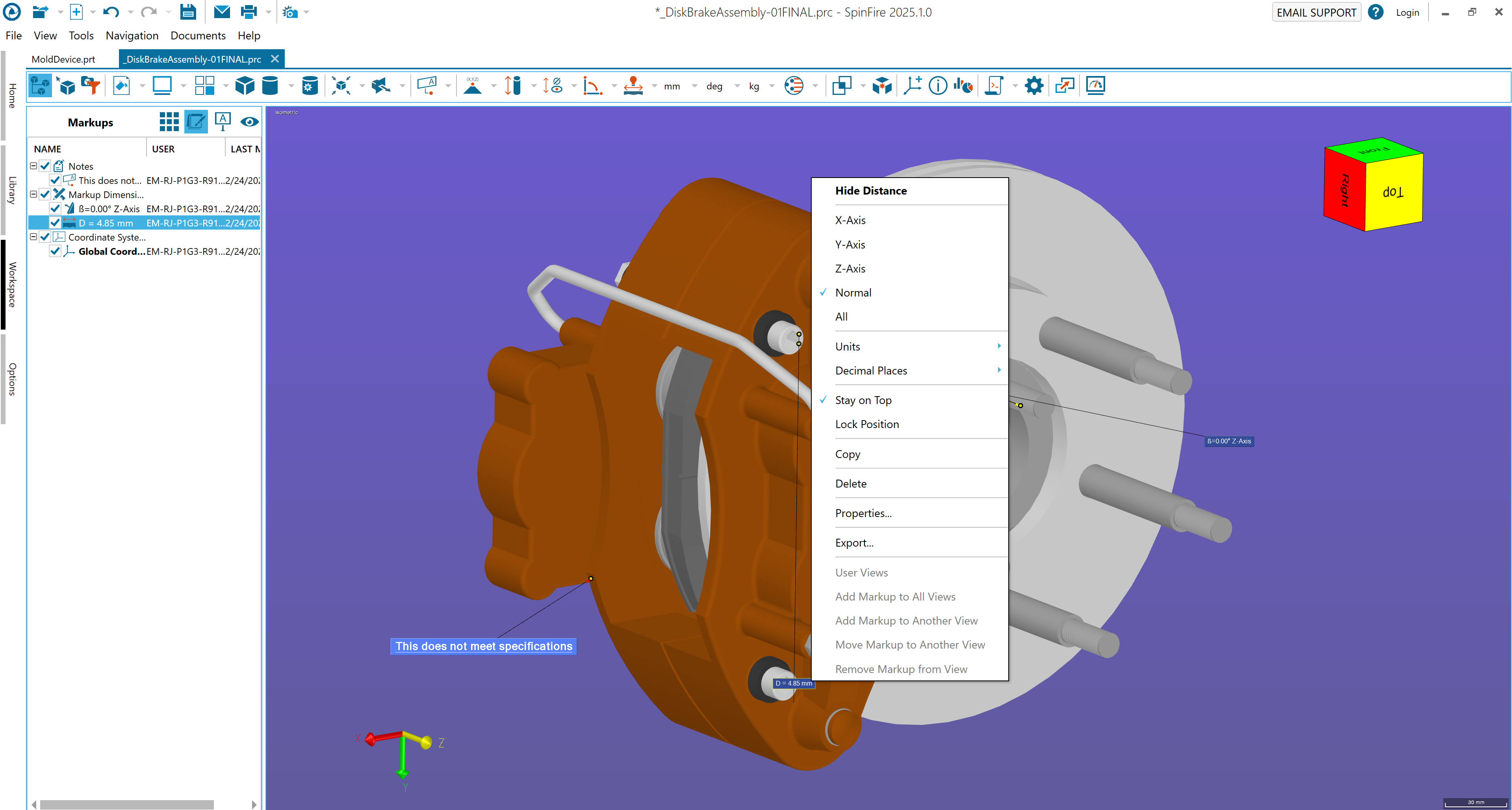
The Markups browser in the Workspace displays a hierarchical list of model notes and dimensions and coordinate systems.
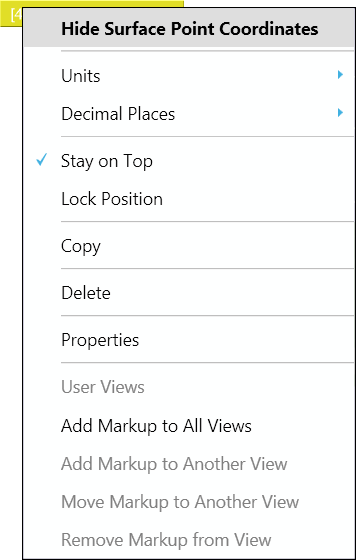
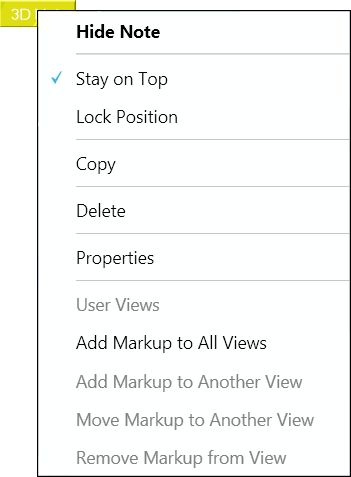
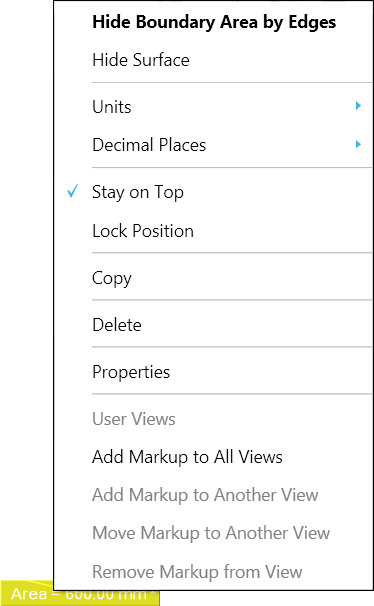
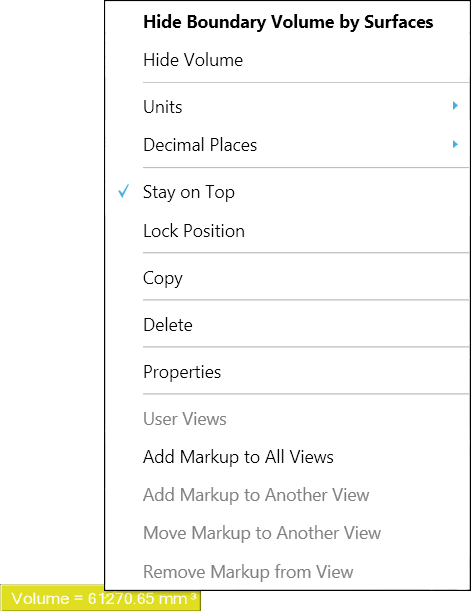
The markup context menu can be accessed from either the label itself or its listing on the Markups browser pane.
To hide or show a markup, select or clear its check box in the Markups pane.
The markup dimension and note labels are similar in appearance and can be manipulated in similar ways. For example, you can position any markup label by dragging it, or you can prevent repositioning by selecting Lock Position from the markup context menu. Another example: A markup label normally rotates along with your model and can appear behind the model. You can prevent this by selecting Stay on Top from the markup context menu.
From the context menu, you can add a text comment and/or description to a markup label. There are two kinds of text that can be added to a markup label:
Description - Appears as an extra line of text on the markup label itself. This is most useful for measurement labels.
Comment - Appears as a bubble when the pointer hovers over the label. A markup label with a comment will have a mark in the lower-right corner.
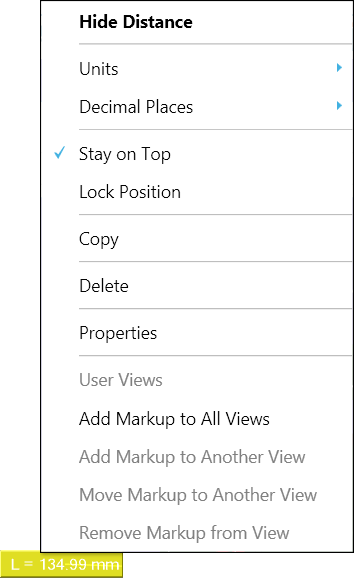
This markup dimension label has a text comment attached to it. Notice the mark in the lower-right corner, indicating a comment.
A markup label can be made into a hyperlink, which gives a user access to a file or Web page. A markup label that is also a link is underlined.
A markup dimension can measure a line, angle, diameter, surface area, or volume. You can call the different commands from menus on the 3D Document Toolbar. For details on how each of these commands works, see the 3D Dimensions.
The initial unit of measurement for any markup dimension is determined by the default settings in SpinFire Insight (see 3D Viewer Settings). You can change the units of measurement for any individual markup by choosing Units from its right-click context menu.
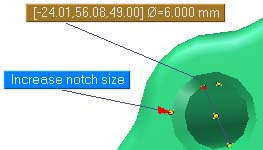
3D Edge Note - Attached to a straight line on the model.
3D Note - Attached to any point in the 3D space.
2D Note - Not attached to any point in the 3D space. Label remains stationary.
3D Surface Note - Attached to any point of a surface.
For each of these, you select the appropriate location to attach the note, position the label, type the text of the label, and hit the Enter key when finished.
The title of a note is the same as the text in its label. The title identifies a note in the Markups browser pane. You can add or edit the text using the Properties dialog box accessed from the right-click context menu.
Note
Do not confuse the text of a note label with an optional text comment attached to a markup label. See 3D Notes for details.
Markup context menus enable you to change the attributes of selected markups; for example, you can change the background color of all linear dimension labels to differentiate them from the radial dimension labels in a particular workspace.
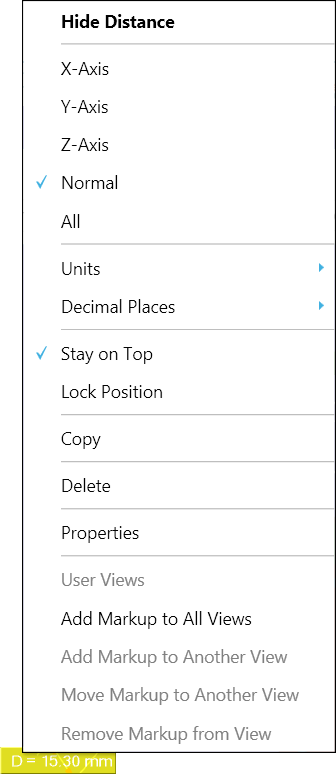
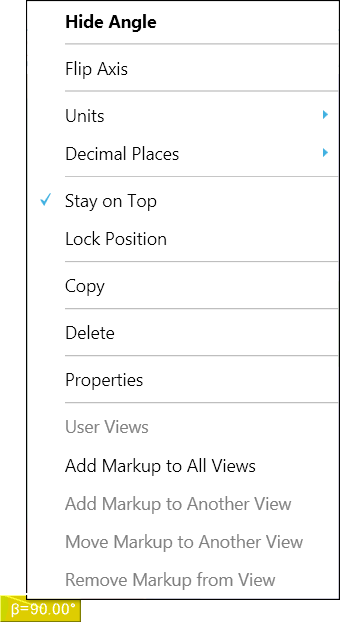
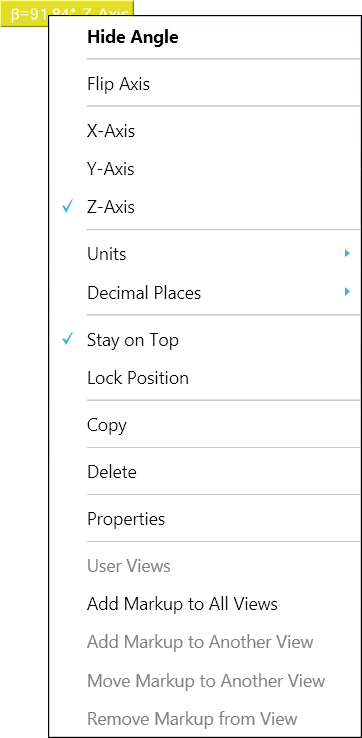
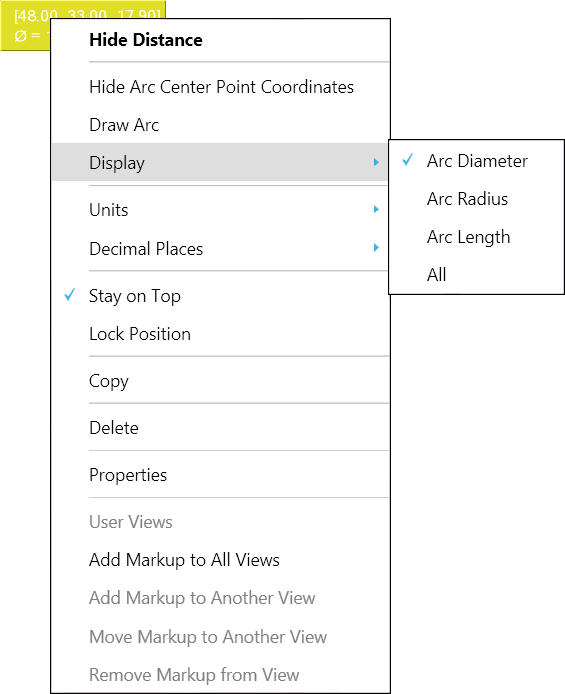
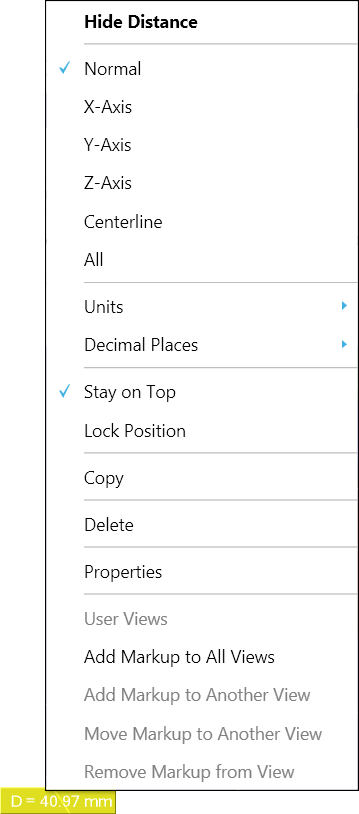
While each type of measurement will have a unique menu, the context menus contain the same basic commands, such as Copy, Delete, and Properties.
A context menu can be accessed by either clicking on the markup name in the Markups pane or right-clicking the markup itself.
Right-click the label itself or the name of the label in the Markups pane to open the context menu.
Click Stay on Top. The Stay on Top setting has a check mark beside it when it is enabled.
Note
Markup labels (with the exception of a 2D Note) rotate along with your view of the model. This can result in the label appearing behind the model. You can prevent this with the Stay on Top setting.
Follow this same procedure to disable the Stay on Top setting.
Right-click the label itself or the name of the label in the Markups pane to open the context menu.
Click Lock Position. The Lock Position setting has a check mark beside it when it is enabled.
Note
Follow the same procedure to disable the Lock Position setting.
The labels with the Lock Position setting enabled will still rotate with the view of the model. Lock Position only prevents the label from being moved with a drag operation. See “Keep a label in front of the model” on this page.
Right-click the dimension. This can be done either from the Markup browser or the label in the scene.
Select Properties to open the markup properties dialog box.
Select the desired coordinate system from the Relative to: drop-down menu.
Click OK.
Note
You can tell if a dimension measurement is taken relative to a coordinate system other than the Global Coordinate System by the triad icon on the markup label.
To link to a user view, type the pound sign (#) followed by the name of the saved view.
To link to another document within the .3D file, surround the name of the document with square brackets [ ]. For example, typing [Wheel] would open the Wheel document.
If you would like to link a user view within a 3D document, add the pound sign # followed by the viewname. For example, typing [Wheel]#view2 would open the Wheel document and display the view named view2.
SpinFire Insight will append the http:// protocol header to any relative link. Therefore, links to files must use an absolute path.
Select which measurement(s) to include in the markup. Choices are measurements with respect to theNormal,X-Axis, Y-Axis, Z-Axis, and Centerline, or All.
Your multilingual generative AI assistant for documentation. Ask me anything about SpinFire Insight in your own language, or choose a sample question below to start a conversation:
What is SpinFire Insight?
What are the latest release notes for SpinFire Insight?
How do I start evaluating SpinFire Insight?
How can I get assistance?
SPINNY may store conversations according to OpenAI's policy. Responses may not always be accurate.



Comments and Hyperlinks
From the context menu, you can add a text comment and/or description to a markup label. There are two kinds of text that can be added to a markup label:
This markup dimension label has a text comment attached to it. Notice the mark in the lower-right corner, indicating a comment.
A markup label can be made into a hyperlink, which gives a user access to a file or Web page. A markup label that is also a link is underlined.
Examples of valid link paths include:
You can add or edit a text comment or hyperlink using the Properties dialog box accessed from the right-click context menu.
Quick Links