3D Radial Menu
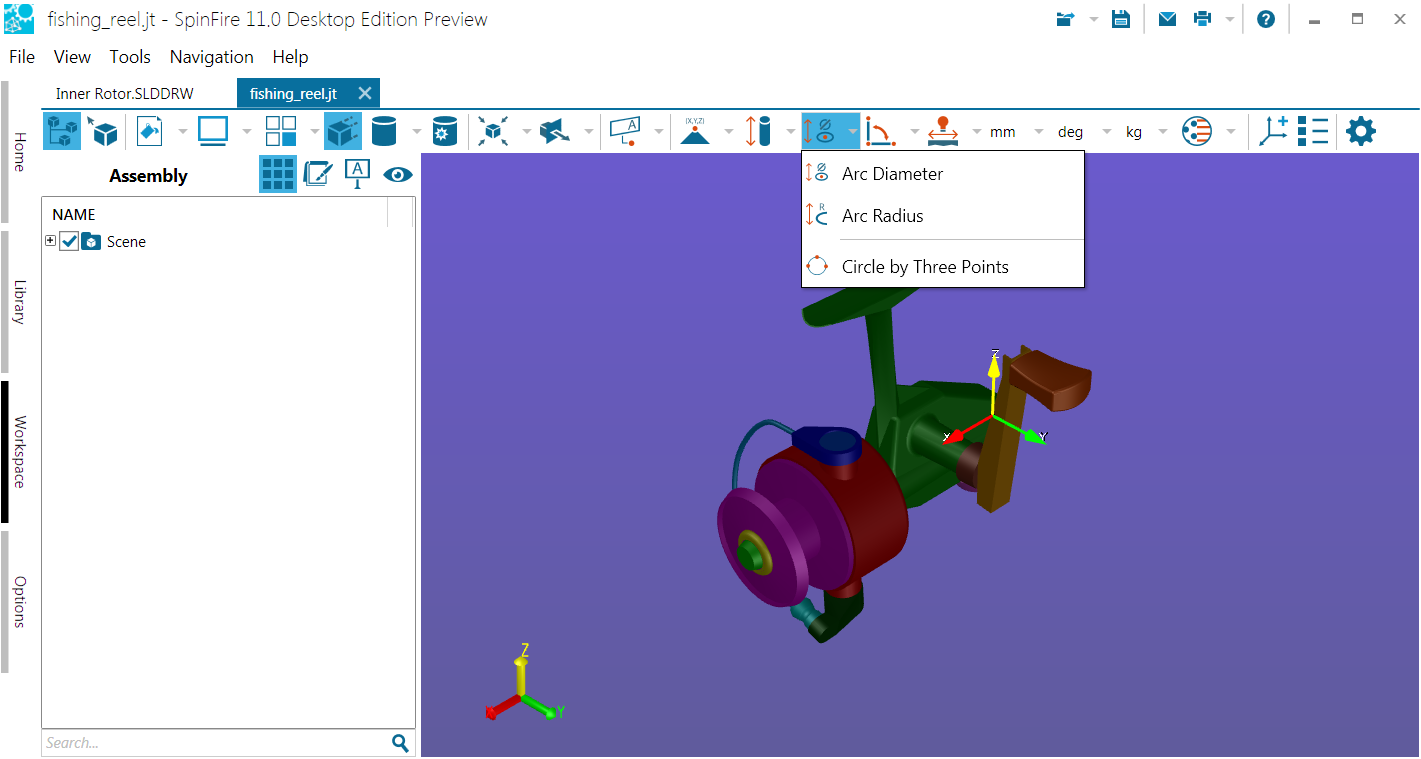
Arc Diameter
Measures the diameter of a circle derived from a selected arc on the model. The markup displays the center point coordinates and length of the diameter of the derived circle.
Arc Radius
Measures the radius of a circle derived from a selected arc on the model. The markup displays the center point coordinates and length of the radius of the derived circle.
Note
If the “circle” was created using an ellipses tool in the native CAD file, the Arc Radius measurement provides two values, one for each of the two arcs that make up the ellipse.
Circle by Three Points
Draws a visible circle that passes through three selected points on the model and determines the diameter of the circle. The diameter line is drawn through the first point you selected. The markup displays the diameter length and center point coordinates of the circle.
Working With Radial Measurements
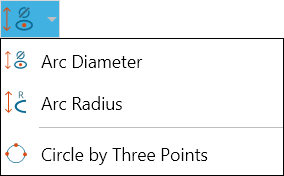
Measure an arc diameter
Open the Radial menu on the 3D Document Toolbar. (Click the drop-down arrow to the right of the Radial icon to see a drop-down menu listing the available commands.)
Click Arc Diameter.
Optional:
Select Lock tool to use the command more than once. You can keep adding Arc Diameter markups to the scene until you click Stop .
Enter a hyperlink to a file or to a document and user view within the current file.
Position your pointer over the arc you want to measure in the model. The arc is highlighted when the pointer is properly positioned for selection.
Click on the arc.
Drag the label into position and click once.
Measure an arc radius
Open the Radial menu on the 3D Document Toolbar. (Click the drop-down arrow to the right of the Radial icon to see a drop-down menu listing the available commands.)
Click Arc Radius.
Optional:
Select Lock tool to use the command more than once. You can keep adding Arc Radius markups to the scene until you click Stop .
Enter a hyperlink to a file or to a document and user view within the current file.
Position your pointer over the arc you want to measure in the model. The arc is highlighted when the pointer is properly positioned for selection.
Click on the arc.
Drag the label into position and click once.
Note
If the “circle” was created using an ellipses tool in the native CAD file, the Arc Radius measurement provides two values, one for each of the two arcs that make up the ellipse.
Measure a circle by three points
Open the Radial menu on the 3D Document Toolbar. (Click the drop-down arrow to the right of the Radial icon to see a drop-down menu listing the available commands.)
Click Circle by Three Vertices.
Optional:
Select Lock tool to use the command more than once. You can keep adding measurements to the scene until you click Stop .
Enter a hyperlink to a file or to a document and user view within the current file.
Click three vertices on the model. Crosshairs indicate when the pointer is properly positioned over a point.
Drag the label into position and click once.
Note
You can choose to show only the arc that runs through the three points by right-clicking the label and selecting Draw Arc from the context menu.
Right-click a dimension markup to make changes to its properties. A context menu will appear and provide command options that are based on the selected markup type. For example, a Point Coordinates markup context menu will differ slightly from an Arc Center to Arc Center markup context menu. (See Working with 3D Markups for details.)