Advanced Measurement Menu
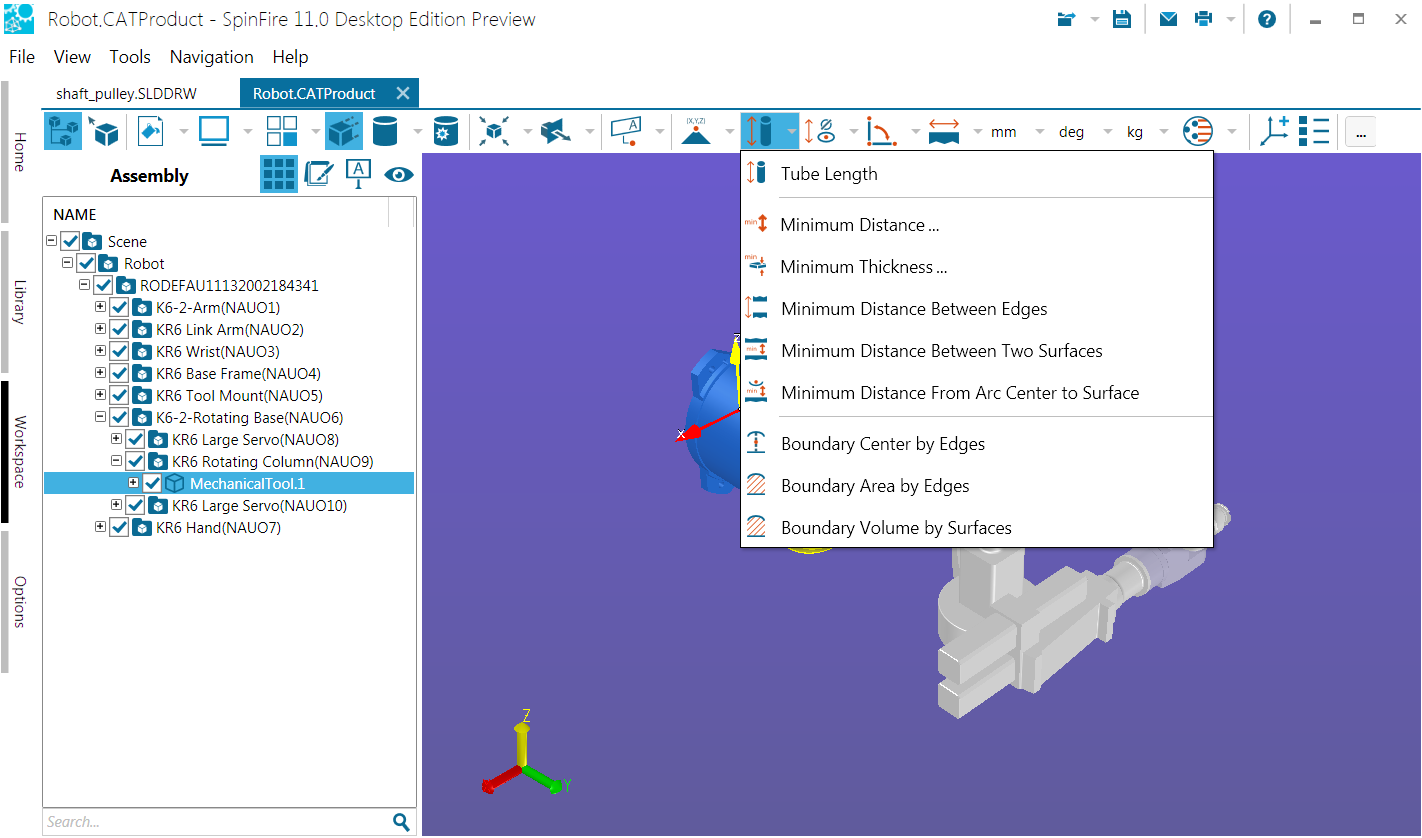
Right-click a dimension markup to make changes to its properties. A context menu will appear and provide command options that are based on the selected markup type. For example, a Point Coordinates markup context menu will differ slightly from an Arc Center to Arc Center markup context menu. (See the Working with 3D Markups for details.)
Tube Length
Measures the length of a tube between first and last radii selections—generates the total centerline length.
Measure tube length
Open the Advanced Measurements menu on the 3D Document Toolbar. (Click the drop-down arrow to the right of the Linear icon to see the menu of commands.)
Select Tube Length.
Optional:
Select Lock tool to use the command more than once.
Enter a hyperlink to a file or to a document and user view within the current file.
Check Auto Complete to have SpinFire Insight attempt to find the end of the tube. Uncheck to manually select the path of arcs to the end of the tube.
Position your cursor on the starting arc or circle and click. (Selectable arcs and circles are highlighted as you mouse over them.) The selected arc or circle remains highlighted.
In non-Auto Complete mode, continue to click arcs or circles that define the tube. A green line traversing the center of the tube indicates what will be measured.
Double-click the last arc or circle to end the sequence.
Drag the label into position and click once.
*Optional: *
Click Copy to copy the markup content to the Windows clipboard.
Click Export… to save the tube length bill of materials (BOM) into a file (.txt, .csv, .xml, .xls, .xlsx).
Click Stop when you’re finished taking multiple measurements. Click Close (or X) to end the command and close the dialog box.
Note
Recommendation: To find arcs and circles more easily, select your model and render as Smooth with Edges. See also Measurement Tips.
Minimum Distance…
Measures the shortest distance between two sets of points or surfaces.
Measure the minimum distance between sets of parts/surfaces
Open the Advanced Measurements menu on the 3D Document Toolbar. (Click the drop-down arrow to the right of the Linear icon to see the menu of commands.)
Select Minimum Distance….
Choose the type of object(s) you are measuring: Parts (default) or Surfaces.
To create SET #1:
Click the part or parts (or surfaces) on the model.
When you have finished selecting, click the Stop Selection button.
To create SET #2:
Click the SET #2 Select button, then the part or parts (or surfaces) on the model.
When you have finished selecting, click the Stop Selection button.
Click the CALCULATE button to display the measurement label.
Drag the label into position and click.
To measure the distance between another set of objects, click the CLEAR ALL button, then click the SET #1 Select button. Repeat steps 3 to 7.
Minimum Thickness…
Calculates the minimum thickness of a set of points or surfaces.
Measure the minimum thickness of parts/surfaces
Open the Advanced Measurements menu on the 3D Document Toolbar. (Click the drop-down arrow to the right of the Linear icon to see the menu of commands.)
Select Minimum Thickness….
Choose the type of object(s) you are measuring: Parts (default) or surfaces.
To create your set of objects, click the part or parts (or surfaces) on the model. When you have finished selecting, click the Stop Selection button.
Under Parameters, select Draft Angel and Modeling Tolerance values.
Click the CALCULATE button to display the measurement label.
Drag the label into position and click once.
Note
You can add to your set of objects by clicking the Select button again.
Minimum Distance Between Edges
Measures the shortest distance between two edges on the model.
Measure the minimum distance between edges
Open the Advanced Measurements menu on the 3D Document Toolbar. (Click the drop-down arrow to the right of the Linear icon to see the menu of commands.)
Select Minimum Distance Between Edges.
Optional:
Select Lock tool to use the command more than once.
Click a radio button to select a measurement axis (the default is Normal).
Enter a hyperlink to a file or to a document and user view within the current file.
Position your cursor on an edge and click. (Selectable edges are highlighted.) A selected edge remains highlighted.
Select the second edge.
The selected edges appear in yellow. Drag and click to position the markup in the scene.
Optional: Click Copy to copy the markup content to the Windows clipboard.
Click Stop when you’re finished taking multiple measurements. Click Close (or X) to end the command and close the dialog box.
Minimum Distance Between Two Surfaces
Measures the shortest distance between two surfaces.
Measure the minimum distance between two surfaces
Open the Advanced Measurements menu on the 3D Document Toolbar. (Click the drop-down arrow to the right of the Linear icon to see the menu of commands.)
Select Minimum Distance Between Two Surfaces.
Optional:
Select Lock tool to use the command more than once.
Click a radio button to select a measurement axis (the default is Normal).
Enter a hyperlink to a file or to a document and user view within the current file.
Position your cursor on a surface and click. (Selectable surfaces are highlighted.)
Select the second surface.
Drag and click to position the markup in the scene.
Optional: Click Copy to copy the markup content to the Windows clipboard.
Click Stop when you’re finished taking multiple measurements. Click Close (or X) to end the command and close the dialog box.
Minimum Distance From Arc Center to Surface
Measures the shortest distance from a selected arc center point to a surface.
Measure the minimum distance from an arc center to a surface
Open the Advanced Measurements menu on the 3D Document Toolbar. (Click the drop-down arrow to the right of the Linear icon to see the menu of commands.)
Select Minimum Distance From Arc Center to Surface.
Optional:
Select Lock tool to use the command more than once.
Click a radio button to select a measurement axis (the default is Normal).
Enter a hyperlink to a file or to a document and user view within the current file.
Position your cursor on an arc and click. (Selectable arcs are highlighted as you mouse over them.)
Position your cursor on a surface and click. (Selectable surfaces are highlighted.)
Drag and click to position the markup in the scene.
Optional: Click Copy to copy the markup content to the Windows clipboard.
Click Stop when you’re finished taking multiple measurements. Click Close (or X) to end the command and close the dialog box.
Boundary Center by Edges
Determines the center point of a boundary defined by connected edges. SpinFire Insight will automatically find the connected edges that form the boundary and then determine the center point.
You may need to click more than one edge for SpinFire Insight to be able to determine the boundary center. For example, if you click an edge on a cube, SpinFire Insight will not know which square boundary you want to define. When you click a second edge, SpinFire Insight will then be able to calculate the boundary and determine the center point.
Calculate boundary center by edges
Open the Advanced Measurements menu on the 3D Document Toolbar. (Click the drop-down arrow to the right of the Linear icon to see the menu of commands.)
Select Boundary Center by Edges.
Optional:
Select Lock tool to use the command more than once.
Enter a hyperlink to a file or to a document and user view within the current file.
Position your cursor on an edge and click. (Selectable edges are highlighted as you mouse over them.) A selected edge remains highlighted.
Continue selecting connected edges until SpinFire determines the intended boundary shape and calculates its center point.
The boundary center point appears in yellow. Drag and click to position the markup in the scene.
Optional: Click Copy to copy the markup content to the Windows clipboard.
Click Stop when you’re finished taking multiple measurements. Click Close (or X) to end the command and close the dialog box.
Boundary Area by Edges
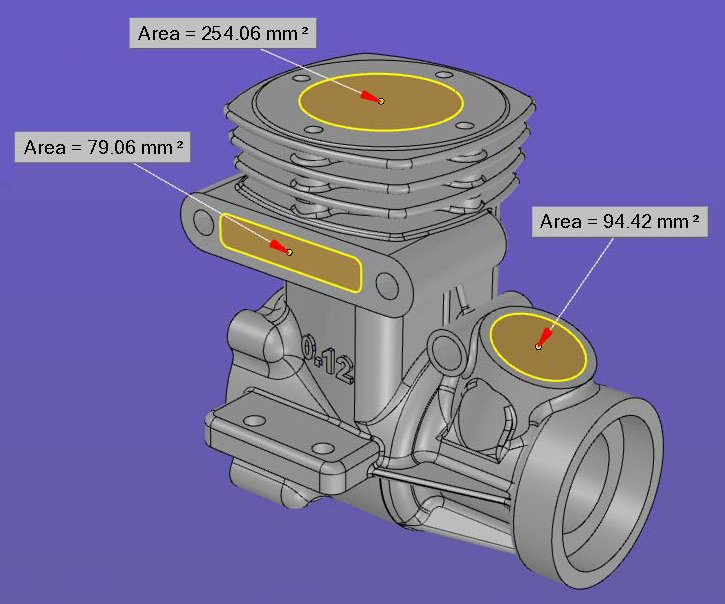
Calculates the area of a boundary defined by connected edges. SpinFire Insight will automatically find the connected edges that form the boundary and then determine the boundary area.
You may need to click more than one edge for SpinFire Insight to be able to determine the boundary area. For example, if you click an edge on a cube, SpinFire Insight will not know which square boundary you want to define. When you click a second edge, SpinFire Insight will then be able to calculate the boundary and determine the area.
Note
This command can also be used to determine the area of a void. The accuracy of the measurement depends on the degree of tessellation specified by the importer settings (greater tessellation means greater accuracy and longer processing time).
Calculate an area by boundary edges
Open the Advanced Measurements menu on the 3D Document Toolbar. (Click the drop-down arrow to the right of the Linear icon to see the menu of commands.)
Select Boundary Area by Edges.
Optional:
Select Lock tool to use the command more than once.
Enter a hyperlink to a file or to a document and user view within the current file.
Position your cursor on an edge and click. (Selectable edges are highlighted as you mouse over them.) A selected edge remains highlighted.
Continue selecting connected edges until SpinFire determines the intended boundary shape and calculates its area.
The boundary area appears as a highlighted surface. You can hide this surface by right-clicking the markup and choosing Hide Surface from the context menu.
Drag and click to position the markup in the scene.
Optional: Click Copy to copy the markup content to the Windows clipboard.
Click Stop when you’re finished taking multiple measurements. Click Close (or X) to end the command and close the dialog box.
Boundary Volume by Surfaces
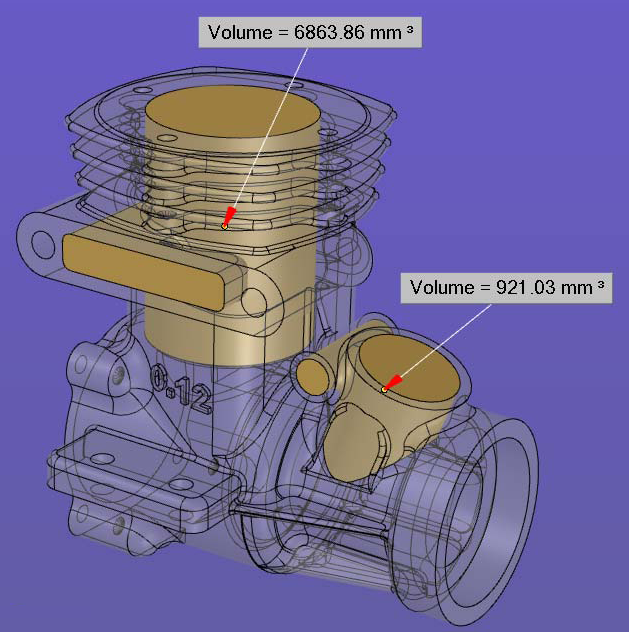
Calculates the volume of a space defined by connected surfaces. You may need to click more than one surface for SpinFire Insight to be able to determine volume.
Note
This command can also be used to determine the volume of a void. The accuracy of the measurement depends on the degree of tessellation specified by the importer settings (greater tessellation means greater accuracy and longer processing time).
Calculate the volume of a space using surfaces
Open the Advanced Measurements menu on the 3D Document Toolbar. (Click the drop-down arrow to the right of the Tube Length icon to see the menu of commands.)
Select Boundary Volume by Surfaces.
Optional:
Select Lock tool to use the command more than once.
Enter a hyperlink to a file or to a document and user view within the current file.
Position your cursor on a surface and click. (Selectable surfaces are highlighted as you mouse over them.) A selected surface remains highlighted.
Continue selecting surfaces until you have defined the space; double-click the last surface to end selection.
Drag and click to position the markup in the scene.
Optional: Click Copy to copy the markup content to the Windows clipboard.
Click Stop when you’re finished taking multiple measurements. Click Close (or X) to end the command and close the dialog box.