2D Document Functions

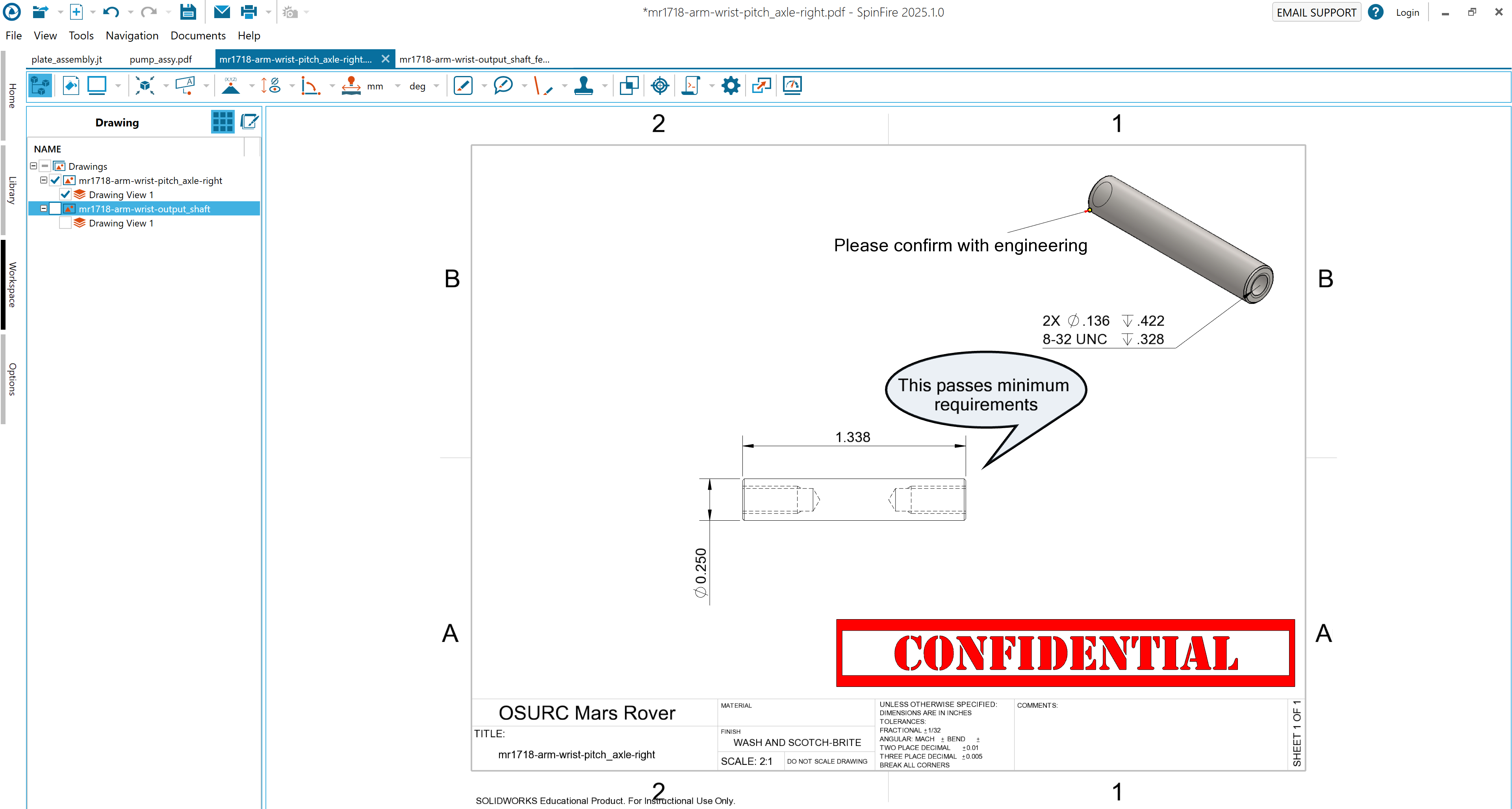
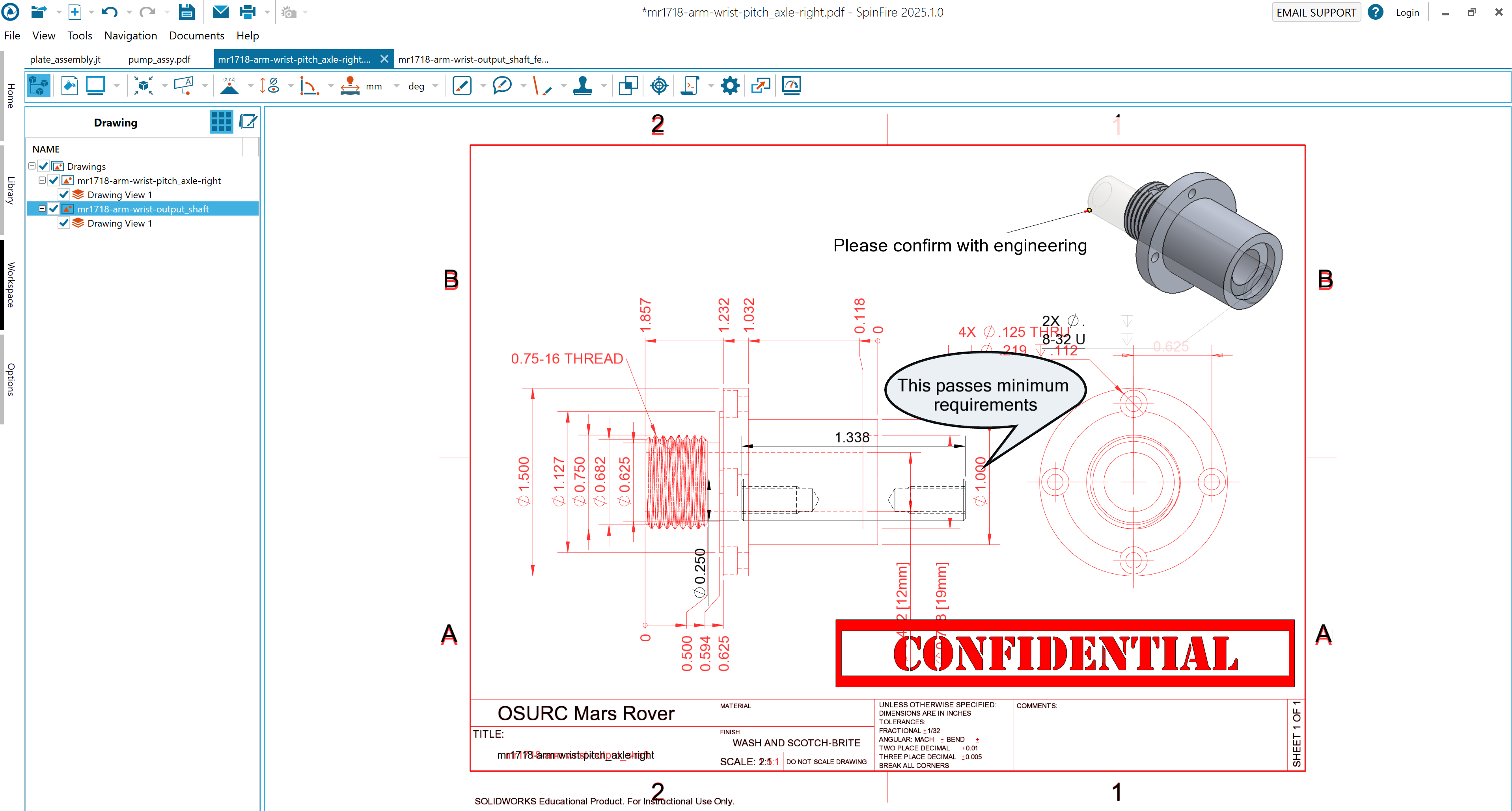
In SpinFire Insight, a 2D document consists of a “page” onto which one or more drawings, dimension markups, and/or notes may be placed. A drawing may be composed of one or more layers, depending on its native CAD file contents.

You can pan and zoom in on the page and change the viewport background color. Also, from the File menu, you can export to an image file, PDF, 3D PDF, or HSF. You can also convert your native CAD file to .ACT3D format directly. See File Menu Commands.

Commands

The 2D Document Toolbar provides easy access to a variety of linear, angular, and radial measurement tools. You can also attach notes to the scene background and selected points and edges. In addition, the toolbar enables you to override default measurement units and markup color settings.

Browsers

Also on the 2D Document Toolbar is the assembly pane icon, which enables you to show/hide browser information.

The Drawing browser pane displays a hierarchical tree that can be expanded or compressed to show or hide components of the drawing.

The Markups browser displays any notes or dimension markups you may have added to the drawing.

Quick Links

Selecting a Point

When you choose a command that requires you to select points, crosshairs indicate where selections can be made. A yellow dot indicates that you have successfully selected a point.

Selecting an Edge or Arc

Some 2D dimension commands, such as Edge Length and Arc Center to Edge, require you to select an edge or arc. When the pointer is properly positioned over an edge or arc, it appears highlighted—the highlight color is determined on the 2D Viewer Settings page.

Working with 2D Markups

Markup context menus enable you to change the attributes of selected markups; for example, you can change the background color of all linear dimension labels to differentiate them from the radial dimension labels in a particular drawing.

While each type of measurement will have a unique menu, the context menus contain the same basic commands, such as Copy, Delete, and Properties.

A context menu can be accessed by either clicking on the markup name in the Markups pane or right-clicking the markup itself.

Markup Context Menus

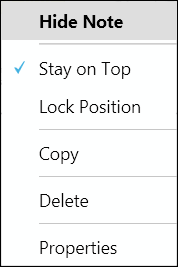
Note Context Menu
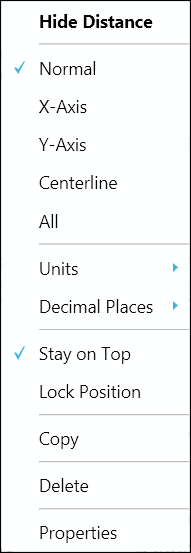
Distance Measurement Context Menu
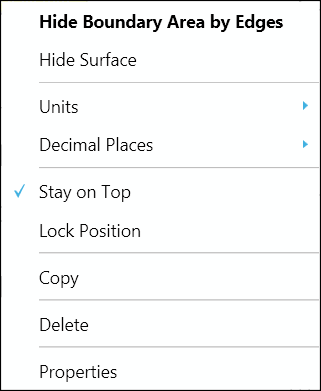
Area Measurement Context Menu
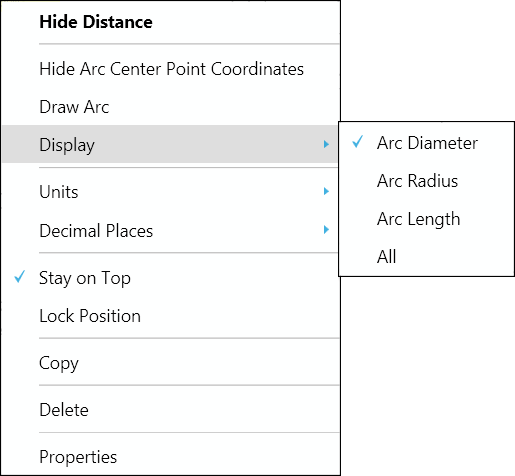
Radial Measurements Context Menu
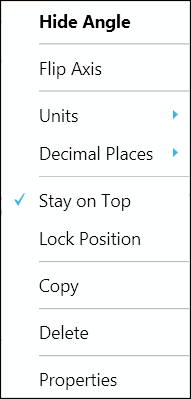
Angle Measurement Context Menu
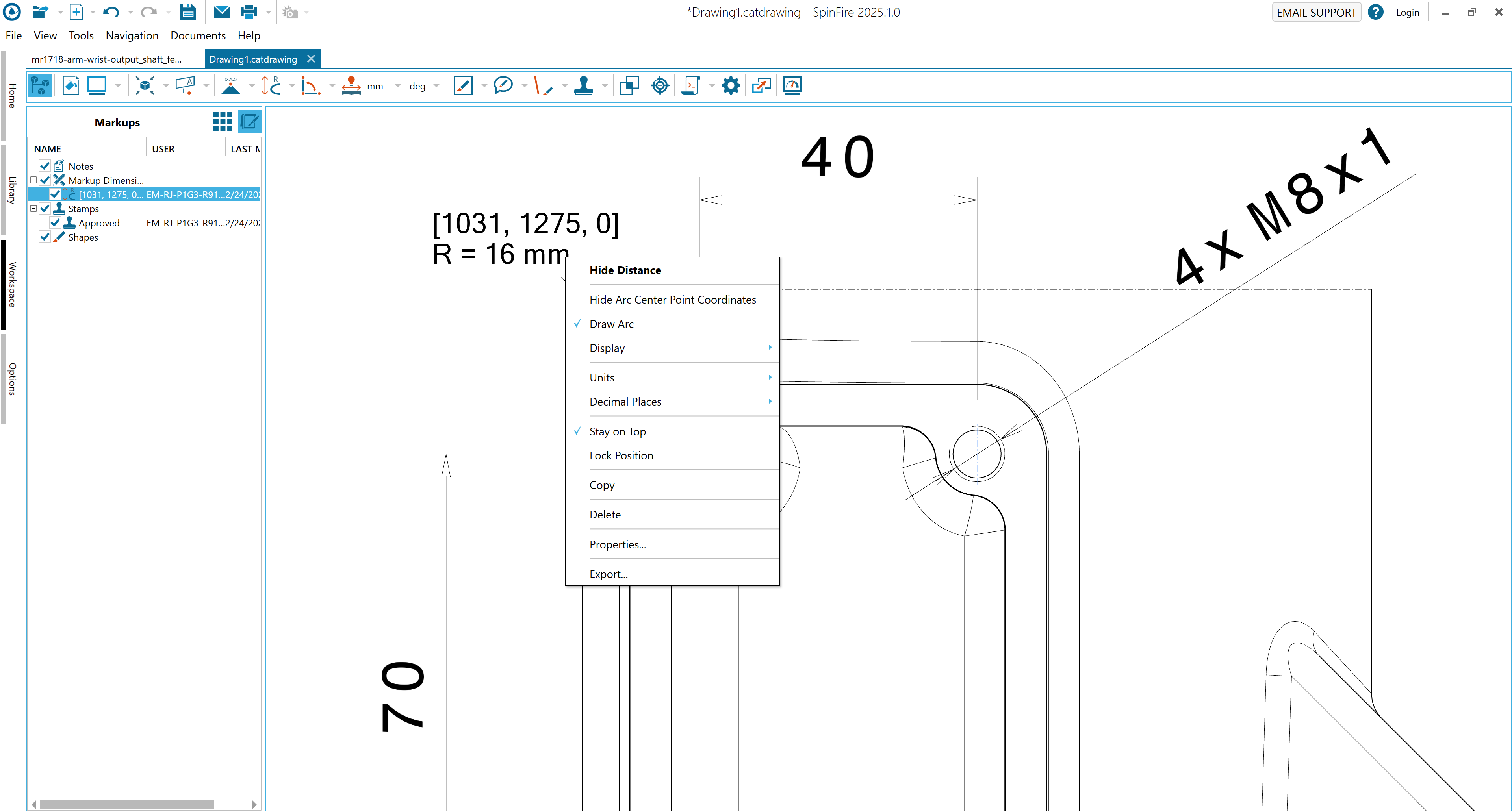
Common Context Menu Commands

Hide/show a label

  1. Right-click the markup dimension label itself or the name of the label in the Markups browser pane to open the context menu.

  2. Click Hide (or Show) markup name to manage whether or not the label is displayed in the scene.

Set measurement units

  1. Right-click the markup dimension label itself or the name of the label in the Markups browser pane to open the context menu.

  2. Select Units, then click your choice of units on the flyout menu.

Note

Select Display Units on the flyout menu to show/hide measurement units in the label.

Click As Environment in the flyout menu to change the label unit of measurement to the default set in the 3D Viewer Settings page.

Set number of decimal places displayed in the measurement

  1. Right-click the markup dimension label itself or the name of the label in the Markups browser pane to open the context menu.

  2. Select Decimal Places, then click your choice on the flyout menu.

Keep a label in front of the model

  1. Right-click the label itself or the name of the label in the Markups pane to open the context menu.

  2. Click Stay on Top. The Stay on Top setting has a check mark beside it when it is enabled.

Lock a label in position

  1. Right-click the label itself or the name of the label in the Markups pane to open the context menu.

  2. Click Lock Position. The Lock Position setting has a check mark beside it when it is enabled.

Copy the measurement

  1. Right-click the label itself or the name of the label in the Markups pane to open the context menu.

  2. Click Copy on the menu. The measurement is copied to the Windows Clipboard for use elsewhere.

Delete a label

  1. Right-click the label itself or the name of the label in the Markups pane to open the context menu.

  2. Click Delete on the menu. A dialog box asks you to confirm the deletion.

Note

Deleting a note or markup dimension label removes it permanently. If you would rather temporarily hide a label, see “Hide/show a label” on this page.

Properties

Change the font and background used in a label

  1. Right-click the label itself or the name of the label in the Markups pane to open the context menu. (See The SpinFire Insight User Interface and Browsers.)

  2. Click Properties. This opens the markup Properties dialog box.

  3. Click the button that displays the current font name and size. This opens the Font dialog box. (See 2D Viewer Settings.)

  4. Select the desired font settings and click OK.

  5. Click the Background… button to open the Color dialog box.

  6. Select the background color for the label and click OK.

Note

A preview of the selected font and background is shown in the Properties dialog box.

This procedure changes the font of the selected label only.

Change the color of markup arrows and lines

  1. Right-click the label itself or the name of the label in the Markups pane to open the context menu. (See The SpinFire Insight User Interface and Browsers.)

  2. Click Properties. This opens the markup Properties dialog box.

  3. Click the Color… button associated with either Arrow or Line to open the Color dialog box.

  4. Click the desired color and click OK.

Note

This procedure changes the color of the selected label only.

Add or edit a description or comment

To add or edit a description

  1. Right-click the label itself or the name of the label in the Markups browser pane to open the context menu. (See The SpinFire Insight User Interface and Browsers.)

  2. Click Properties. This opens the markup Properties dialog box.

  3. Click in the Description box and type a description.

  4. Click OK. The description will appear on the label beneath the original measurement or note.

To add or edit a comment

  1. Right-click the label itself or the name of the label in the Markups pane to open the context menu. (See The SpinFire Insight User Interface and Browsers.)

  2. Click Properties. This opens the markup Properties dialog box.

  3. Click in the Comments box and type your comment.

  4. Click OK. A mark will appear in the lower-right corner of the label, indicating the presence of a comment.

Special Context Menu Commands

Length and Distance Markups: Axis

Show or hide the measurement along a specified axis.

  1. Right-click the label itself or the name of the label in the Markups browser pane to open the context menu. (See The SpinFire Insight User Interface and Browsers.)

  2. Select which measurement(s) to include in the markup. Choices are measurements with respect to the Normal, X-Axis, Y-Axis, Centerline, or All.

Radial Markups: Display

To show or hide the arc drawing

  1. Right-click the label itself or the name of the label in the Markups browser pane to open the context menu. (See The SpinFire Insight User Interface and Browsers.)

  2. Select Draw Arc.

    To show or hide arc measurements

  3. Right-click the label itself or the name of the label in the Markups browser pane to open the context menu. (See The SpinFire Insight User Interface and Browsers.)

  4. Mouse over Display to see the flyout menu.

  5. Select which measurement(s) to include in the markup. Choices are Arc Diameter, Arc Radius, Arc Length, or All.

Angular Markups: Flip Axis

Flip the measurement axis 180 degrees.

  1. Right-click the label itself or the name of the label in the Markups browser pane to open the context menu. (See The SpinFire Insight User Interface and Browsers.)

  2. Click Flip Axis.

Overriding default settings from the toolbar

Changes made from the 2D Document Toolbar affect the appearance of notes and markups for the active document only and do not change the appearance of markups that already exist in the scene. If you want to change the appearance of existing markups, see Working with 2D Markups.

Change length units

  1. Open the Length Units menu on the 2D Document Toolbar. (Click the drop-down arrow to the right of the Length Units icon to see the unit list.)
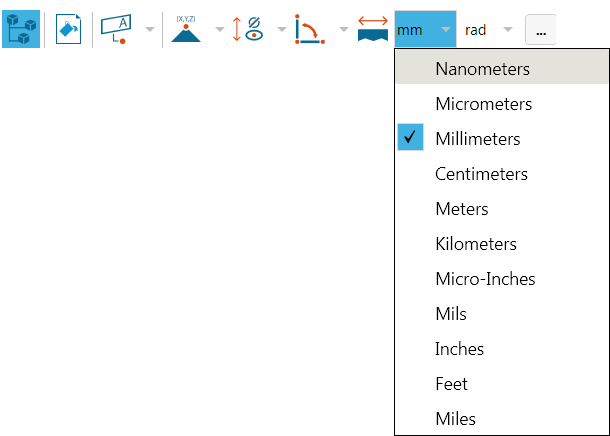
  2. Make your selection.

Change angular units

  1. Open the Angular Units menu on the 2D Document Toolbar. (Click the drop-down arrow to the right of the Angular Units icon to see the unit list.)
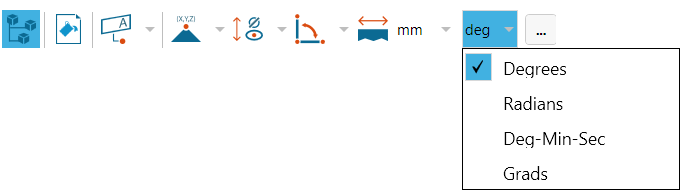
  2. Make your selection.

Change markup colors

  1. On the 2D Document Toolbar, click the Settings icon.

  2. In the Options dialog box, click the appropriate COLOR… button.
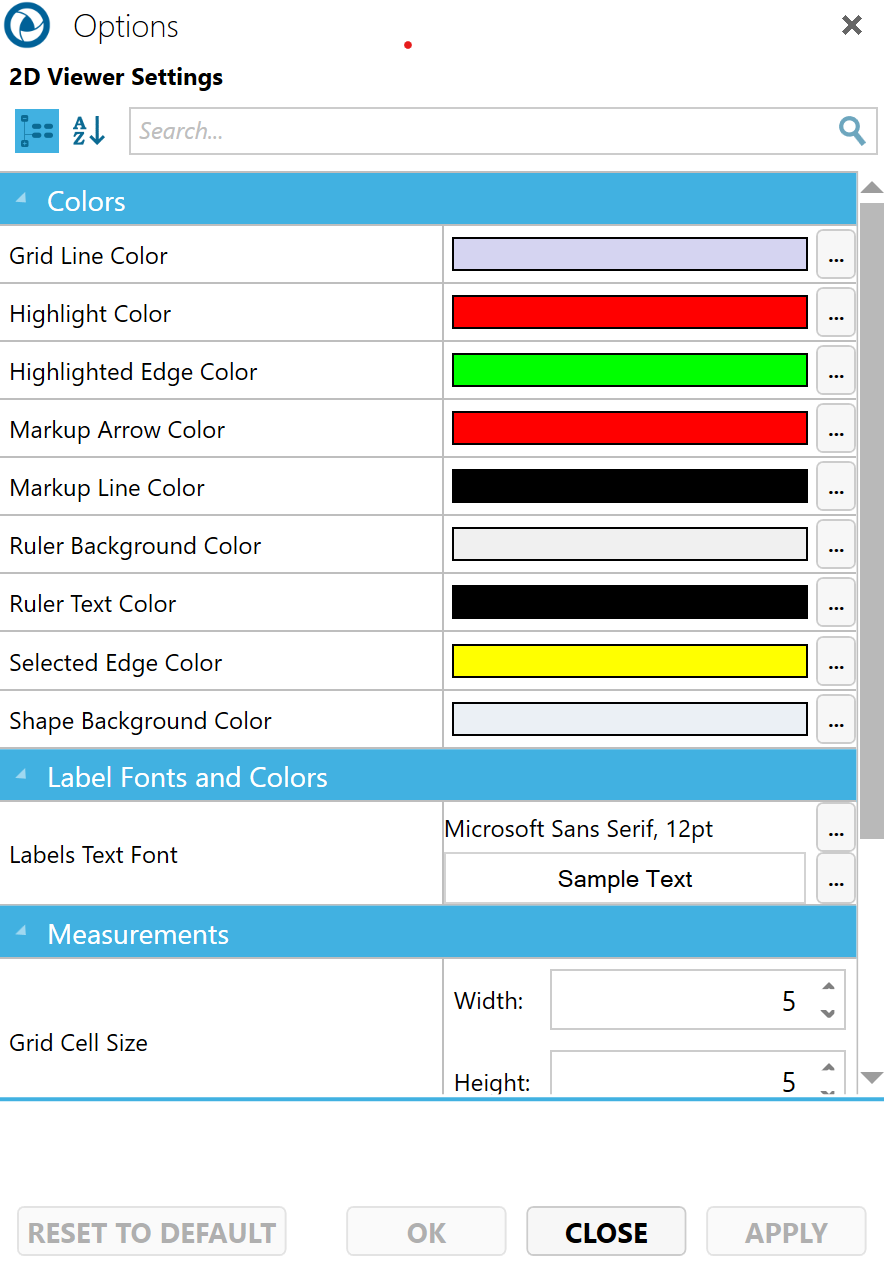
  3. In the Color dialog box, choose from Standard Colors or Recent Colors or create a new custom color.
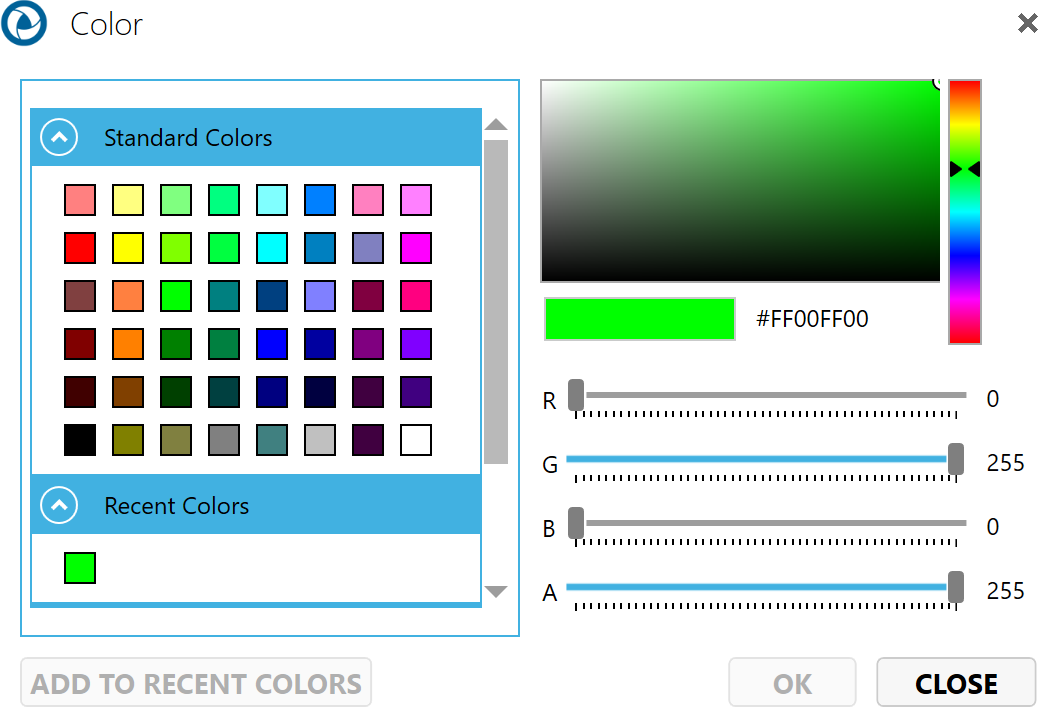
  4. Click OK.

    To revert color changes back to default settings:

  5. On the 2D Document Toolbar, click the Settings icon again.

  6. In the Options dialog box, click the RESET TO DEFAULT button.

Change markup fonts

  1. On the 2D Document Toolbar, click the Settings icon.

  2. In the Options dialog box, click the font name in the Label Fonts and Colors field.

  3. In the Font dialog box, choose a new font, style, size, color, and/or effects.
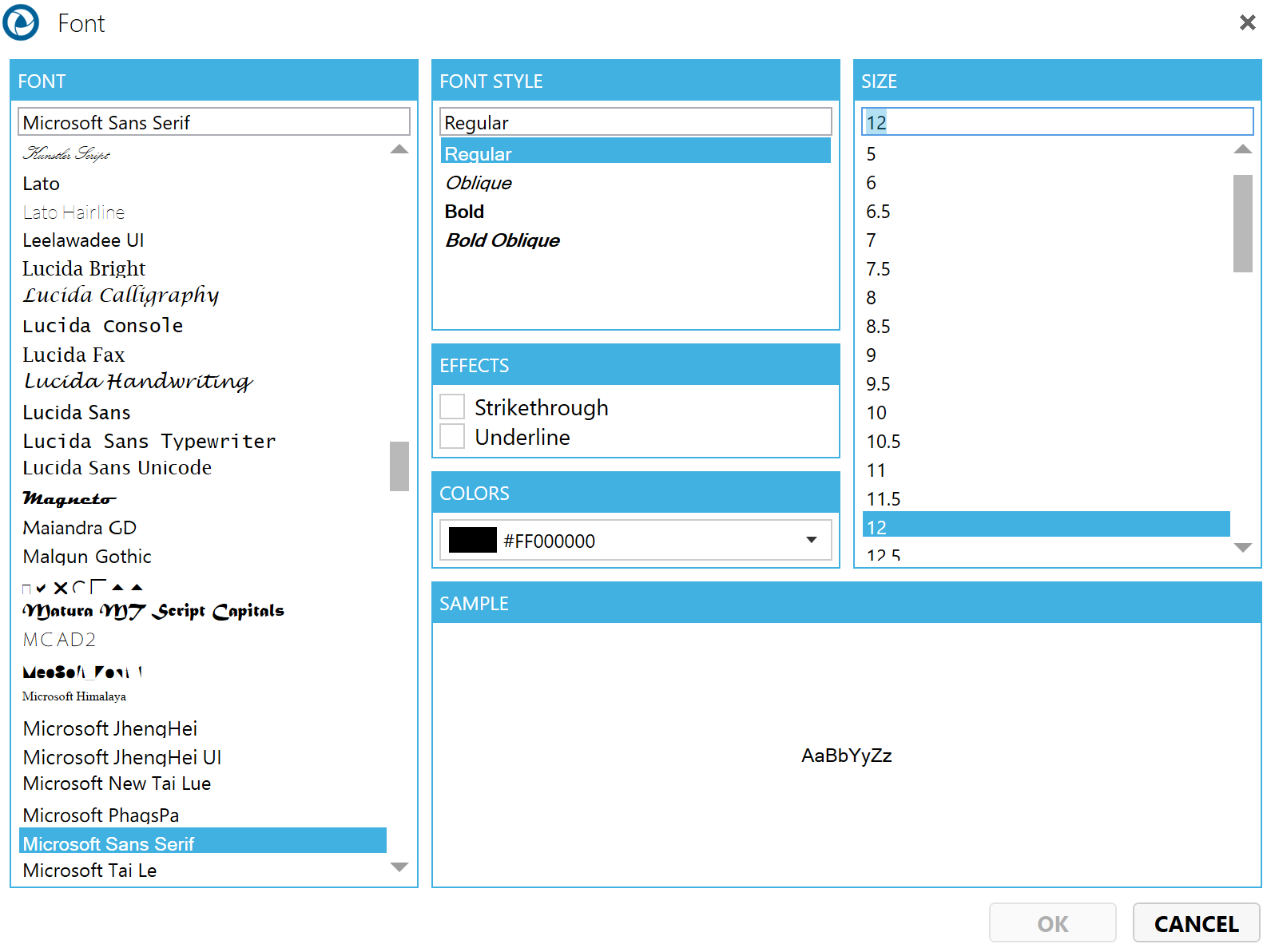
  4. Click OK.

Change the background color

  1. In the 2D Document Toolbar, click the Background Color icon.

  2. In the Color dialog box, choose from Standard Colors or Recent Colors or create a new custom color.
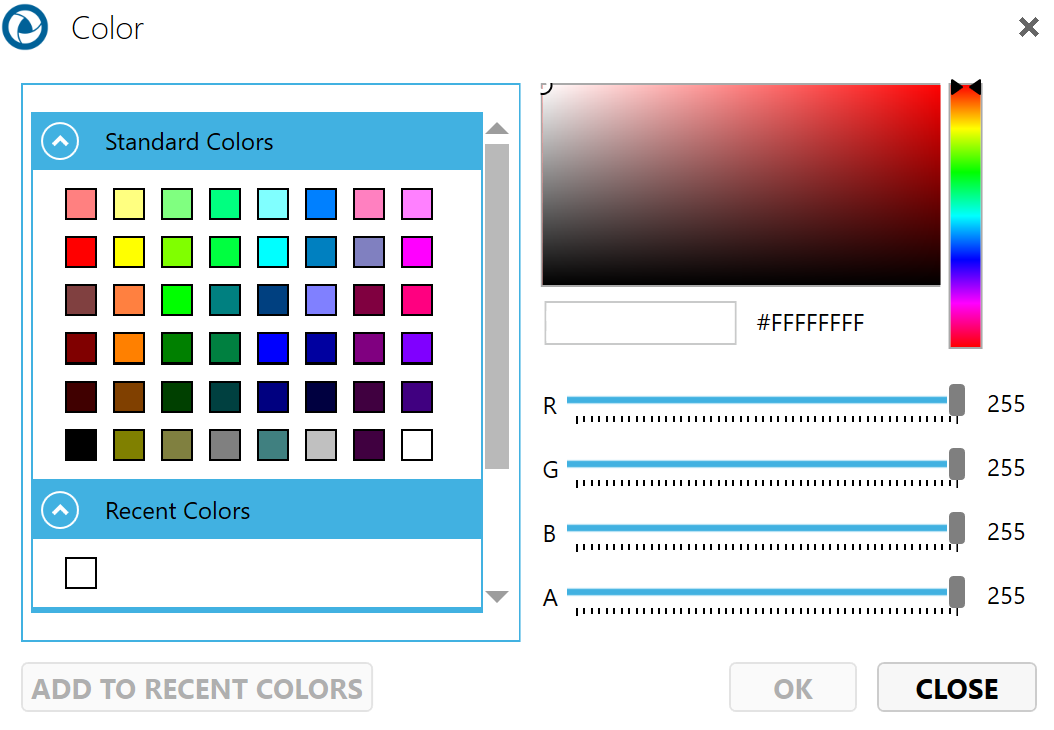
  3. Click the OK button.

Using the browsers

Show/hide notes and markups

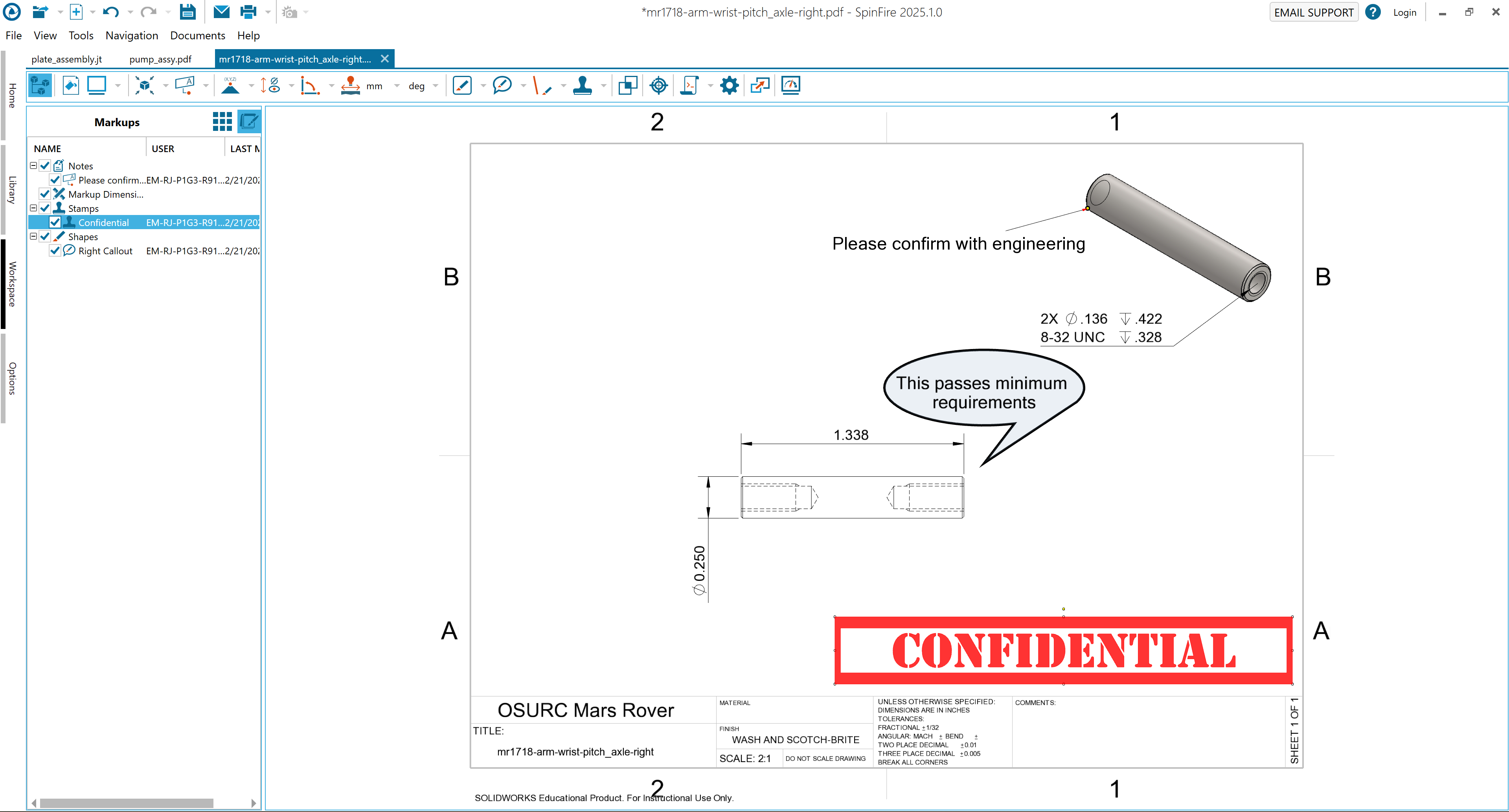
  1. Click the Markups icon on the 2D Browser Toolbar.
  2. Clear/select the note or markup checkbox to hide/show the label.
Show/hide drawing layers

  1. Click the Drawing icon on the 2D Browser Toolbar.
  2. Clear/select the node or layer checkbox to hide/show the object in the drawing.

2D Markups

Move a 2D markup

  1. Right-click the markup to open the context menu. You can do this by clicking either the measurement label in the drawing or its listing in the Markups browser pane.

  2. Click+drag the markup into position. Be sure not to drag one of the handles, which will resize the markup.

Change the transparency of a 2D markup

You can change the transparency of the line, fill, and text of line, shape, and text box markups.

  1. Right-click the markup to open the markup context menu. You can do this by clicking either the measurement label in the drawing or its listing in the Markups browser pane.

  2. Open the Line Color, Fill Color, or Text Color menu from the 2D Document Toolbar.

  3. Click Transparency. This opens the Set Transparency dialog box.

  4. Use the slider to set the transparency.

Change properties of a 2D markup

  1. Right-click a dimension markup to make changes to its properties. A context menu appears with command options based on the selected markup type. For example, a Point Coordinates markup context menu differs slightly from an Arc Center to Arc Center markup context menu. (See Working with 2D Markups for details.)

  2. Modify the desired information, such as:

    1. Font

    2. Background Color

  3. Add a Description or Comment

2D Drawings

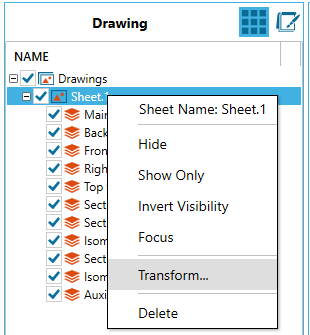
Transform a 2D Drawing

  1. Right-click the drawing under Drawings, such as “Sheet” or “Model”.

  2. Select Transform.

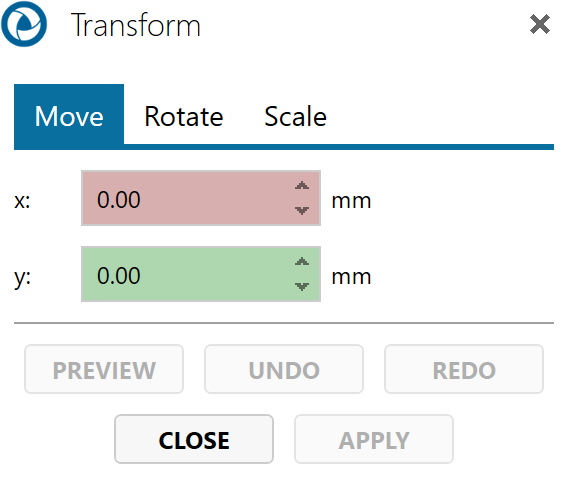
  3. Select either

    1. Move

    2. Rotate

    3. Scale

  4. Key in the values

  5. Select Apply