Smart Dimensions
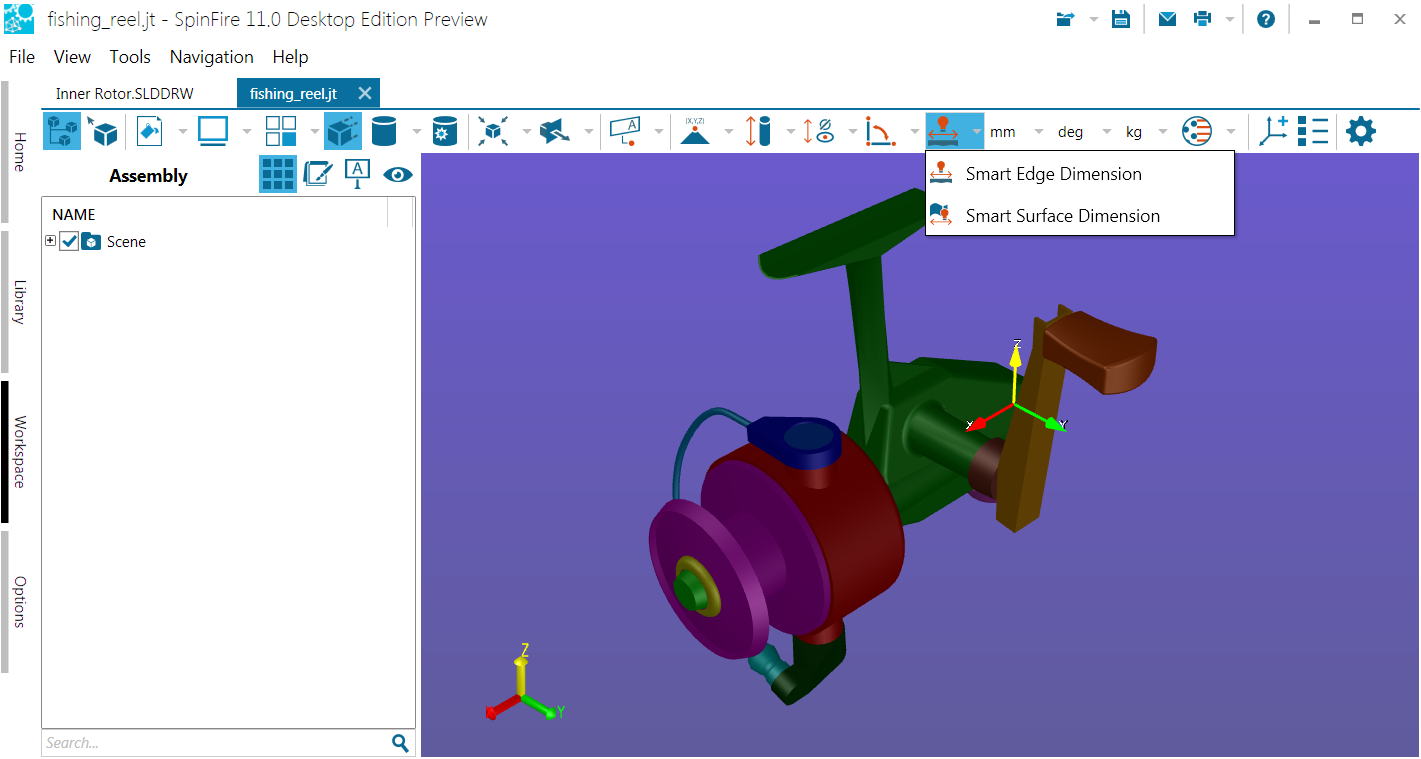
Smart Dimensioning allows you to mouse over your model(s) and quickly determine object point coordinates and lengths, distances between objects, angle measurements, and more.
Smart Edge Dimension
With this command, you can quickly and easily determine edge lengths, edge to point and edge to arc center distances, and the minimum distance between two edges. You can also choose to measure arc characteristics, such as diameter, radius, center coordinates, and the distance between two arc centers.
Smart Surface Dimension
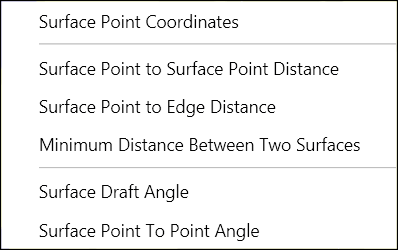
Use this command to quickly and easily determine surface point coordinates; distances between a surface and a point, edge, or another surface; and surface angles.
Working With Smart Dimensions
Measure an edge
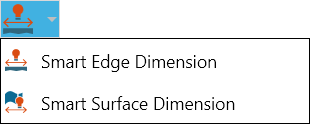
Open the Smart Dimension menu on the 3D Document Toolbar . (Click the drop-down arrow to the right of the Smart Dimension icon.)
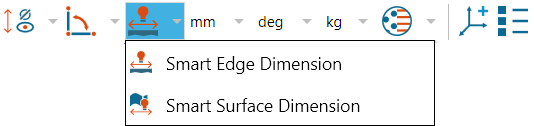
Select Smart Edge Dimension.
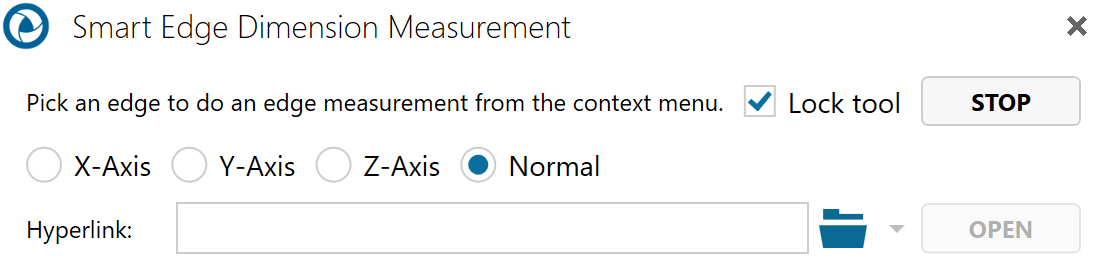
Mouse over and select a highlighted edge.
Optional:
Select Lock tool to use the command more than once.
Enter a hyperlink to a file or to a document and user view within the current file.
Position your cursor on an edge. (Selectable edges are highlighted when you mouse over them.)
Double-click the left mouse button to measure the edge length (default).
- Click the right mouse button to bring up a context menu containing additional measurement options, then make your selection.
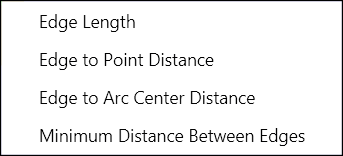 If the edge you select is an arc, the context menu will contain more measurement choices.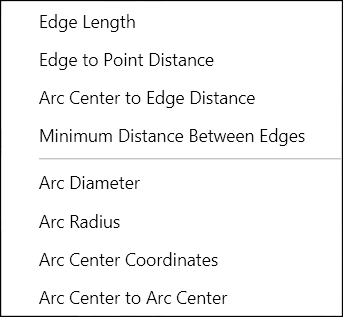
Drag and click to position the label in the scene.
Note
If you want to add several of the same type of markup, you may select the Lock tool checkbox that appears when you select a markup command. This will allow you to keep adding the same type of markup to the scene until you click Stop.
Measure a surface
Open the Smart Dimension menu on the 3D Document Toolbar . (Click the drop-down arrow to the right of the Smart Dimension icon.)
Select Smart Edge Dimension.
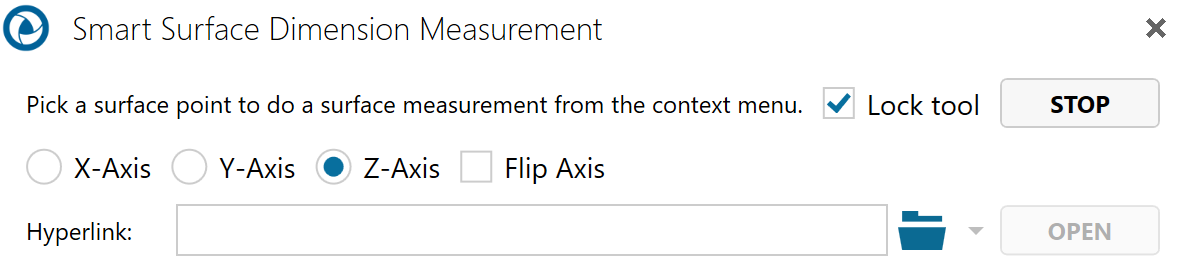
Mouse over and select a highlighted edge.
Optional:
Select Lock tool to use the command more than once.
Enter a hyperlink to a file or to a document and user view within the current file.
Position your cursor on a point on a surface. (Selectable points and surfaces are highlighted when you mouse over them.)
Double-click the left mouse button to measure the surface draft angle (default).
Click the right mouse button to bring up a context menu containing additional measurement options, then make your selection.
Drag and click to position the label in the scene.
Note
If you want to add several of the same type of markup, you may select the Lock tool checkbox that appears when you select a markup command. This will allow you to keep adding the same type of markup to the scene until you click Stop.
Right-click a dimension markup to make changes to its properties. A context menu will appear and provide command options that are based on the selected markup type. For example, a Point Coordinates markup context menu will differ slightly from an Arc Center to Arc Center markup context menu. (See Working with 3D Markups for details.)