User Guide
Using the Product
Default Translations
Default Translation – via the Unified Interface
The Unified Interface can be started via the Start Menu – if a shortcut was added during installation.
Alternatively, the Unified Interface can be run via a Windows Explorer selection in:
<UI_installation_directory>\bin\Unified_Interface.cmd
The following interface will be launched:
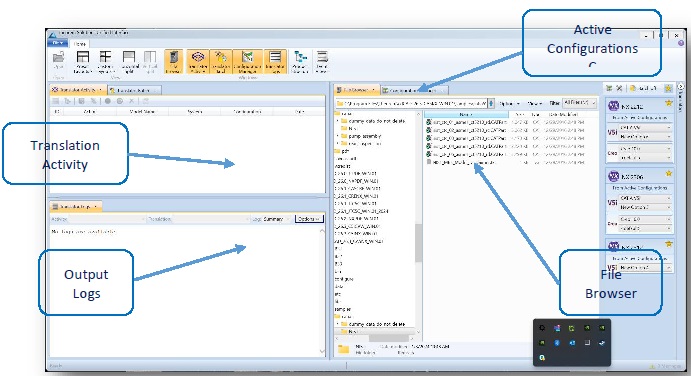
The default layout is split into 4 primary areas, which can be altered to the users prefer:
The simplest way to translate from CATIA V5 to NX is to drag a file from the file Browser Pane on to the Active Configurations for the translation you require.
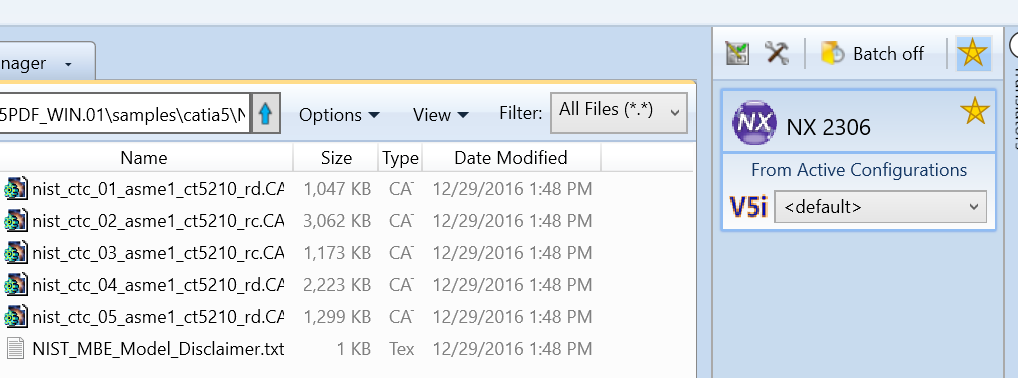
On completion, the Unified Interface will display the activity information and details from the log file created during the translation, if requested, in the Translation Activity and Output Log panes, respectively.
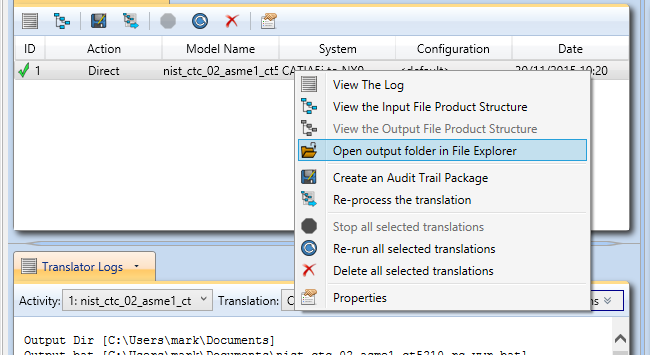
The generated output data can be located by selecting the translation from the Activity pane and opening the output folder:
Default Translation – via the Command Line
Running a translation via the command line can be carried out via the cad_run.cmd file located in the
<installation_directory>\bin directory. The format of the command is as follows when translating from CATIA
V5 to NX:
<Translator_installation_directory>\bin\cad_run.cmd Catia5i_NX[XX] -i <input_file> -o <output_file>
(Note! Replace the [XX] seen in the example with the version of NX you are using. E.g. for NX 1953 change to NX1953):

The example above will translate a CATIA V5 sample file provided within the installation and produce the following screen output:
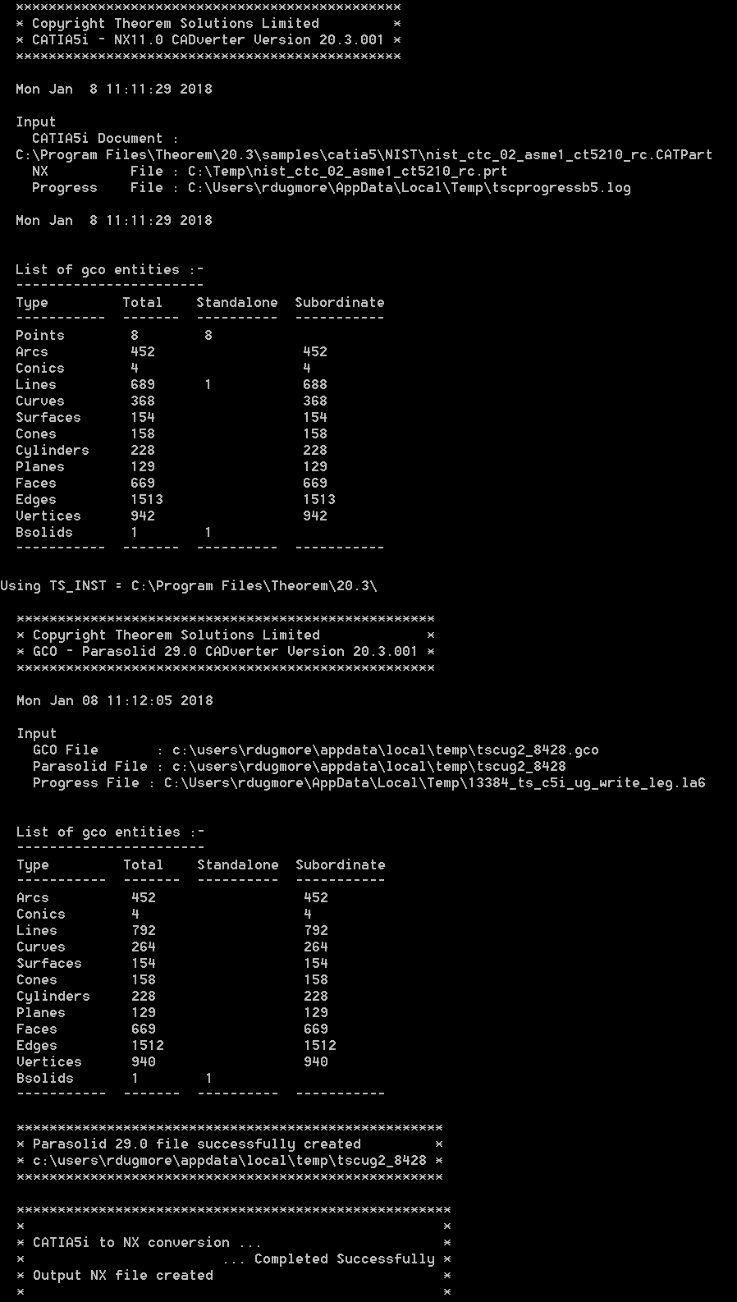
The file will be output to the target location. C:\temp\sample_output.prt
Translator Customization
The Theorem translator allows the information that is read from the source system and written to the target system to be tailored via a set of user specified arguments. Commonly used arguments are supported via the Unified Interface, with Advanced Arguments being described within this document for use in the Unified Interface or via the Command Line invocation.
Common Options for CATIA V5i to NX
Within the Configuration Manager pane of the Unified Interface, arguments that can be specified when publishing CATIA V5 data into NX are grouped into the following areas:
CATIA V5i Read – Those arguments that affect how data is read from CATIA V5
NX Write – Those arguments that affect how the data is written to NX
3DPDF Write – Those arguments that affect how the data is written to 3DPDF
Masking – Additional Read/Write options to limit the types of data translated e.g. Solids Only
General – Those arguments that are common to ALL Publishing activities regardless of source data
CATIA V5i Read Arguments
The image below shows the CATIA V5I Read arguments that are available, with their default settings:
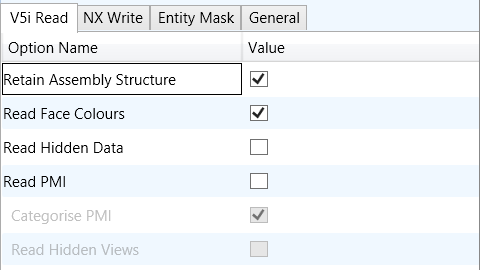
Each of these options is described below:
Option |
Description |
|---|---|
Retain Assembly Structure |
Retain the assembly structure. Default is ON. Command Line Syntax:
|
Read Face Colours |
Process face colours in preference to body colours. Default is ON Command Line Syntax:
|
Read Hidden Data |
Allow selective data types to be read regardless of hide/show state. Default is OFF. Command Line Syntax:
|
Read PMI |
Reads any PMI data available in the V5 file(s) |
Categorise PMI |
Categorise the PMI by its type (Notes, Datum, GDT etc. |
Read Hidden Views |
Reads any Views that are hidden |
NX Write Arguments
The image below shows the NX Write arguments that are available, with their default settings:
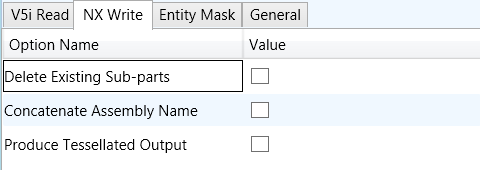
Each of these options is described below:
Option |
Description |
|---|---|
Delete Existing Sub-parts |
Delete existing sub-parts. Default is OFF. Command Line Syntax:
|
Concatenate Assembly Name |
Concatenates assembly name. Default is OFF. Command Line Syntax:
|
Produce Tessellated Output |
Create a tessellated JT file instead of an NX file. Default is OFF. Command Line Syntax:
|
CATIA V5i to NX Entity Mask Arguments
The image below shows the CATIA V5i to NX Entity Mask arguments that are available, with their default settings:
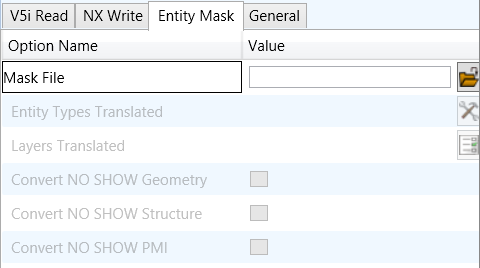
Each of these options is described below:
Option |
Description |
|---|---|
Mask File |
Specifies the Mask File to be written to, that can be referenced by future translations. A Mask file MUST be specified if masking is required. The first line in this file is OFF ALL ENT: Command Line Syntax:
|
Entity Types Translated |
Specifies a selection list from which to select which entity types are to be processed. The following types are available: “SOL” - Masks any 3D entity “SKIN” - Masks any 2D entity “CUR” - Masks any 1D entity “POI” - Masks any 0D entity “AXIS” - Masks Axis Systems “ISOL” - Masks Isolated facetted solids “CCRV” - If on creates a CCRV curve for wire frame edges that have more than one supporting curve “TEXT” - Masks PMI Text Command Line Syntax:
|
Layers Translated |
Specifies a selection list from which to select which layers are to be processed. Command Line Syntax:
|
Convert No Show Geometry |
Enables Hidden geometry to be processed (Default = Off) Command Line Syntax:
|
Convert No Show Structure |
Enables Hidden Assembly Structure to be processed (Default = Off) Command Line Syntax:
|
Convert No Show AXIS |
Enables Hidden Axis Systems to be processed (Default = Off) Command Line Syntax:
|
CATIA V5i to NX General Arguments
The image below shows the General arguments that are available, with their default settings:
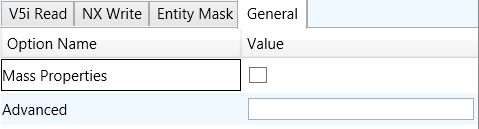
Each of these options is described below:
Option |
Description |
|---|---|
Mass Properties |
CATIA V5 mass properties (volume/area CofG) are read and any applied materials, using this option, in cases where a part has multiple solids, volume and area values are summed, but CofG data is invalid. Command Line Syntax:
|
Advanced |
Allows any of the Command Line Advanced arguments documented to be passed to the Unified Interface invocation. |
Command Line Advanced Arguments
Any of the Advanced arguments can be added to the Command Line Invocation or to the General->Advanced field when run from within the User Interface.
CATIA V5i to NX Advanced Arguments
Option |
Description |
|---|---|
Simplify Curves |
Convert NURBS curves to conics. Default is OFF. Command Line Syntax:
|
Convert Curves to NURBS |
Convert curves to NURBS. Default is OFF. Command Line Syntax:
|
Conversion Tolerance |
A secondary argument to ‘Convert Curves’ defining the conversion tolerance. Default is 0.00001 Command Line Syntax:
|
Convert Surfaces to NURBS |
Process data (read) types as NURBS. Data type is selected from options. Default is Fillets. Command Line Syntax:
|
Convert Torus to NURBS |
Even when data is read as NURBS data, the Torus types are converted to NURBS by default, this can be disabled using the command line Command Line Syntax:
|
Conversion Tolerance |
A secondary option to ‘Convert Surfaces to NURBS’. Defines the conversion tolerance. Default is 0.00001. Command Line Syntax:
|
Trim Face Surfaces |
Trims face surfaces. Default is ON. Command Line Syntax:
|
Process Large Faces |
Enable reading of faces larger than 1km. Default is OFF. Command Line Syntax:
|
UDF Axis Systems |
Enable reading of User Defined Axis systems. Default is OFF. Command Line Syntax:
|
Graphical Read |
By default the BREP data will be read. It is possible to read the CATIA V5 data as a graphical representation using this option Command Line Syntax:
|
Filter Geometry |
It is possible to filter large planes (construction planes) larger than a given size using (default being 1000 meters) Command Line Syntax:
There is a special case for PLANES (typically construction planes) which by default are not read, these can be enabled using Command Line Syntax:
|
NX to CATIA V5i Advanced Arguments
Advanced Option |
Description |
|---|---|
Small Curves |
Report Small curves as errors. (default OFF) Command Line Syntax:
|
Extend Nurb Surfaces |
Extends NURBS surfaces beyond face limits for curve projection (default state) Command Line Syntax:
|
Remove Groups |
Remove Group entities into assembly structure. (default OFF) Command Line Syntax:
|
Use Ref Name |
Uses file name from input system to name files (default OFF) Command Line Syntax:
|