Composites User Guide
Latest Release: Version V28.0
Overview
Module
The CATIA V5 Composites Engineering application is used to create detailed component definitions for parts that are manufactured from composite materials. These component definitions comprise of a combination of 3D geometry and additional composite manufacturing parameters.
The Visualize 3D CATIA V5 – JT Composites Add-on license module (product code CA5JT-A8) enhances the base CATIA V5 to JT translator to output the composite geometry and manufacturing parameters for review within the JT visualization application.
Primary Product Features
Converts all CATIA V5 Composite Engineering geometry and manufacturing parameters
Integrated with the CATIA V5 installation.
The conversion process can be run Interactively, Batch Mode or using the new Unified Interface
Command line interface allows process integration into any workflow or automated process.
Created using the Dassault Systems CATIA V5 CAA and Siemens JT Open API’s to read and write the respective data formats.
The JT output data is fully configurable using standard JT Configuration file settings
Primary Product Benefits
Being a direct database converter all pre and post processing is eliminated, saving time.
Reduce costs due to processing time and increase overall conversion success levels by filtering input data and focusing the conversion to only those elements required.
Reduce costs and risks associated to accessing the wrong version of data by integrating the conversion process into a related business processes.
With over 25 years of industrial use Theorem translation products robustness and quality is well proven, reducing your business risk.
Getting Started
Software Installation and License Requirements
The Theorem software installation and license configuration processes are fully defined in separate documents. Please refer to the documentation and on-line videos from the documentation website for complete installation instructions of the Theorem components.
The Composite Add-on module is also integrated with CATIA V5. Therefore, not only is a Theorem CATIA V5 – JT Composites Add-on module license required but also a CATIA V5 Composite Engineering license also needs to be available when reading the Composites data.
Software Configuration
With the CATIA V5 – JT software and license installed the final step in the configuration process is to enable the features of the Composite Add-on module. This is achieved by running the MDB Extensions script in the installation folder. This script should be run by a user with Administrator access rights.
The script is named %TS_INST%\bin\install_v5rXX_mbd_extension.cmd replacing the
characters XX with the version number related to the CATIA V5 release required. E.g. for
CATIA V5-6R2016 (V5R26) replace the characters XX with 26
i.e.
%TS_INST%\bin\install_v5r26_mbd_extension.cmd
Starting the CATIA V5 to JT Process
Once configured and licensed, the product will be ready to be used.
Prior to initially using the translator CATIA V5 must have been launched at least once to allow the selection of the CATIA V5 licenses to be recorded in the users CATSettings folder. Once the CATSettings are generated the translator will be able to be executed either internally or externally to CATIA V5 until the CATSettings are removed. Therefore if you operate a procedure that programmatically generates the users CATSettings this requirement to maintain a reference to existing CATSettings must be considered when using the product in batch mode external to the CATIA V5 application.
Methods of Invoking the Translator
The Visualize 3D CATIA V5 to JT translator can be invoked in a variety of methods, these include:
Interactively from within CATIA V5 using standard CATIA V5 menu options File>Theorem Export
From the Theorem Graphical User Interface (GUI)
From a command prompt window using the command line. This mechanism can be used to automate the translation process as part of any automated workflow.
Setting the Composites Output Option
The default CATIA V5 to JT translator will ignore the exporting of CATIA V5 Composite
parameters resulting in the JT file simply containing the CATIA V5 composite geometry.
However, to invoke the processing of Composite data it is necessary to add the command
read_composites to the translation process. This can be achieved by a variety of different
methods that all depend upon the users’ preference for running the translator.
Using the Command Line Option
When running the translator from the command line simply add the optional argument
read_composites to the end of the options to process the composites data. Therefore, using
the standard command line interface %TS_INST%\bin\cad_run_UI.cmd
e.g.
..\cad_run_UI.cmd CATIA526_JT -i <catia_filename> -o <jt_filename> read_composites
When using the command line mechanism, the translation process can be integrated into any automated workflow. Such as an automated process linked to a data management process whereby all CATIA V5 data is processed during the life cycle updates of components. Therefore, ensuring that all data is processed consistently without having to ensure users perform the update manually.
Using JT Configuration Files
The JT Configuration file is used to control various options related to either the reading of the CATIA V5 data or the writing of the JT output. As such it can manage which elements from the CATIA V5 data need to be processed as well as controlling the specific nature of the JT data that is written as well as the format it is written in.
To ensure that CATIA V5 Composite data is automatically processed you can add the
read_composites option as a Configuration file AdvancedOptions setting. This edit can
either be added to the default CATIA V5 to JT configuration file which is stored in the
software installation, %TS_INST%\etc\tessCATIA5.config. Alternatively, add the setting to a
new configuration file and use it only when processing CATIA V5 Composite models.

Using a JT Configuration file can ensure that casual users use the correct translator options without having to ensure they use the options correctly. This can aid with ensuring the JT output is created consistently by all users.
Using CATIA V5 to JT CADverter Configuration Options
The CADverter User Interface allows the user to define specific translator Configurations. These Configurations retain the user selected options and can then be used to control a translation process when it is invoked from either the command line, from within the CATIA V5 Theorem Export menu or the CADverter User Interface itself.
To add the read_composites option to a CATIA V5 to JT CADverter Configuration simply
select the General tab from the Configuration Manager page of the required CATIA V5 to JT
translator and add read_composites to the Advanced options dialog.
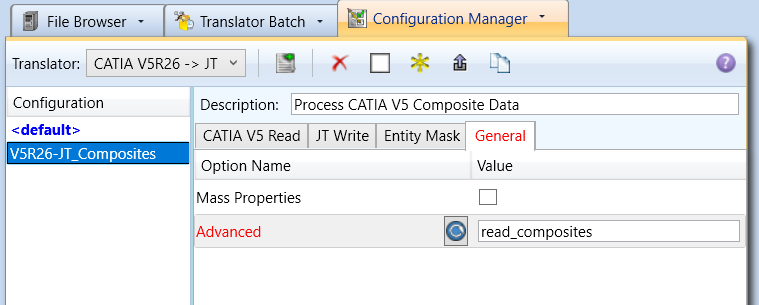
Then process the input CATIA V5 data using the selected CADverter Configuration to invoke the composite processing during the translation.
Interactive Usage within CATIA V5
Starting CATIA V5
To use the CATIA V5 to JT translator interactively from within the CATIA application, you must start CATIA V5 with the correct CATEnv environment settings.
A default CATEnv file is created in the standard CATIA V5 CATEnv file with the name
TheoremCatia5Rxx.txt – replace the characters xx with the reference number for the specific
CATIA V5 release that is being used e.g. for CATIA V5-6R2016 (V5R26) the filename is
TheoremCatia5R26.txt.
There is also a CATIA V5 start-up script provided in the software installation folder. The script
is named catia5rxx_start.cmd and starts the CATIA V5 application referencing the
appropriate CATEnv file. Replace the characters xx with the reference number for the specific
CATIA V5 release that is being used e.g. for CATIA V5-6R2016 (V5R26) the filename is
catia5r26_start.cmd.
Alternatively, to add the paths to the Theorem installation into another CATEnv file refer to
the Dassault documentation for using the standard CATIA V5 command setcatenv.exe which
will merge the Theorem settings with CATIA and other third-party applications into a unique
CATenv file of your choice.
Using the “Theorem Export” Menu
The CATIA V5 to JT translator can be invoked from within the CATIA V5 menus by using the File>Theorem Export menu selection.
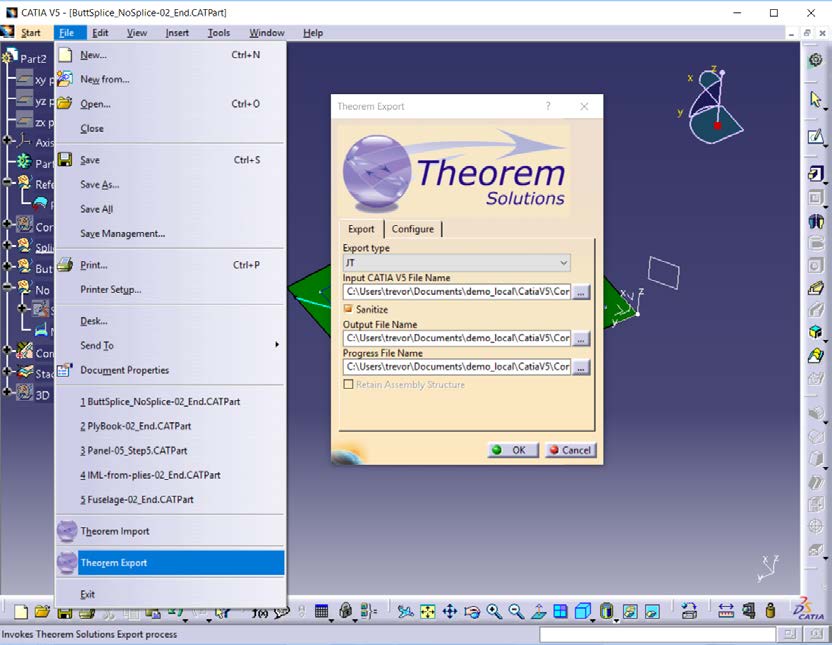
Using the Export tab of the Theorem Export menu allows the user to export the active CATIA data writing the output to the JT file format. By default, the output file will be written to the same folder that the original CATIA data was opened from. The resultant JT filename will mimic the name of the CATIA input data with the file extension being set to “.jt”. However, the user can override this selection and direct the output to be written to a folder of their choice using an alternate filename for both the JT file and the translator progress file which contains a complete audit trail of the translation process.
The Configuration tab allows the user to select a pre-defined CADverter User Interface Configuration to be used during the translation.
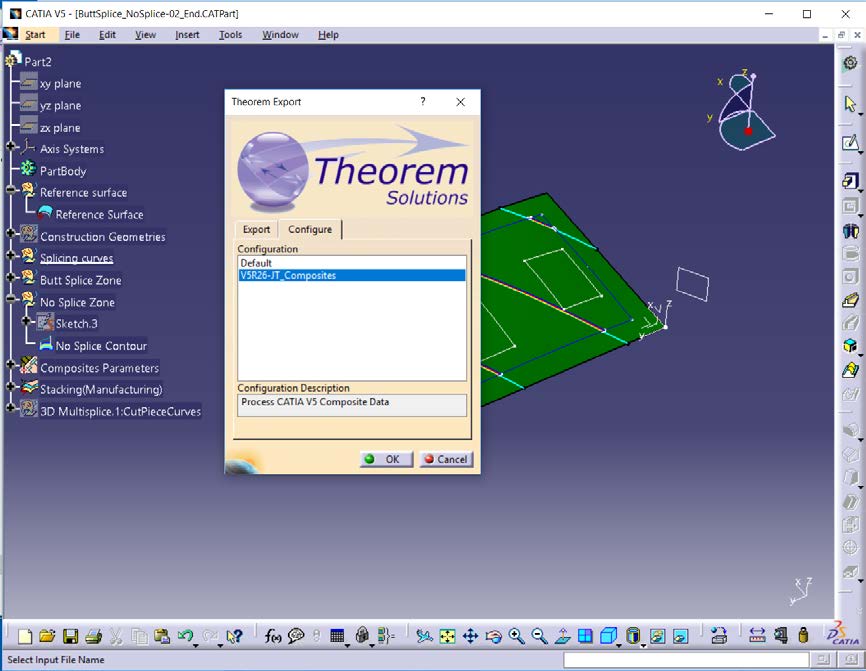
The predefined CADverter User Interface Configurations are automatically available when using the Theorem Export CATIA V5 menu option.
Working with the JT Output
The JT files are written using the JT SUBNODE property construct. This allows the CATIA V5 Specification Tree for the Composite model to be navigated by the JT user. It also allows the JT user to navigate the various sub-elements of the overall CATIA V5 model and query the appropriate CATIA V5 Composite manufacturing properties.
When using the Siemens Teamcenter visualization application (VisMockup) to open the JT file the initial view shows the complete model in the assembly tree. With the mouse pointer positioned in the Assembly Tree window use the right mouse button and select the option Show Leaf Structure. You will then be able to navigate around the sub-elements of the overall component in a similar manner to navigating the data in CATIA using the Specification Tree. For a selected element of the tree you can also review the associated properties which have been output as part of the translation process.
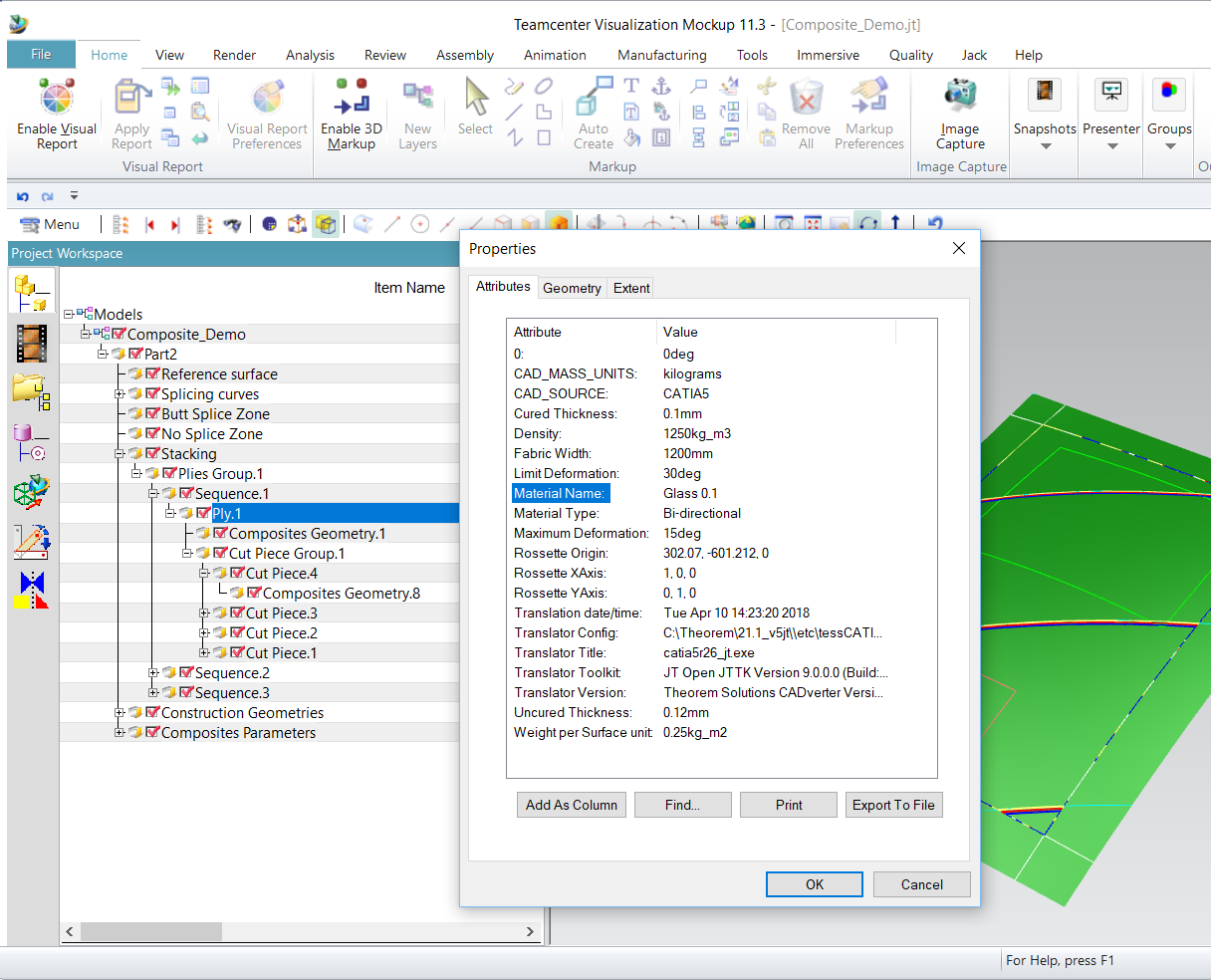
This picture shows the CATIA V5 data having been processed to JT. The composite manufacturing properties for one of the plies is being reviewed.