Install Guide
Latest Release: Version 29.1
Installation and Configuration Guide
Read Me First
If you have installed a version of SpinFire Convert software previously at R20.X using the msi installer, then it is best to completely uninstall this product from Control Panel > Programs and Features. This will ensure a clean installation.
Before an installation please ensure that you have backed up any existing configuration files.
Installation
From R20 the installation process is run from the .msi which can be downloaded. Please double click this file to begin the process after download.
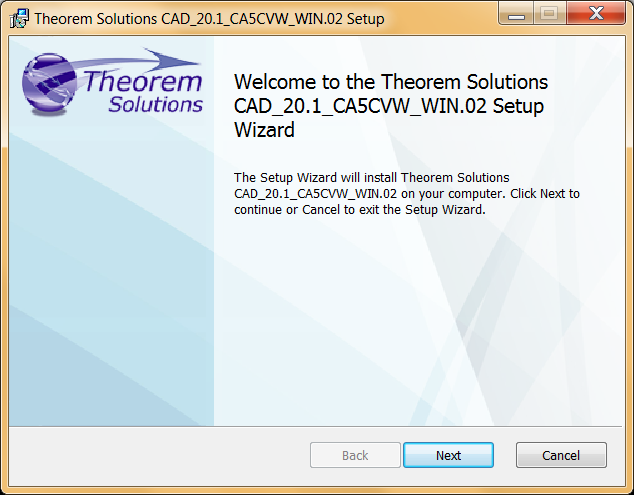
Once started, the SpinFire Convert installation will confirm the software to be installed. Please select ‘Next’.
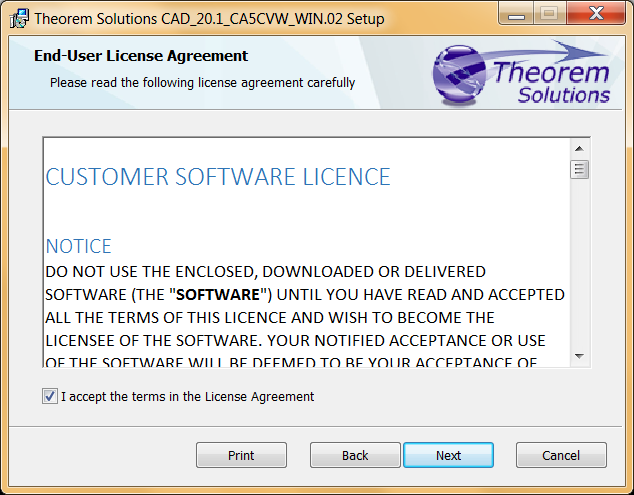
This will be followed by the License Agreement. Please read the agreement carefully, check the ‘I accept…’ box and then select ‘Next’.
The next step is to declare who the software is to be installed for. There are two possibilities here, the default option is to install for all users or to install for just the user running the installation.
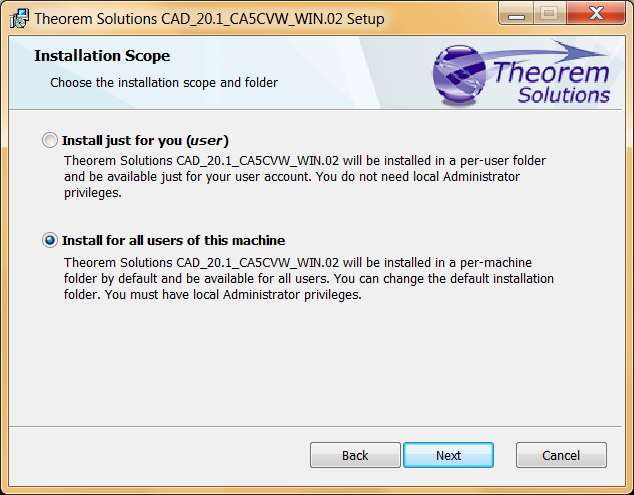
If the option ‘Install just for you (user)’ is selected then by default the software will set the install into your local user %TEMP% directory.
If the option ‘Install for all users of this machine’ is selected then by default the software will set the install into C:Program FilesTheorem v20.0
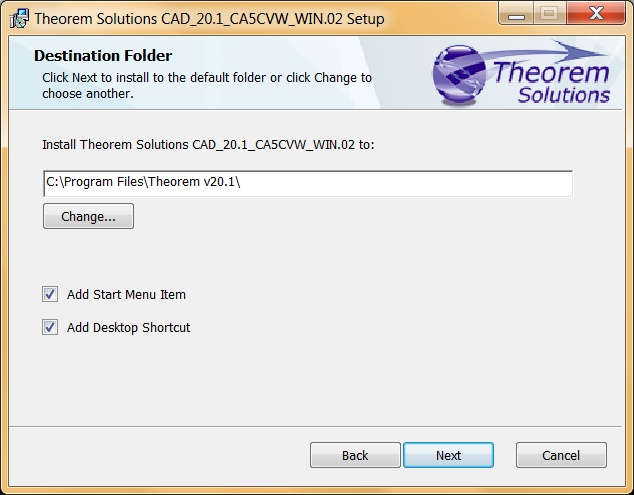
In either case the installation directory can be changed by pressing the ‘Change…’ button and selecting a new directory.
There are also options to create Start Menu items and Desktop items from both of these pages. These are set to be created by default however simply deselect the options based on your requirement.
Once the installation directory has been set then the translators to be installed must be selected.
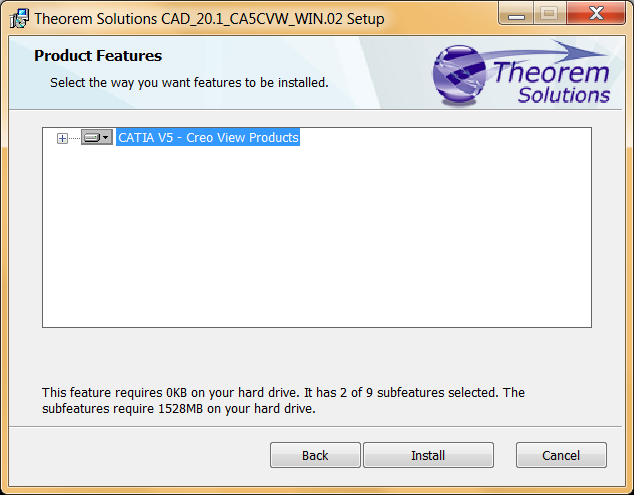
If there are some extended options available then a + symbol will be available next to the product group. To view the available options select this symbol and a list of options are presented.
By default, all of the CATIA V5 versions installed on the machine will be checked for installation. To change this, choose the relevant option for your requirements.
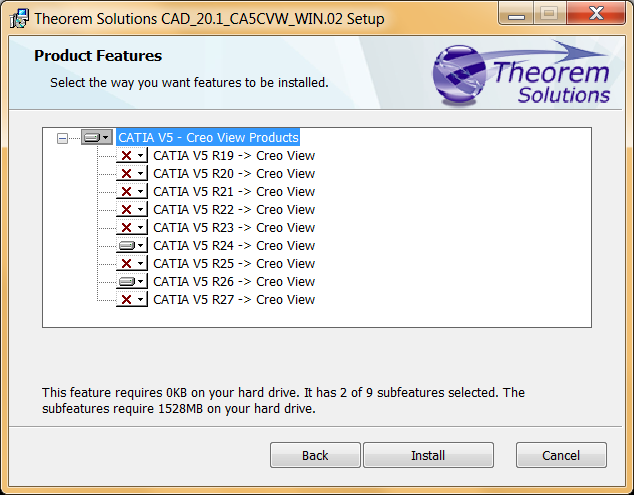
There can be different product features available, some are whole product features and others can be configured with extended options to the user’s requirement based on any existing CAD installations that are detected.
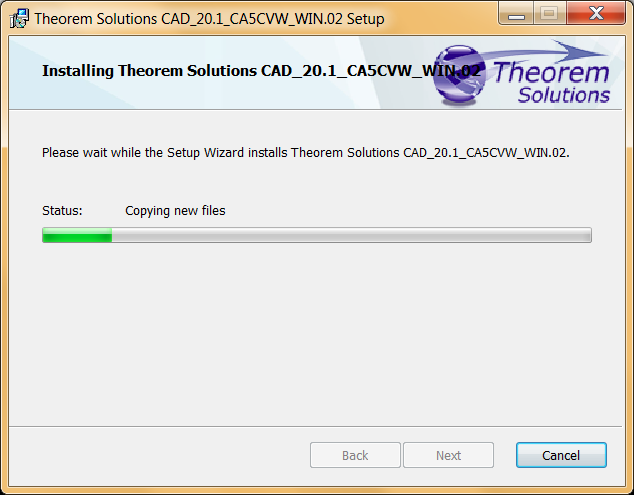
Once complete, select ‘Install’ to begin the installation.
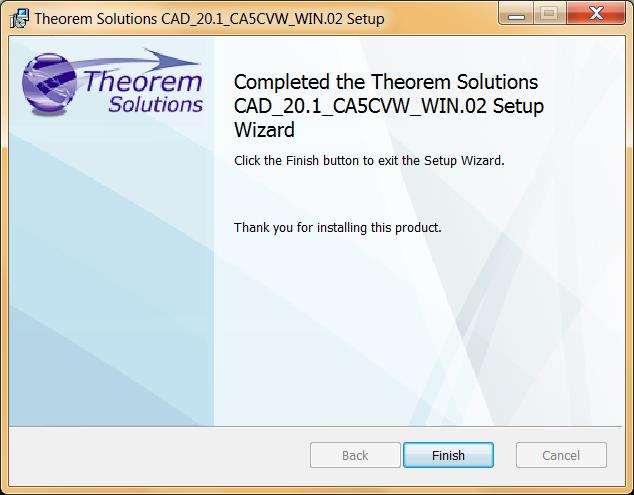
When the product installation has finished, this window is presented. Please press ‘Finish’.
Product Configuration
After the product installation has completed the Theorem installation must be configured. After the ‘Finish’ button is selected the Product Configuration window is launched.
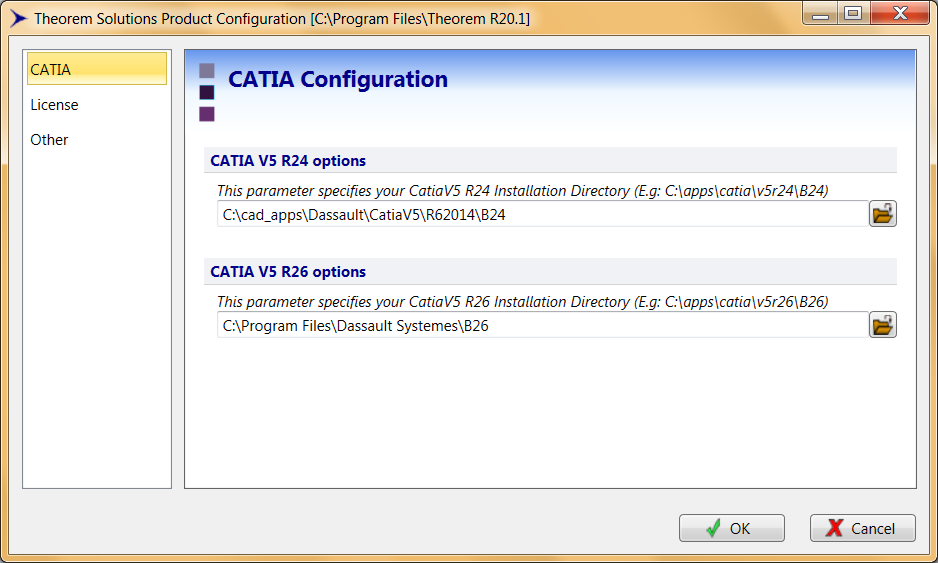
This window allows you to configure the installation directories of your CATIA V5 installation(s), provide the license details and also provide any additional settings that may be required.
To select a configuration option, choose from the panel on the left hand side of the window.
The CATIA panel will display all of the CATIA V5 installation directories for the products installed in the previous steps. This will be pre-populated with an installation path detected on the PC, however, if this is incorrect please use the Folder button to the right hand side and select the correct installation path. If you have other remote CATIA installations you will also need to browse to select the path.
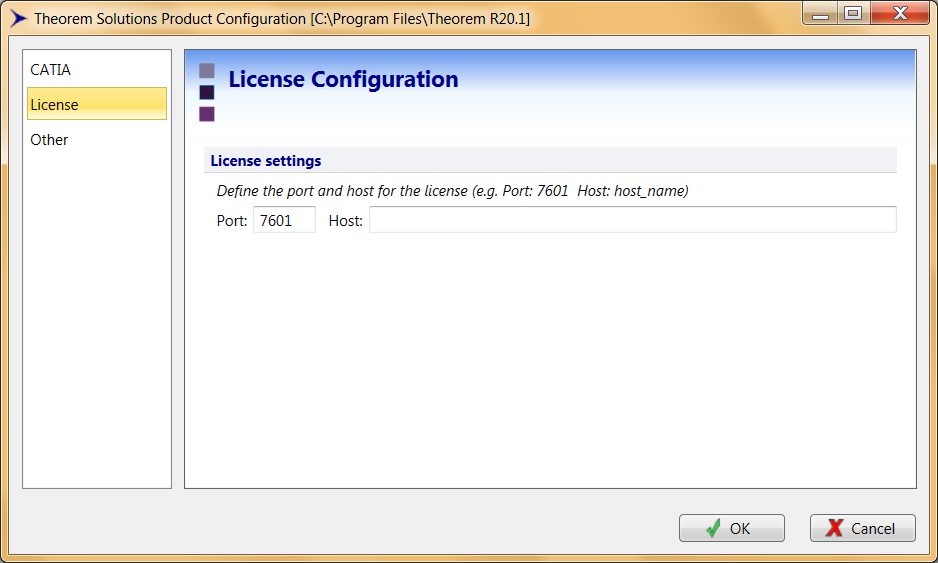
The ‘License’ panel allows you to set your license server information so that the translator can detect the correct license. The port will be pre-populated with the default port number of 7601. Please add in the Host ID of your license server.
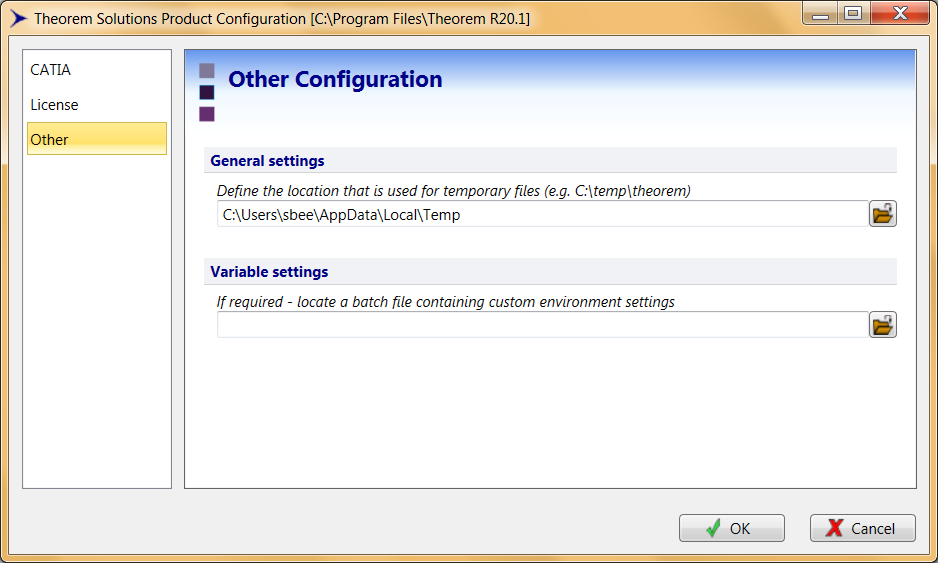
The ‘Other’ panel allows you to define a location used for temporary files and to include any variables that may be required.
To change the location used for temporary files, use the folder button to the right hand side and select a new directory.
The Variable settings are for advanced users only and should only be used under instruction from Theorem Support.
If, at any time, these settings need to be adjusted the Product Configuration window can be accessed from the Start menu.