Install Guide
Latest Release: Version V27.3
Installation and Configuration Guide
Installation
From Theorem v20 the installation process is run from the .msi which can be downloaded. Please double click this file to begin the process after downloading.
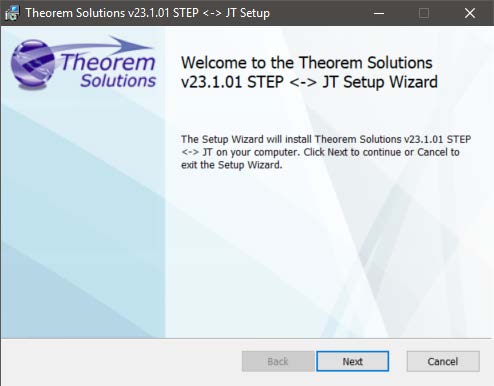
Once started, the Theorem installer will confirm the software to be installed. Please select ‘Next’.
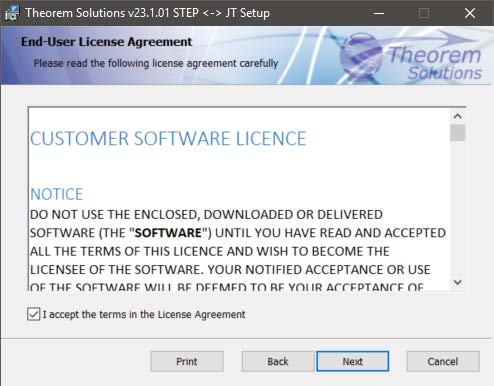
This will be followed by the License Agreement. Please read the agreement carefully, check the ‘I accept…’ box and then select ‘Next’.
The next step is to declare who the software is to be installed for. There are two possibilities here, the default option is to install for all users or to install for just the user running the installation.
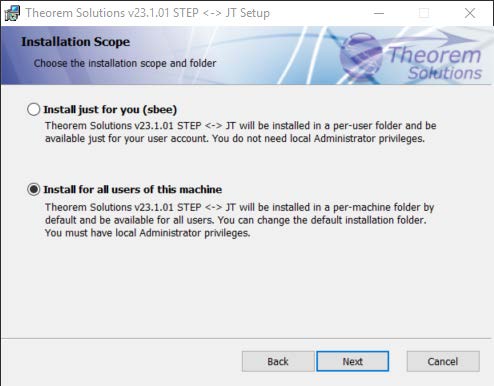
If the option ‘Install just for you (user)’ is selected then by default the software will set the install into your local user %TEMP% directory.
If the option ‘Install for all users of this machine’ is selected then by default the software will set the install into C:\Program Files\Theorem\23.1\
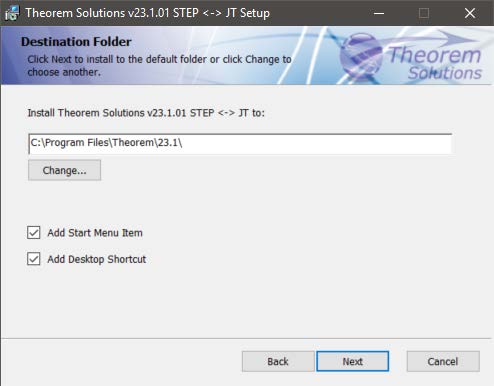
In either case the installation directory can be changed by pressing the ‘Change…’ button and selecting a new directory.
There are also options to create Start Menu items and Desktop items from this page. Simply check/uncheck the options based on your requirement.
Once the installation directory has been set then the options to be installed can be selected.
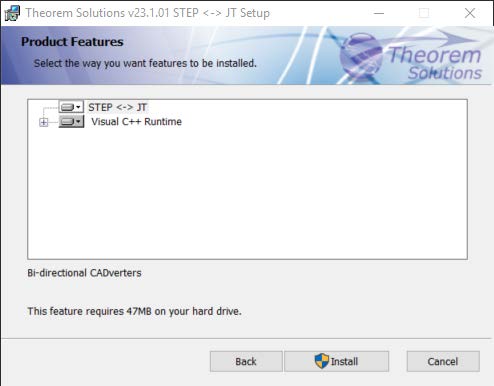
If there are some extended options available then a + symbol will be available next to the product group. To view the available options select this symbol and a list of options are presented.
By default, all of the Visual C++ versions are installed on the machine. To change this, check/uncheck the relevant option for your requirements.
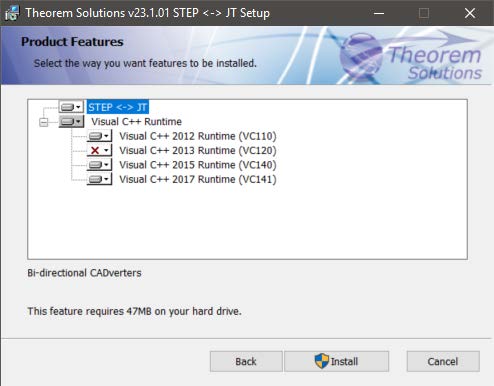
All of the redistributables are also copied into a folder called vcredist in your product installation. This allows you to install at another.
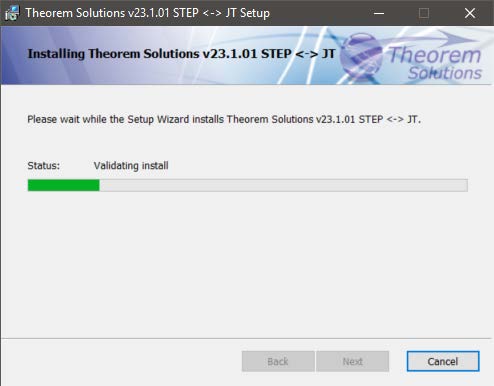
Once complete, select ‘Install’ to begin the installation.
Product Configuration
After the product installation section has completed the Theorem installation must be configured.
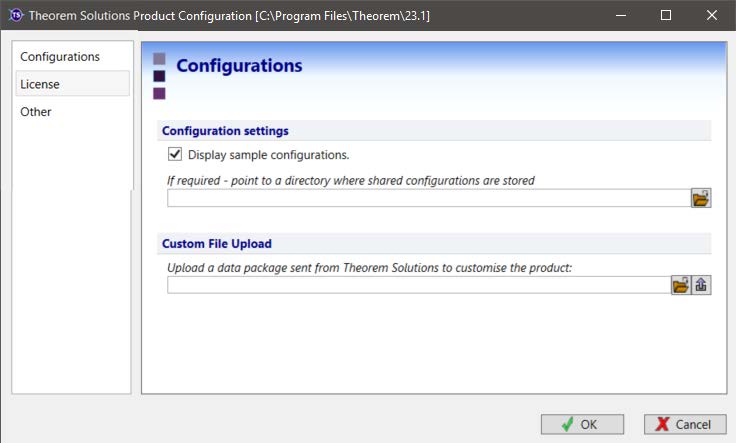
‘Configurations’ are instructions regarding how a translation is to be carried out. These are created by the Theorem UI.
‘Display sample configurations’ allows the UI user to see the samples provided by Theorem.
If you want to implement shared configurations for your company, the path to this folder can set.
When working with Theorem Support it is possible to import a TDP to add specific configurations this can be done at this stage or at any other time by starting the Configuration Manager. Se section Product Reconfiguration
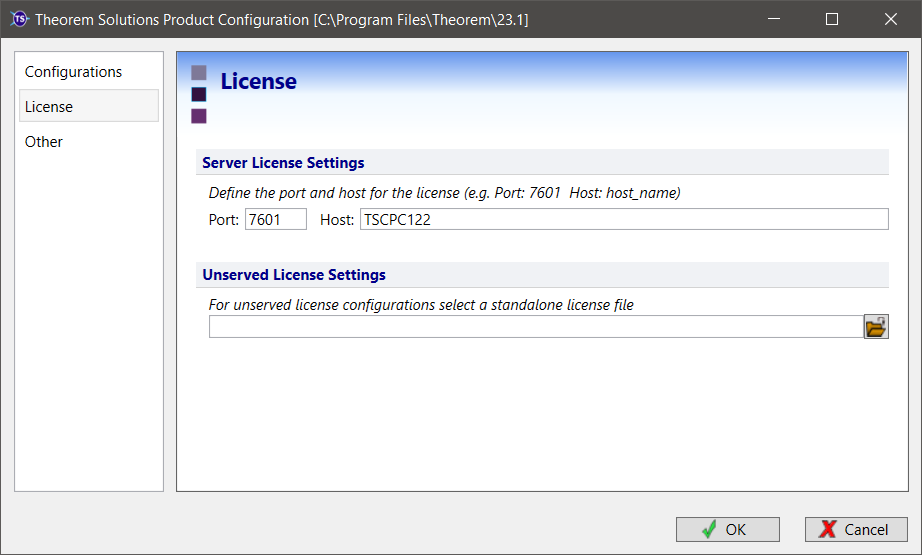
The ‘License’ panel allows you to set your license server information so that the translator can detect the correct license. The port will be pre-populated with the default port number of 7601. Please add in the Host ID of your license server.
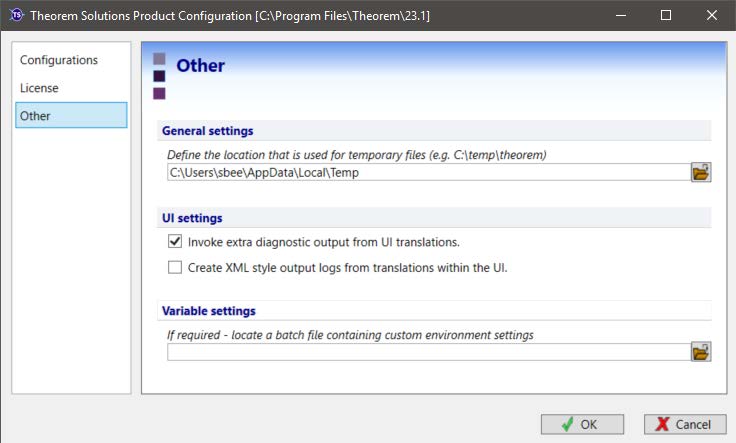
The ‘Other’ panel allows you to define a location used for temporary file and to include any variables that may be required.
To change the location used for temporary files, use the folder button to the right hand side and select a new directory.
UI settings allow Extra Diagnostics to be written to the log file.
It is also possible
The Variable settings are for advanced users only and should only be used under instruction from Theorem Support. If you need assistance with this please contact support@theorem.com
When your Configuration choices have been made please click ‘OK’
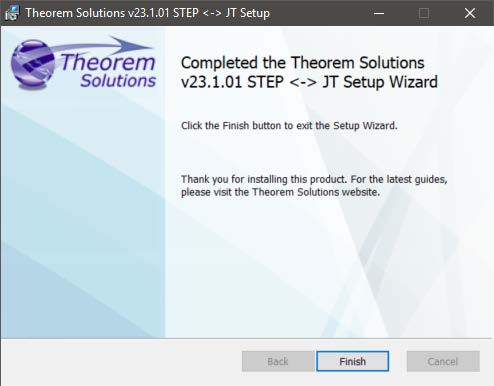
When the product installation has finished, this window is presented. Please press ‘Finish’.
Product Reconfiguration
If, at any time, these settings need to be adjusted this Product Configuration utility can be accessed from the Start menu or from your installation
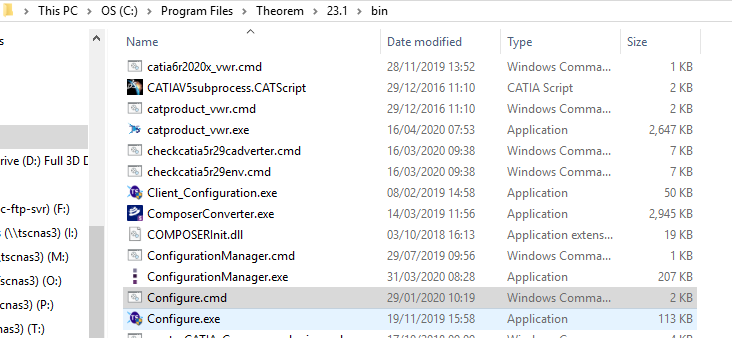
C:\Program Files\Theorem\23.1\bin\