User Guide
Using the Product
Running the Product
Once configured and licensed, the product is ready to be run.
Interactively from within Catia Composer
The Interactive Interface provides a direct method of Translating JT data into Catia Composer.
For a full guide to this process, please see our “Catia Composer Interactive” demonstration video located here.
Batch via Catia Composer Sync
The Catia Composer Sync Interface offers a Desktop Environment that allows the batch processing of multiple JT files into Catia Composer
For a full guide to this process, see the Catia Composer Command Line (Sync)” demonstration video located here.
This product requires an additional license
Via the Catia Composer Sync Enterprise Command Line
The Command Line Interface provides a direct method of invoking the translator. It can be used via a DOS shell or called via a third party application as part of a wider process requirement.
For a full guide to this process, please see the Catia Composer Batch (Enterprise Sync)” demonstration video located here.
This product requires an additional license
Using the Catia Composer Product
Once the Theorem JT-Catia product has been installed, the options to select the “Jt Theorem (.jt) format and the “PLMXML Theorem (.plmxml)” format will be added to the “Open” “Files of type” list.
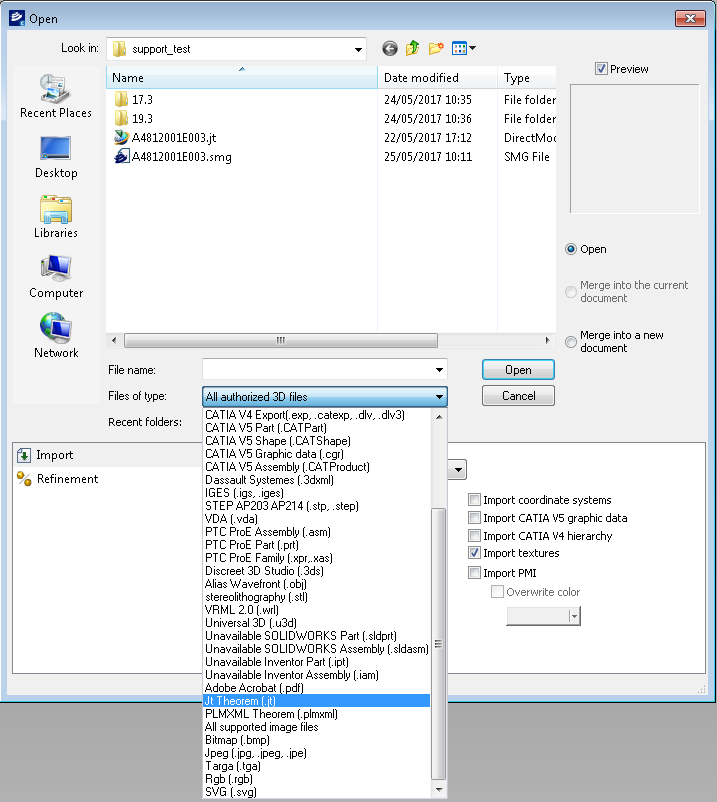
The file can be opened as a new document or can be merged into the current or a new document by selecting either “Open”, “Merge into the current document” or “Merge into a new document”.
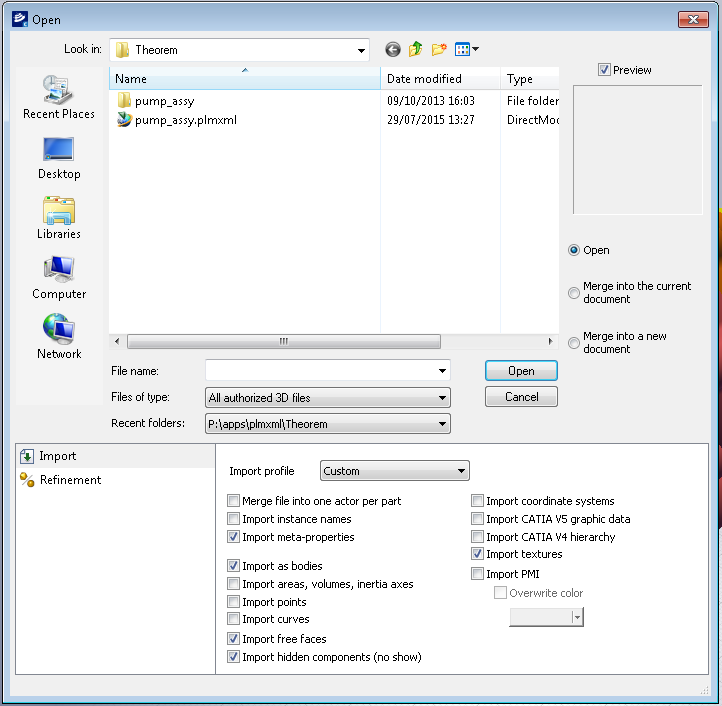
The import options at the bottom of the page will allow you to define how the JT data is opened, for instance the import of points, curves or pmi.
Using the Catia Composer Sync Product
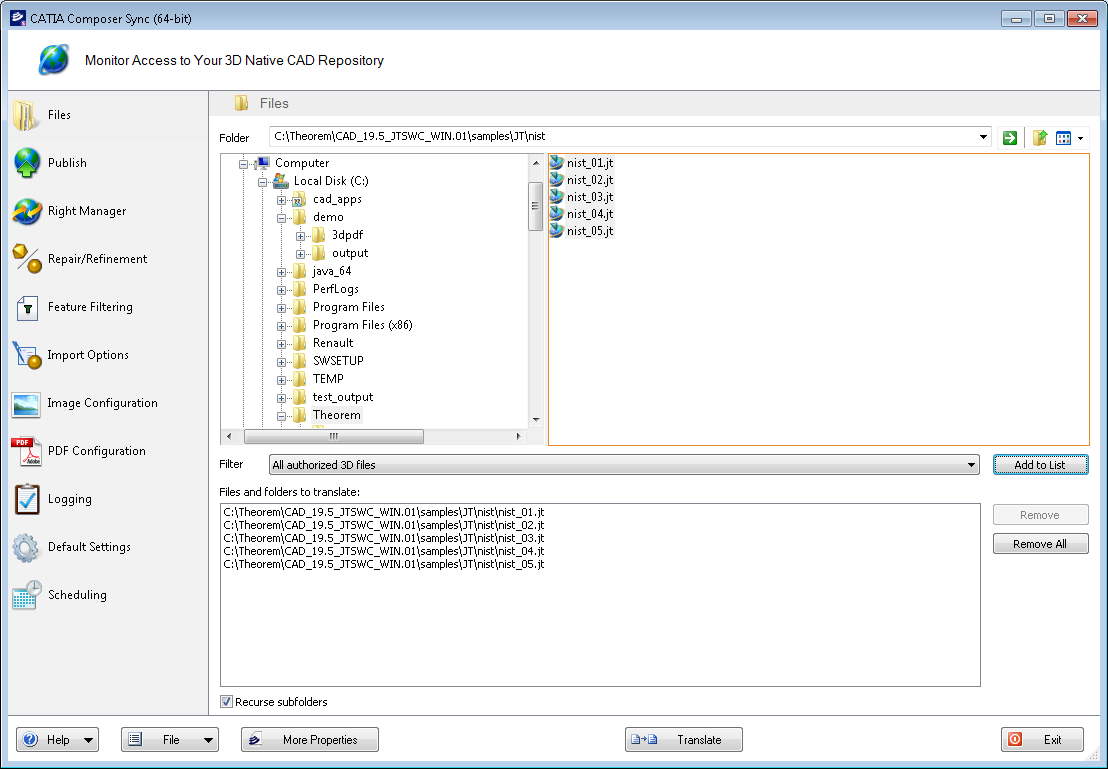
The Catia Composer Sync product allows you to create batch translations of multiple files. The batch files can be translated immediately (Translate) or can be saved as a Catia Composer Sync batch (.seeb) file to be executed later.
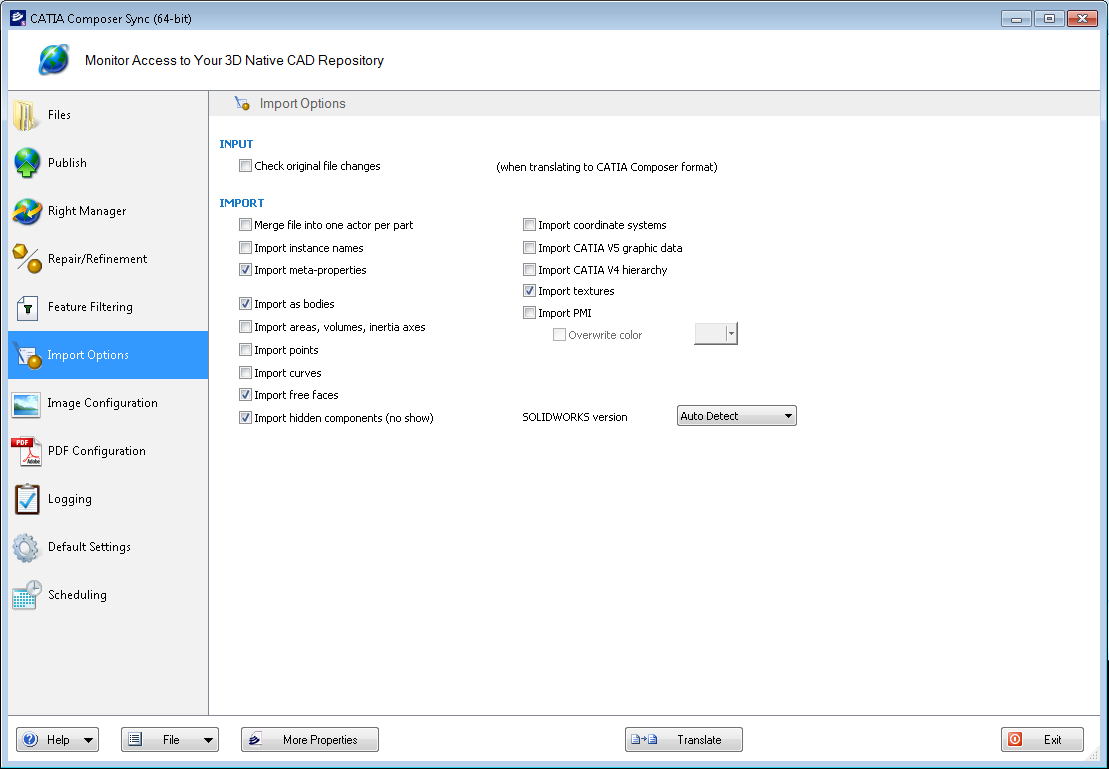
The “Import Options” are the same as the Catia Composer product.
Using the Catia Composer Enterprise Sync Product
This product allows the user to run the translator from the command line, thus enabling the translator to be incorporated into any other script or programme. The command line syntax is:-
%TS_INST%/bin/ComposerConverter.exe filename.jt
By default the output .smg file will have the same name as the jt file and will be created in the same directory.
Large Assembly Processing
Efficient Large Assembly Processing (LAP) is now afforded via the following scripts :
Run the following script to use the LAP process:
(For CATIA Composer or SolidWorks Composer to run)
%TS_INST%\bin\CATIA_Composer_lap.bat <JT or PLMXML assembly>